05 · WFH CS Pre-Employment Training Guide¶
Target Audience: WFH Customer Service Staff — New Hire Training + Daily Reference Content Source: cstraining.docx (CS Training Tutorial) · 02-WFH CS Workflow SOP · 03-WFH CS Management Rules · 06-Audit Team Lead Work Guide Author: Bob | Date: 2026-05-01 Status: First Draft, Continuously Updated
Reading Guide¶
This document is a hands-on training manual for WFH CS, arranged in learning order, with extensive system screenshots and real-world examples.
Recommended Learning Path:
| Time | Study Content | Corresponding Section |
|---|---|---|
| Day 1 | Group Communication, Platform Identification, Addressing Etiquette | I – IV |
| Day 2-3 | Salesmartly Operations, CRM Backend | V – VI |
| Day 4-7 | 11 Common Issue Types (Core) | VII |
| Ongoing | Attendance, Scheduling, Discipline, KPI | VIII – XI |
Relationship with Other Documents:
| Document | Purpose | Relation to This Doc |
|---|---|---|
| 02-WFH CS Workflow SOP | Standard Scripts + Detailed Procedures | Referenced here, not repeated in full |
| 03-WFH CS Management Rules | 15 Disciplines + Daily 10 Steps | Key points referenced here |
| 08-CS Script Library | Complete Quick Reply Templates | Common ones included here, full version in script library |
Table of Contents¶
- Part One: Onboarding Basics
- I. Work Groups & Communication Standards
- II. Platform Identification & Color Coding
- III. Addressing & Communication Etiquette
- Part Two: Tool Operations
- IV. Salesmartly Getting Started
- V. CRM Backend Quick Reference
- Part Three: Core Business
- VI. Common Issue Handling Manual (11 Types)
- Part Four: Work Standards
- VII. Attendance Check-in (DAKA) & Cloud Desktop (CR)
- VIII. Breaks & Scheduling
- IX. Shift Handover (STK)
- X. Work Discipline & KPI
- Appendix
Part One: Onboarding Basics¶
I. Work Groups & Communication Standards¶
📘 Source: cstraining.docx
WFH CS daily work involves 4 work groups, each with a clear purpose. Do not post in the wrong group.
1.1 Four Work Groups¶
| Group Name | Purpose | What to Post | What NOT to Post |
|---|---|---|---|
| IDR-MD-Bahas Kerja (Work Discussion Group) | Bonus Hunter Audit / Account Locking Issues | BH/BAT case discussions, account lock inquiries | Deposit/Withdrawal queries |
| IDR-MD-Utama CS (CS Work Group) | Password Change / PIN Reset | Password reset requests, PIN reset requests | Bonus Hunter audits |
| Cek DP/WD (WFH Transaction Check Group) | Deposit/Withdrawal Queries | Deposit not received, withdrawal issues | Password resets |
| STK/WFH (Attendance & Break Group) | Break Reports / Device Issues / Emergencies | Meal break reports, device failures, emergencies | Business queries |
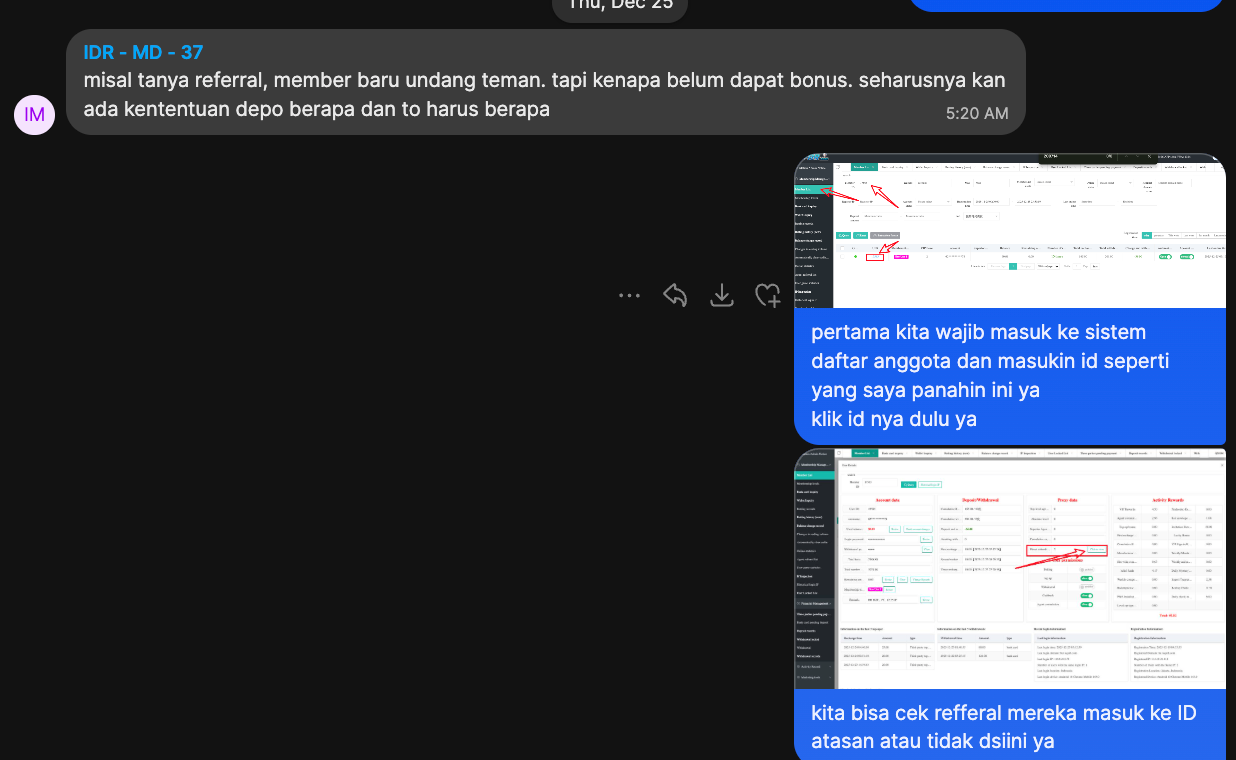

⚠️ STK/WFH group messages must be sent using your personal phone signal, not the office computer network (CR's network), because CR cannot receive messages after shutdown.
1.2 Standard Message Format for Group Posts¶
When reporting cases to groups, use a standardized format:
Password Reset / PIN Reset Requests (post to IDR-MD-Utama CS):
Situs : 7777W
ID    : 199762
Kendala : Lupa pin wd
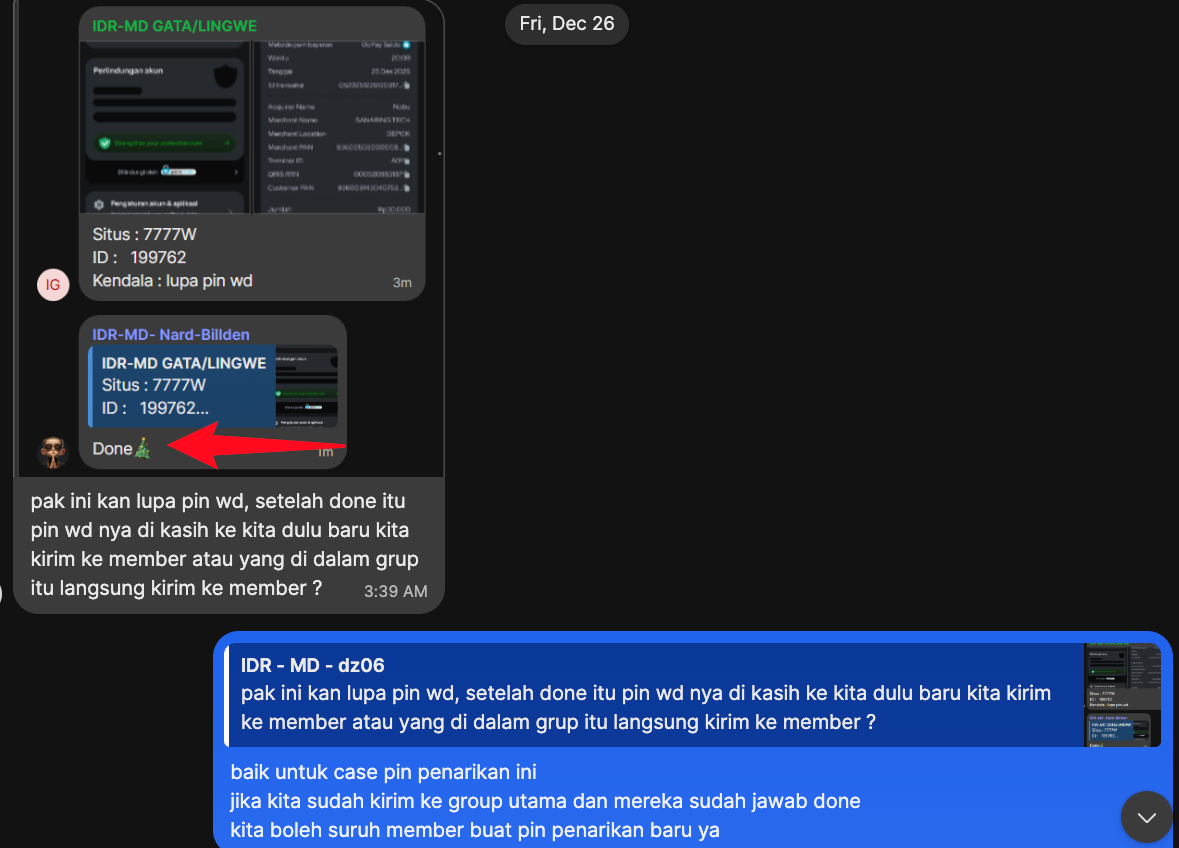
Deposit/Withdrawal Queries (post to Cek DP/WD):
Include when sending: Member ID + Platform Name + Screenshot Evidence
Team Lead/Supervisor Reply Example:
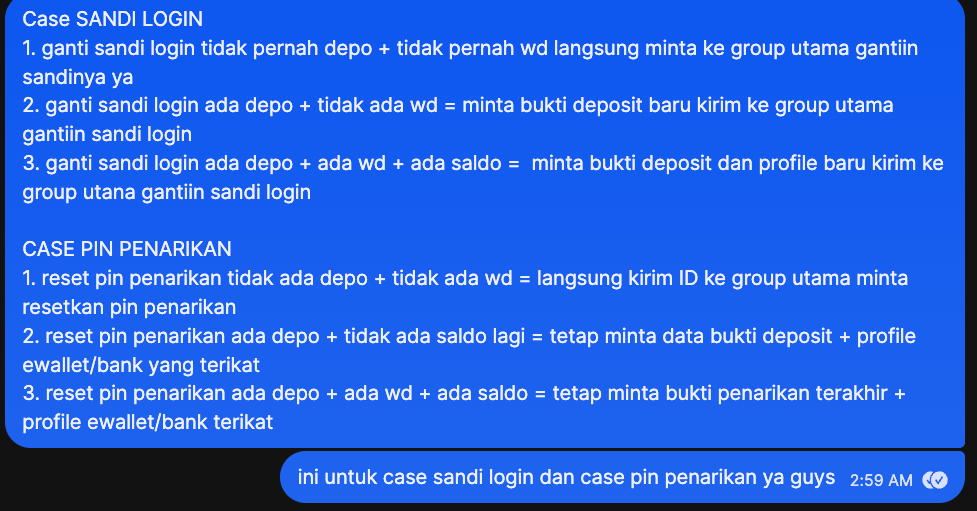
When the team lead replies in the group, the issue has been resolved. For PIN resets, the lead directly provides a random number password (e.g., 515641). CS then sends that password to the member and reminds them to change it immediately.
1.3 Keyword Standards for Group Requests¶
📘 Source: cstraining.docx
When posting to the main group, you must use the following standardized keywords. Do not create your own terms:
- Ganti sandi Login (Change login password)
- Reset Pin WD / Pin penarikan (Reset withdrawal PIN)
- Ganti Nomor rekening / norek (Change bank account number)
- Username (Username related)
- Buka kunci (Unlock account)
- Kendala (Other issues)
II. Platform Identification & Color Coding¶
📘 Source: cstraining.docx
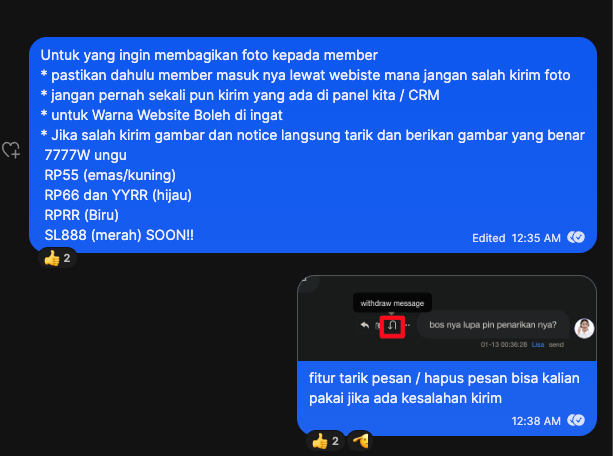
The company operates multiple platforms, each with its own brand color. When sending screenshots to members, you must use materials matching the corresponding platform color. Sending a screenshot from the wrong platform is a serious mistake.
2.1 Platform Color Reference Table¶
| Platform | Color | Indicator | Status |
|---|---|---|---|
| 7777W | Purple (Ungu) | 🟣 | Active |
| RP55 | Gold/Yellow (Emas/Kuning) | 🟡 | Active |
| RP66 | Green (Hijau) | 🟢 | Active |
| YYRR | Green (Hijau) | 🟢 | Active |
| RPRR | Blue (Biru) | 🔵 | Active |
| SL888 | Red (Merah) | 🔴 | Active |
⚠️ RP66 and YYRR are two different platforms but share the same green color. Pay attention to platform names when sending screenshots.
2.2 Platform Name Consistency Principle¶
📘 Source: 02-WFH CS Workflow SOP · Discipline Rule #12
If the platform name is ABC123, then the backend (CRM), CS line, gaming platform, and links will all use the same ABC123.
Practical Key Points: - When a member enters the CS line, the system displays which platform the member came from - Confirm the platform name first, then operate in the corresponding CRM backend - Never look up an RP66 member in the 7777W backend
2.3 Screenshot Asset Library¶
Supervisors have uploaded promotional materials for each platform to Google Drive, organized by platform folders:
- Promosi RPRR
- Promosi RP66.com
- Promosi RP55
- Promosi 7777w.com
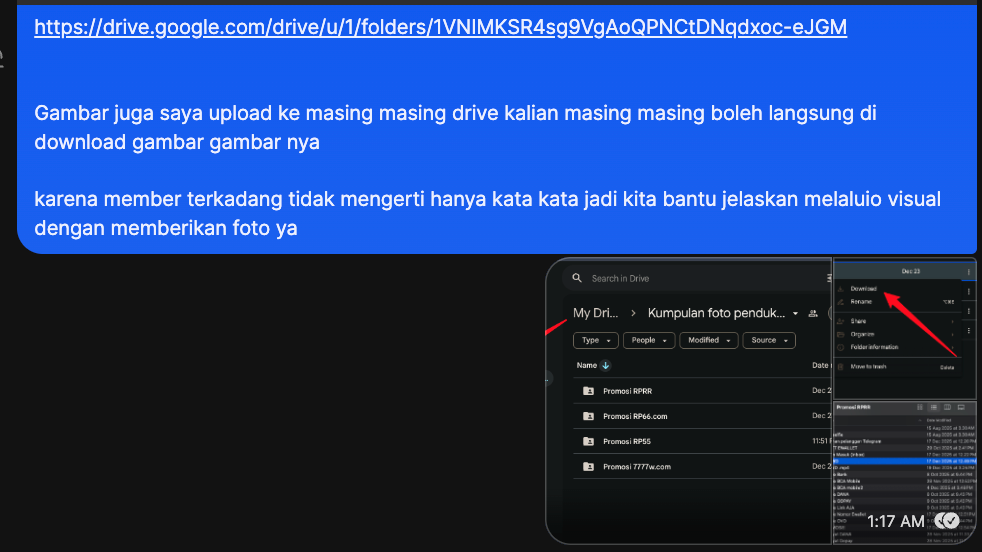
How to Use: Download images from the corresponding platform folder → Send as illustrative attachments when replying to members.
Members sometimes don't understand text alone. Using screenshots with arrow guides is more effective.
📘 Source: 02-SOP Discipline Rule #13 · Replies to members can be creative, ideally using screenshots + arrow guides
III. Addressing & Communication Etiquette¶
📘 Source: cstraining.docx
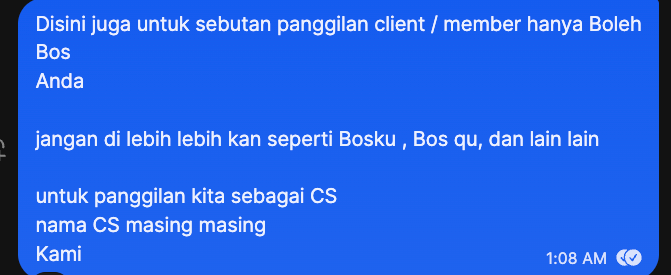
3.1 Addressing Standards¶
| Scenario | Allowed | Prohibited |
|---|---|---|
| Addressing Members | Bos, Anda | Bosku, Bos qu, and other variants |
| CS Self-Reference | Real Name (e.g., Kami), Kami | Saya, Gue, etc. |
3.2 Communication Principles¶
- Polite, patient, and professional — even if a member is rude, CS must remain professional
- Do not make promises casually — ask the team lead first about uncertain issues, don't give potentially incorrect answers
- Do not provide Demo accounts — the platform has no Demo accounts, members must deposit before playing

Standard Reply: Tidak ada akun Demo ya, jika ingin bermain harap lakukan deposit ya
(There is no Demo account; please make a deposit if you want to play)
3.3 Security Rules for Sending Screenshots to Members¶
📘 Source: 02-SOP Discipline Rules #4, #5
| Rule | Violation Consequence |
|---|---|
| Backend (CRM) content is prohibited from being screenshotted to members | 1st warning → 2nd fine $20 → 3rd fine $50 → 4th termination |
| If backend info needs to be shown to members, only copy-paste text | — |
| Any company materials must not be stored/screenshotted and shared with others | Suspension without pay / Termination |
Part Two: Tool Operations¶
IV. Salesmartly Getting Started¶
📘 Source: cstraining.docx
Salesmartly is the application platform connecting members and customer service (CS) agents. All member conversations take place here.
4.1 Interface Overview¶
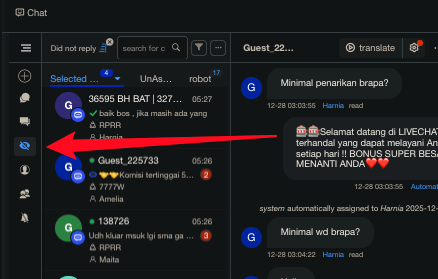
The main interface is divided into three areas:
| Area | Location | Function |
|---|---|---|
| Conversation List | Left | All incoming member list, showing platform tags, Remark, unread count |
| Chat Window | Center | Chat interface with members, including reply box, quick scripts, translation |
| Customer Info Panel | Right | Member IP, browser, device, traffic source, etc. |
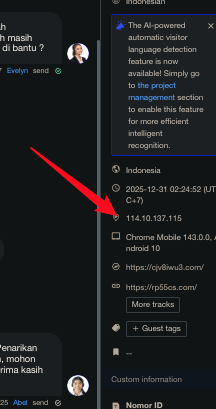
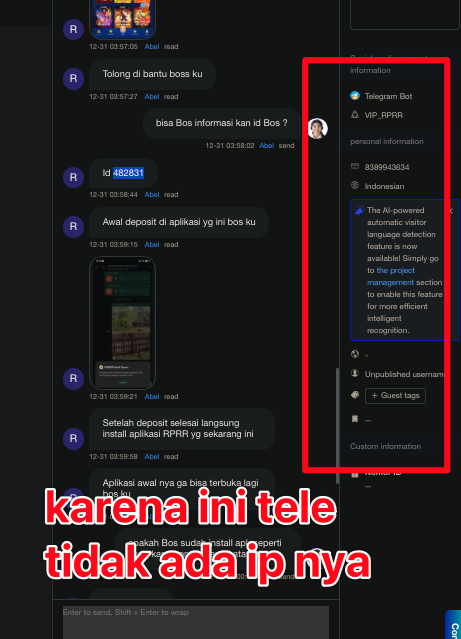
⚠️ Telegram-sourced members have no IP information (right panel does not display IP). If IP lookup is needed, ask the member for their ID directly.
4.2 Quick Scripts (Talk Library)¶
Salesmartly has a built-in Talk Library (script library), allowing you to quickly send preset replies by platform and category.
Steps: 1. Select Talk Library above the reply box 2. Choose the corresponding platform (e.g., 7777W) 3. Browse by category (RTP, Claim Bonus, cara install, etc.) 4. Click Send (send directly) or translate and send (translate then send)
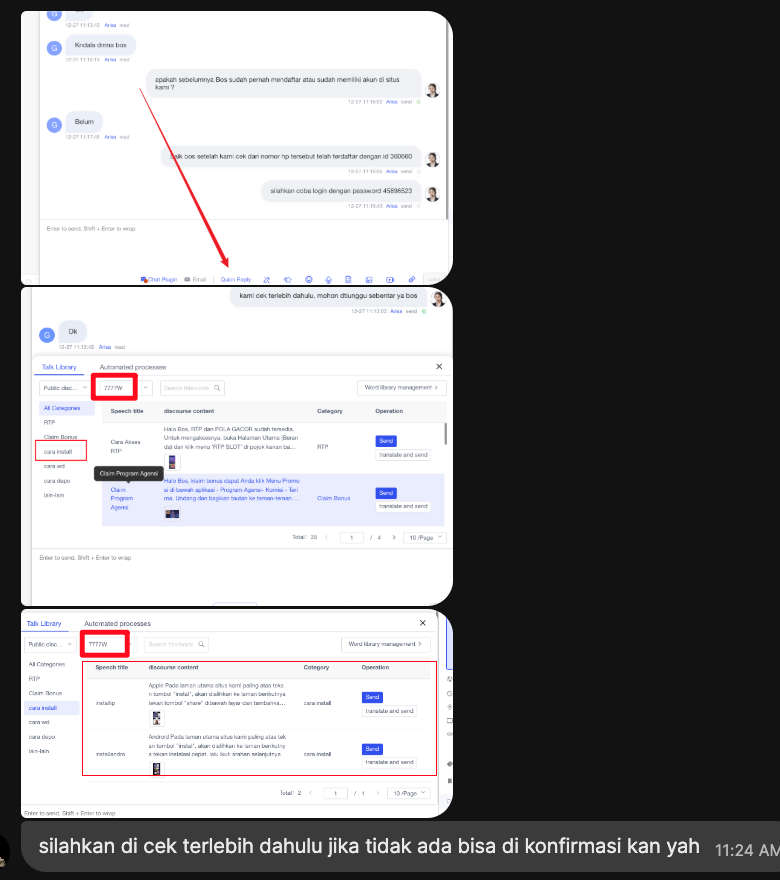
⚠️ Quick scripts are just an aid, not a universal answer. Adjust content based on the member's actual situation; don't mechanically send only quick replies.
📘 Source: 03-WFH CS Management Rules §1.6
4.3 Remark (Tag) System¶
When a member raises an issue, tag the conversation with a Remark label for easy review and management.
6 Tag Codes:
| Code | Full Name | Meaning |
|---|---|---|
| LP | Lupa PIN | Forgot Withdrawal PIN |
| LS | Lupa Sandi | Forgot Login Password |
| GR | Ganti Rekening | Change Bank Card/Wallet Number |
| BH | Bonus Hunter | Bonus Hunter |
| BAT | Bonus Ajak Teman | Referral Bonus (can combine with BH: BH BAT) |
| RK | Roda Keberuntungan | Lucky Wheel / Pinduoduo Reward |
Tagging Operation:
- Right-click on the conversation in the conversation list
- Select Add Remark Name
- Enter the tag (e.g.,
LPor91321 LP, can include member ID) - Click OK
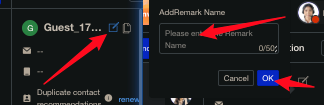
Finding Tagged Conversations:
Use Ctrl + F to search by ID or tag code, quickly locating previous conversations.
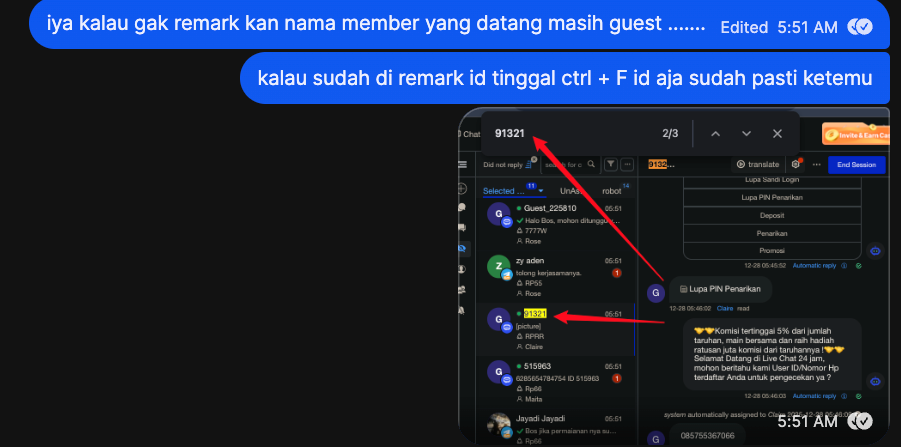
💡 Tip: When handling multiple members simultaneously, tag each conversation with Remark + Member ID first. This way, even if a member takes a long time to reply, you can immediately know what issue was being handled when you return to the conversation, without scrolling through chat history.
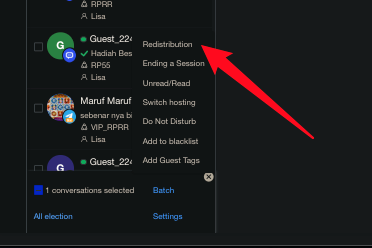
4.4 Conversation Transfer (Redistribution)¶
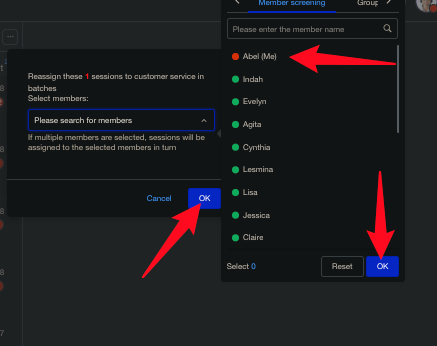
When you need to transfer a conversation to another CS (e.g., shift change, specialized handling), use the Redistribution function.
Steps:
- Right-click on the conversation in the conversation list
- Select Redistribution
- Choose the target CS name in the popup
- Click OK
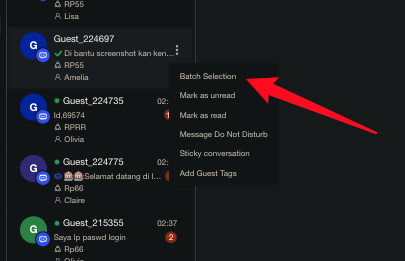
Batch Transfer:
- Click the three-dot menu
...above the list - Select Batch Selection
- Check the conversations to transfer
- Click Redistribution
4.5 Conversation List Settings¶
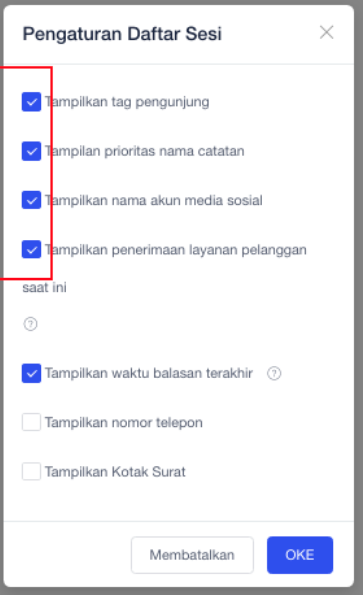
To more efficiently identify member information in the conversation list, enable the following display options:
Operation: Click the three-dot menu ... above the conversation list → Pengaturan daftar (List Settings)
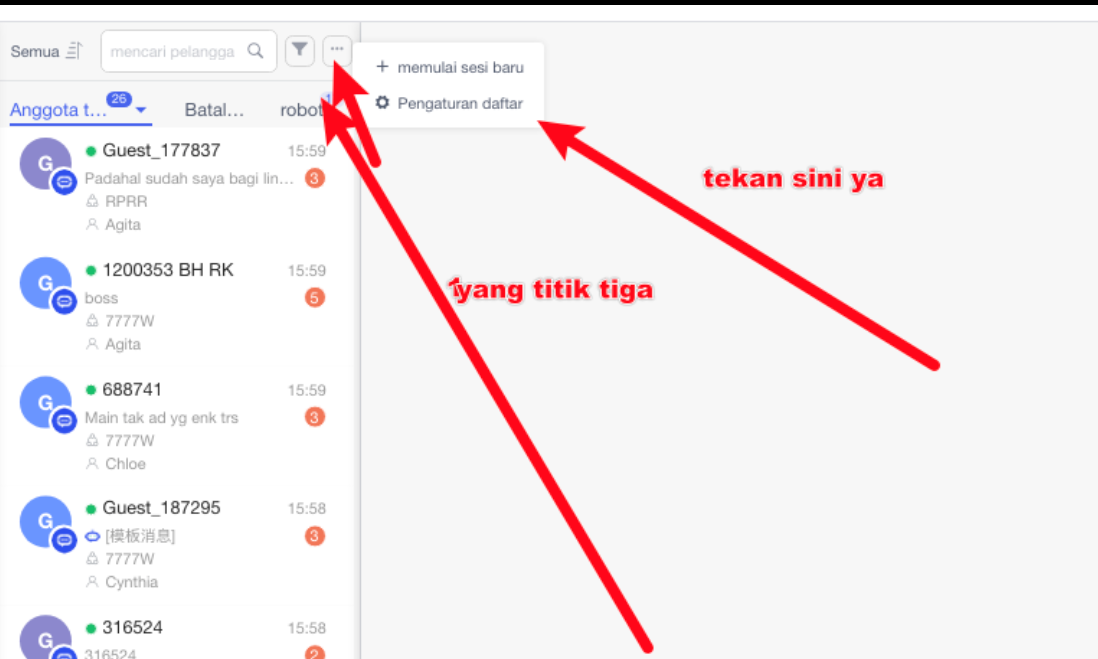
Recommended Options to Enable:
- ✅ Tampilkan tag pengunjung (Show visitor tags)
- ✅ Tampilan prioritas nama catatan (Prioritize display of remark names)
- ✅ Tampilkan nama akun media sosial (Show social media account names)
- ✅ Tampilkan penerimaan layanan pelanggan saat ini (Show current CS reception status)
- ✅ Tampilkan waktu balasan terakhir (Show last reply time)
4.6 CRM Backend Language Translation Tips¶
📘 Source: cstraining.docx
The CRM backend (Panel) interface is in Chinese by default. If you cannot read Chinese, you can use Google Translate browser extension to translate the page to English or Indonesian.
Notes: - When translating to Indonesian, balance numbers may be incorrectly translated into time format (e.g., saldo becomes pukul...) - When translating to English, names may be translated into English words - Regardless of which translation you use, always double check that key data is correct
4.7 Efficiency Tips¶
📘 Source: cstraining.docx
Handling Strategy When Conversations Are Heavy¶
When handling 30+ conversations simultaneously, use these techniques:
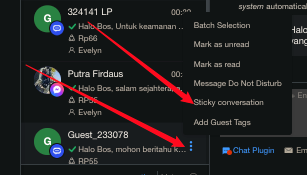
Pin Conversations (Sticky): - Right-click conversation → Sticky conversation → Conversation pinned to top of list - Strategy for handling angry/abusive members efficiently: Pin angry or abusive members to the top of the list. Focus first on members with real, actionable problems (reset PIN, lost balance, deposit issues, etc.). Once those are resolved, come back and reply to all pinned angry members at once using the same shortcut/spam message. This is much more efficient than switching back and forth. - No limit on number of pinned conversations - ⚠️ Note: Still need to check pinned conversations periodically — over 3 minutes without a reply still deducts KPI
Eye Button (Show Only Conversations with Replies): - Click the "eye" icon in the list - Shows only conversations with new replies, temporarily hiding silent conversations
Follow Up After Bot Auto-Reply:
- Bot sometimes sends automatic messages when CS doesn't reply in time
- Even if Bot has replied, CS must still send a final message in the conversation
- Reply example: Halo Bos, terima kasih telah menghubungi kami, apakah masih ada kendala lain yang bisa di bantu?
4.8 Withdrawing Incorrect Messages¶
If you sent a wrong message:
- Long-press the sent message → Select withdraw message
- Immediately resend the correct content
V. CRM Backend Quick Reference¶
📘 Source: cstraining.docx + 02-WFH CS Workflow SOP
CRM is the game backend management system. CS needs to query member information and verify transaction records in CRM daily.
⚠️ Before operating CRM, you must confirm you are logged into the backend of the member's platform.
📘 Source: 02-SOP Discipline Rule #9 · To check ID, deposits, withdrawals, etc., you must first check the platform name and switch to the correct backend
5.1 Membership Management¶
Member List¶
The most commonly used function, allowing searches by multiple criteria.
Search Criteria: Member ID, account, Mail, Membership levels, Online status, Register IP, Registration time, etc.
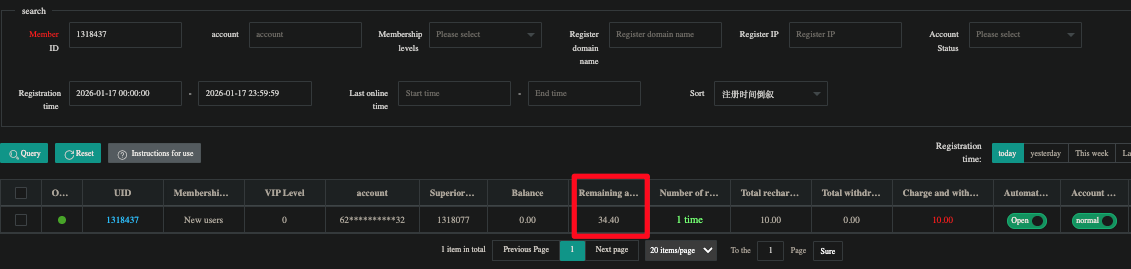
Key Fields in Results:
| Field | Description |
|---|---|
| UID | Member ID |
| Membership | Membership Level |
| VIP Level | VIP Level |
| account | Phone Number (partially hidden) |
| Balance | Game Balance |
| Superior agent | Superior agent ID |
| Remaining amount | 【To be confirmed: Possibly remaining TO (Turnover) amount】 |
| Number of recharges | Number of deposits |
| Total recharge amount | Total cumulative deposit amount |
| Total withdrawal amount | Total cumulative withdrawal amount |
| Charge and withdrawal difference | Deposit minus withdrawal difference |
| Automatic payment | Auto-withdrawal status (Open / Close) |
| Account status | Account status (normal / locking) |
| Last online time | Last online time |
| Last login IP | Last Login IP |
| Register IP | Registration IP |
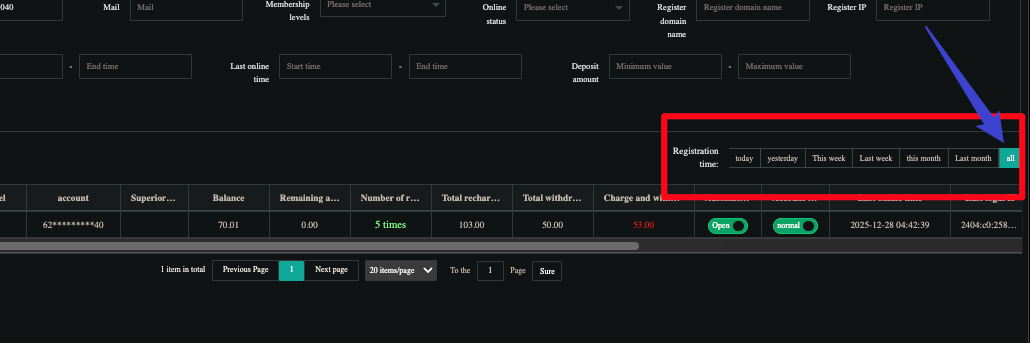
⚠️ Registration time filter: Default may filter a specific time range. When querying, click the "all" button in the upper right to display all data.
User Details (Member Details Page)¶
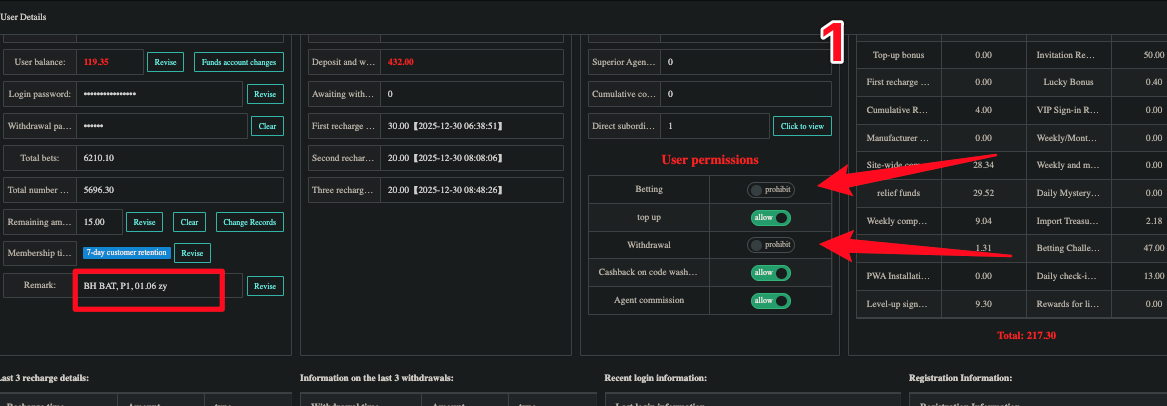
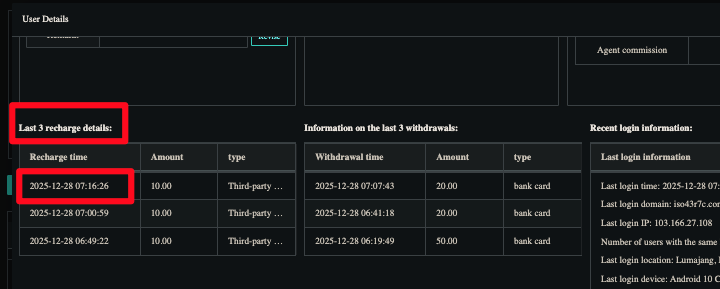
Click on a member ID in the Member List to enter the details page, which contains the member's complete information.
Details Page Sections:
| Section | Contents |
|---|---|
| Account data | User ID, username, balance, login password (resettable), withdrawal password (clearable), total bets, total turnover, Remark |
| Deposit/Withdrawal | Total deposits/count, total withdrawals/count, deposit-withdrawal difference, first deposit amount/time |
| User permissions | Betting, top up, Withdrawal on/off status |
| Top-level bonus (Bonus Records) | Cumulative amounts for various bonus types |
| Last 3 recharge/withdrawal | Time, amount, type |
| Recent login information | Last login time, domain, IP, users on same IP, device |
Important Operations:
- Login password → Revise/Clear: Can reset login password
- Withdrawal password → Clear: Can clear withdrawal PIN
- Remark → Revise: Can modify remark tags
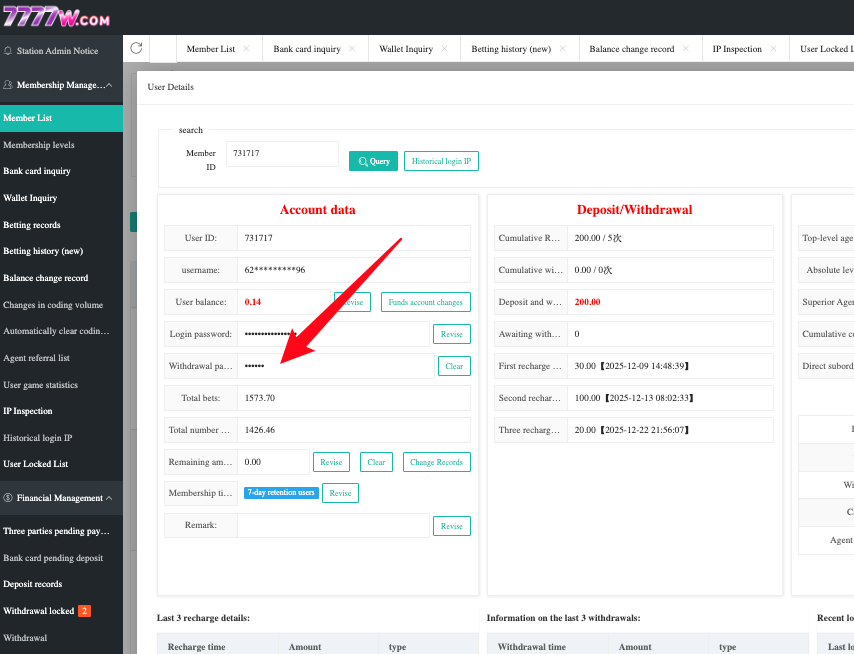
⚠️ Check if withdrawal PIN exists: If the Withdrawal password field shows
*****, a PIN has been set; if empty, no PIN has been created yet.
Wallet Inquiry¶
Look up member ID by wallet account (phone number).
Operation: Enter wallet number → Select Wallet types (optional) → Click Query
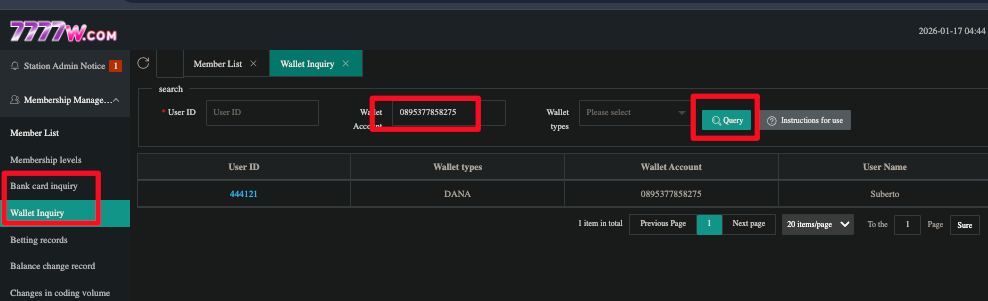
Use Cases: - Member doesn't remember their ID → Provides phone number → Find ID through Wallet Inquiry - Verify if the wallet number provided by the member matches the account - Check if a wallet number is already registered under another ID
Bank card inquiry¶
Similar to Wallet Inquiry, looks up member ID by bank card number.
IP Inspection¶
Look up all member IDs that have logged in using a specific IP address.
Operation: Enter IP address → Click Query
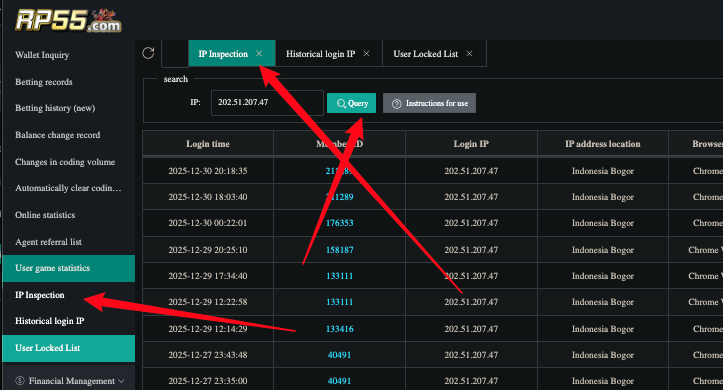
Results Display: Login time, Member ID, Login IP, IP address location, Browser Information
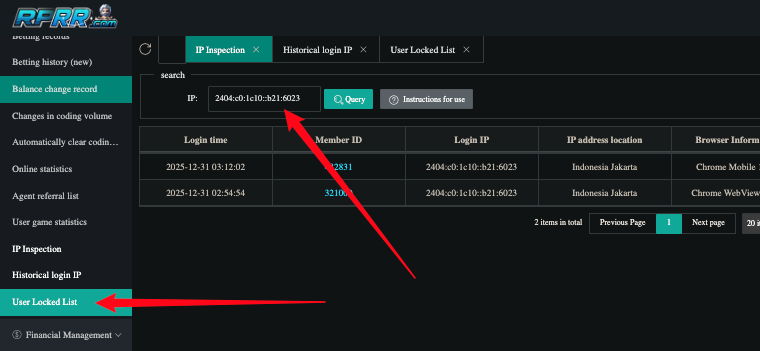
💡 IP Inspection is the core tool for investigating missing balance and bonus hunter cases. See §6.8 Missing Balance Handling.
User Locked List¶
View all member accounts automatically locked by the system when a member enters the wrong password or PIN too many times. This is NOT related to BH marking — it is purely triggered by failed login/withdrawal attempts.
Lock Types:
| Column | Meaning | Trigger Condition |
|---|---|---|
| Login Lock | Login Locked | Login password entered incorrectly too many times |
| Betting Lock | Betting Locked | Withdrawal PIN entered incorrectly too many times |
| Withdrawal Lock | Withdrawal Locked | Withdrawal PIN entered incorrectly too many times |
⚠️ Betting Lock and Withdrawal Lock are triggered simultaneously — when a member enters the wrong withdrawal PIN too many times, the system locks BOTH betting and withdrawal at the same time.
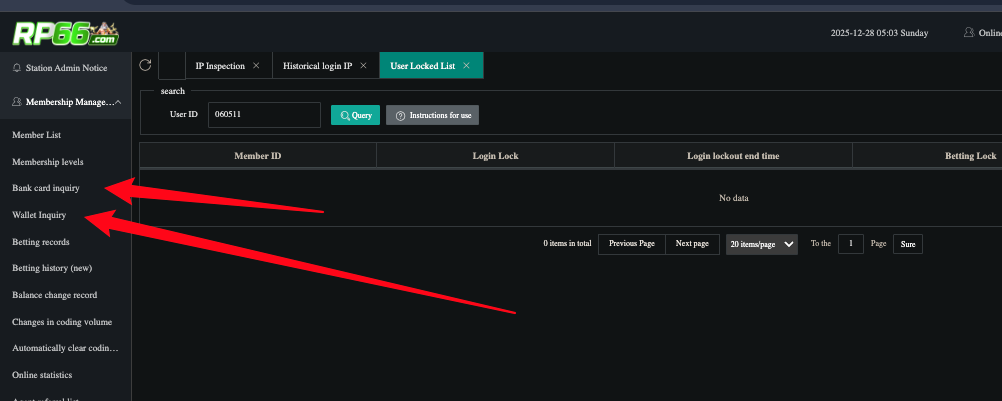
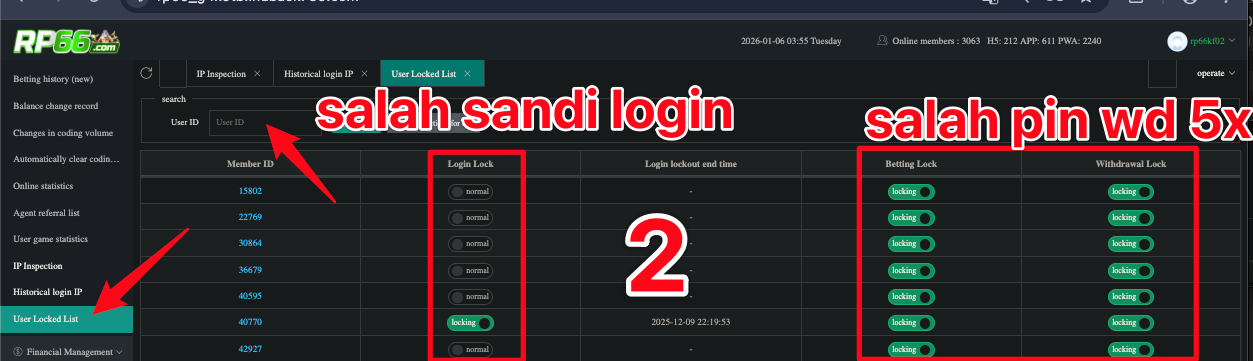
💡 If a member ID is not in the User Locked List, the member has never entered an incorrect password or PIN.
User Locked List vs Member List → User Permissions:
| User Locked List | Member List → User Permissions | |
|---|---|---|
| Trigger | Automatic — system locks when wrong password/PIN entered too many times | Manual — locked by CO SPV or Withdrawer |
| Cause | Member forgot their password or PIN | BH (Bonus Hunter), data issues, rule violations |
| Who controls it | System (automatic) | Supervisor / Withdrawer (manual operation) |
| How to resolve | Unlock in User Locked List | Supervisor decision based on investigation |
5.2 Financial Management¶
Deposit records¶
Query member deposit history, including order number, payment channel, amount, status, etc.
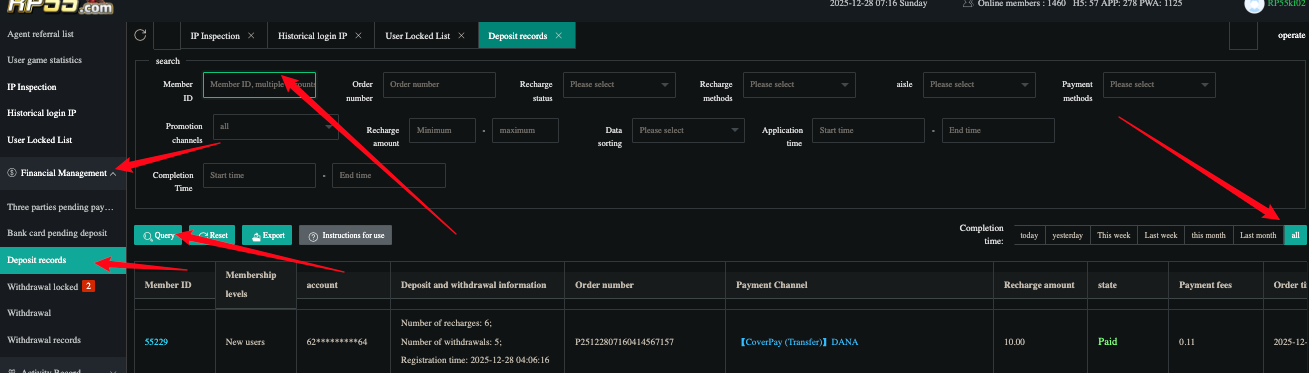
Key Fields:
| Field | Description |
|---|---|
| Order number | Order number (used for verifying deposit receipts) |
| Payment Channel | Payment channel (e.g., CoverPay (Transfer) DANA) |
| Recharge amount | Deposit amount |
| state | Status: Paid / Cancelled, etc. |
| Completion time | Filter buttons: today / yesterday / This week / all |
⚠️ Completion time filter may not default to "all". Make sure to switch to the correct time range when querying.

📘 Source: cstraining.docx · Orders with Cancelled status — if it's genuinely a third-party system error (member transferred money but system didn't receive it), the third party can change Cancelled to Paid. This is handled by the third party; CS only needs to post to the transaction check group.
5.3 Activity Record¶
Balance change record¶
Query member balance change history, showing all records including deposits, withdrawals, bonus claims, game wins/losses.
Use Case: Member says "I didn't claim any bonus" → You can check the actual bonus claim records here.
Invitation Reward Record¶
Query member referral bonus claim status.
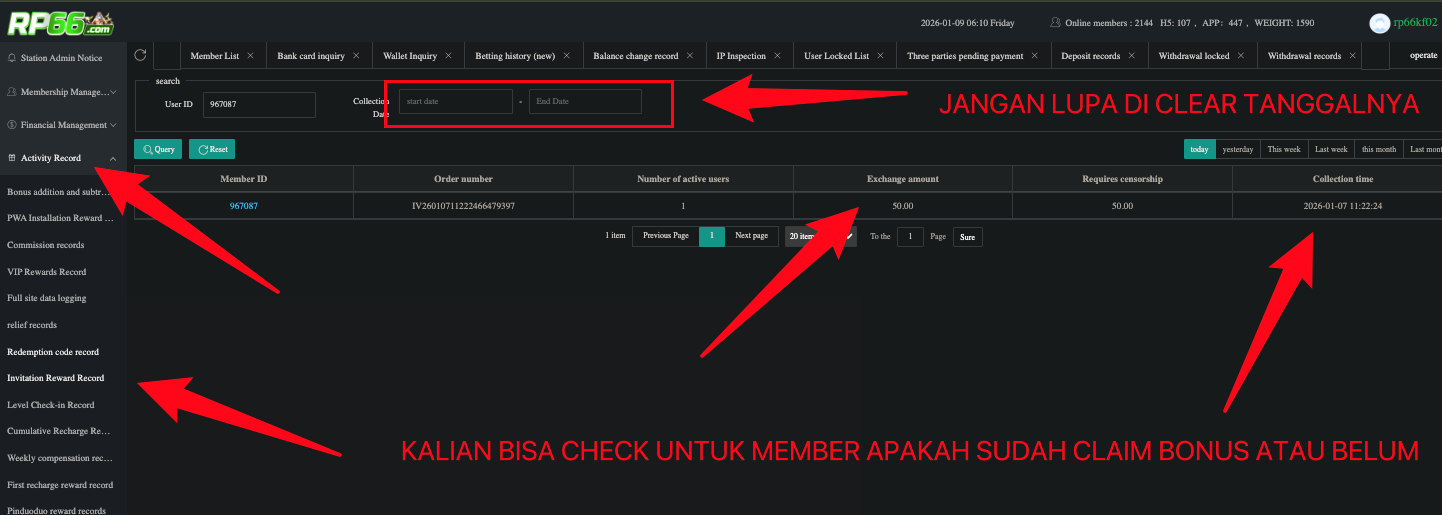
⚠️ Remember to clear the date filter (Collection Date), otherwise you may not see all records. Click "all" in the upper right.
User Game Statistics¶
Query member betting data and platform profit/loss for each game.
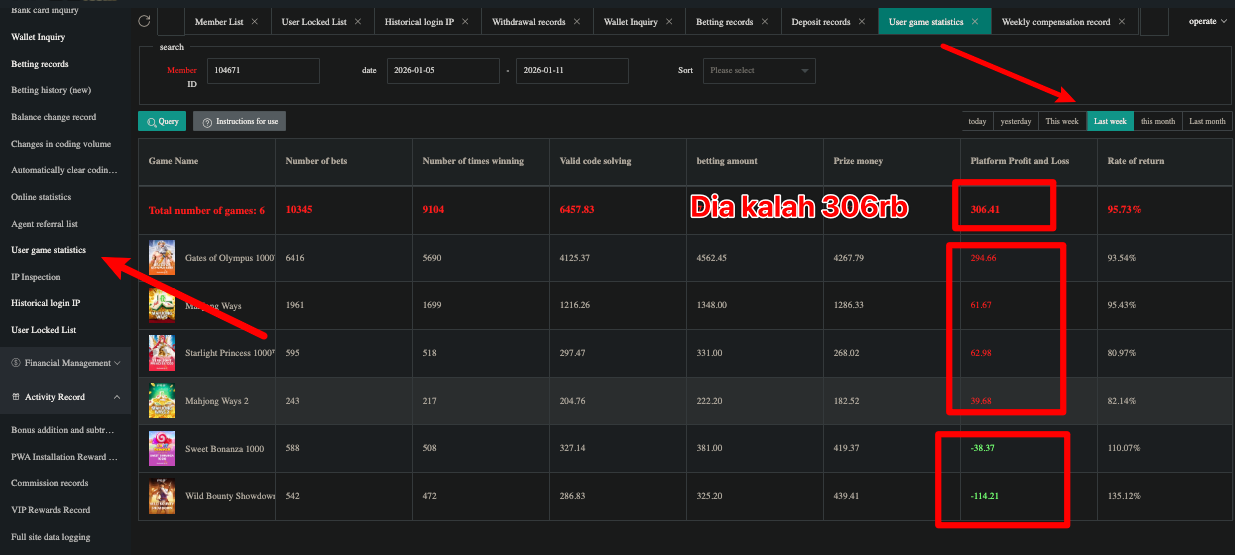
Key Fields: Game Name, Number of bets, Number of times winning, betting amount, Prize money, Platform Profit and Loss (positive = platform wins/member loses, negative = platform loses/member wins)
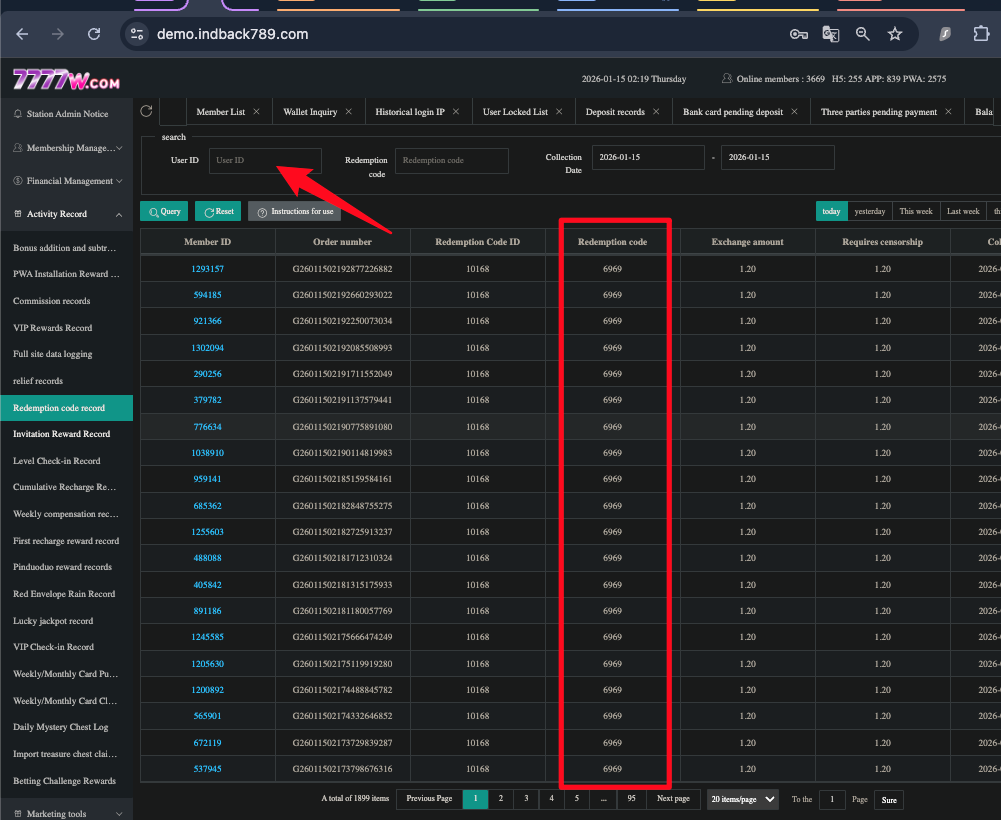
Redemption Code Record¶
Query member records of redeeming prizes using daily passwords.
Part Three: Core Business¶
VI. Common Issue Handling Manual (11 Types)¶
📘 Source: cstraining.docx + 02-WFH CS Workflow SOP
Each issue type below includes: Scenario → Process Flow → Steps → Script → Screenshot → Notes
6.1 LP — Forgot Withdrawal PIN (Lupa PIN Penarikan)¶
Scenario: Member wants to withdraw but forgot their withdrawal PIN.
Process Flow:
Member says forgot withdrawal PIN
       │
       ▼
  Ask for ID + Platform name
       │
       ▼
  CRM → Member List → Find member → User Details
       │
       ▼
  Check Withdrawal password field
       │
  ┌────┴─────────────────┐
  │                      │
  Has *****              Blank (PIN not set)
  (PIN exists, reset)   (Never created PIN)
  │                      │
  ▼                      ▼
  Post to CS work group:  Send tutorial to member:
  Situs: 7777W           "Please create a PIN"
  ID: XXXXX              ↓
  Kendala: Lupa pin wd   (See script below)
  │
  ▼
  Lead replies with a random number
  password in the group (e.g., 515641)
  │
  ▼
  CS sends that random password to member
  │
  ▼
  Tell member to change it immediately
  (the random password is intentionally
  hard to remember so members will change it)
Case A: Member Has Never Created a PIN
Send the PIN creation tutorial directly:
Script: Halo Bos, setelah kami cek, user ID Bos belum memiliki PIN penarikan. Silakan buat PIN dengan cara: 1. Klik menu 'Saya', pilih 'Penarikan'. 2. Anda akan diarahkan untuk membuat PIN. Contoh format PIN: [123456], [888999] (hanya angka). PIN ini wajib diingat karena diperlukan untuk setiap penarikan.
Case B: Member Has a PIN but Forgot It
- Request verification data from the member (depending on whether they have withdrawal records):
- Has withdrawal records: Request last withdrawal screenshot + bank/wallet screenshot
- No withdrawal records: Request last deposit screenshot + bank/wallet screenshot
- After verifying data, post to CS work group
- Lead directly provides a random number password in the group (e.g., 515641 or 181814) — the lead does NOT reply "Done"
- CS sends that random password to the member
- Tell the member to change the password immediately — the random password is intentionally hard to remember, so members will be motivated to change it right away
PIN Reset Success Script: Halo Bos, Kode Pin WD Anda sudah kami Reset, Pin sementara Anda adalah [random password from lead]. Mohon segera ganti Pin WD Anda setelah login ya Bos, karena pin ini hanya sementara. Terimakasih telah menghubungi kami, apakah masih ada yang bisa kami bantu?
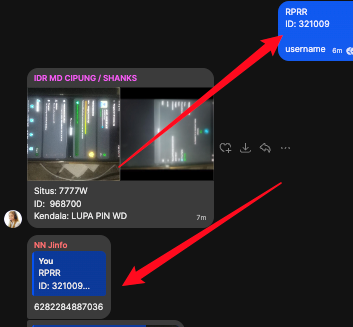
→ Full process reference 02-SOP §5.7 PIN Entered Incorrectly 5 Times
6.2 LS — Forgot Login Password (Lupa Sandi Login)¶
Scenario: Member forgot password and cannot log in.
Process Flow:
Member says forgot login password
       │
       ▼
  Ask for ID/Username
       │
       ▼
  Found ID in CRM?
       │
  ┌────┴────┐
  No        Yes
  │         │
  ▼         ▼
  Ask name + Request verification data:
  card # to  ① Bank card/wallet number
  reverse    ② Account holder name
  lookup     ③ Last deposit screenshot (if deposits exist)
  │         │
  │         ▼
  │    Verify data → Post to CS work group
  │         │
  │         ▼
  │    Lead resets password and directly
  │    replies with a random number password
  │    in the group (e.g. 65165618, 515641)
  │         │
  │         ▼
  │    CS sends that random password to member
  │    → Remind to change password immediately
  │
  ▼
  Still not found → May not be registered
Verification Data Request Script:
Halo Bos, mohon atas kerjasamanya untuk berikan kami data yang terdaftar: - Nomor Rekening Bank/E-wallet: (Bank card/e-wallet number) - Nama Pemilik: (Account holder name) - Bukti deposit terakhir Ewallet/Bank (Bukan QR tapi cek di riwayat bank/e-wallet)
supaya kami cek dan bantu ganti kata sandi Anda. Terima Kasih.
⚠️ Deposit proof must be a transfer record screenshot from the bank/wallet app; QR code screenshots are not accepted.
Password Reset Success Script:
Halo Bos, sandi Anda telah sukses kami ubah menjadi [random password from lead], mohon untuk ganti sandi Anda setelah login untuk menghindari hal yang tidak diinginkan
💡 Why use a random password? Same as PIN reset — intentionally using random numbers (e.g. 65165618) so the member will actively change it to their own memorable password, rather than continuing to use our temporary password.
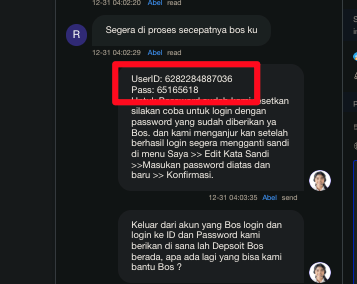
If Member Forgot Both ID and Password:
Script: Halo Bos, ID/Username adalah Nomor HP yang Bos gunakan untuk daftar sebelum, silahkan coba login kembali dengan Nomor HP tersebut ya
(ID/Username is the phone number used during registration)
If still not found → Request name + bank card number → Reverse lookup in Member List or Wallet Inquiry.
→ Full process reference 02-SOP §5.1 Password Reset
6.3 GR — Change Bank Card/Wallet Account (Ganti Rekening)¶
Scenario: Member requests to change their bound bank card or e-wallet account.
Core Rules:
| Rule | Description |
|---|---|
| Cannot change if data doesn't match | Even a slight discrepancy means no change — this is a hard rule |
| Each bank/wallet number can only be bound to 1 ID | Cannot bind the same number to 2 IDs |
| Each ID has a maximum of 6 withdrawal methods | BANK, OVO, GoPay, DANA, LinkAja, ShopeePay |
| Phone number/username cannot be changed | These are core account identifiers and cannot be modified |
| Unauthorized changes to member data | $50 fine per occurrence |
📘 Source: 02-SOP Discipline Rule #11 + cstraining.docx
Process Flow:
Member requests to change bank card/wallet number
           │
           ▼
   Ask reason first: Why do you want to change?
           │
           ▼
    Request verification data:
    ① Bank name
    ② New bank card/wallet number
    ③ KTP selfie (holding ID card)
    ④ Last deposit screenshot
           │
           ▼
    Verify: KTP name = Bank account name = Platform registration name?
           │
    ┌──────┴──────┐
    │             │
   Match ✅     Mismatch ❌
    │             │
    ▼             ▼
   Execute       Inform unable
   the change    to process
When the member has previously withdrawn using the old account and now wants to change:
⚠️ Refuse the change. If the old account was successfully used for withdrawal before, requesting a change may indicate a stolen account. Ask the member to use another unregistered withdrawal method.
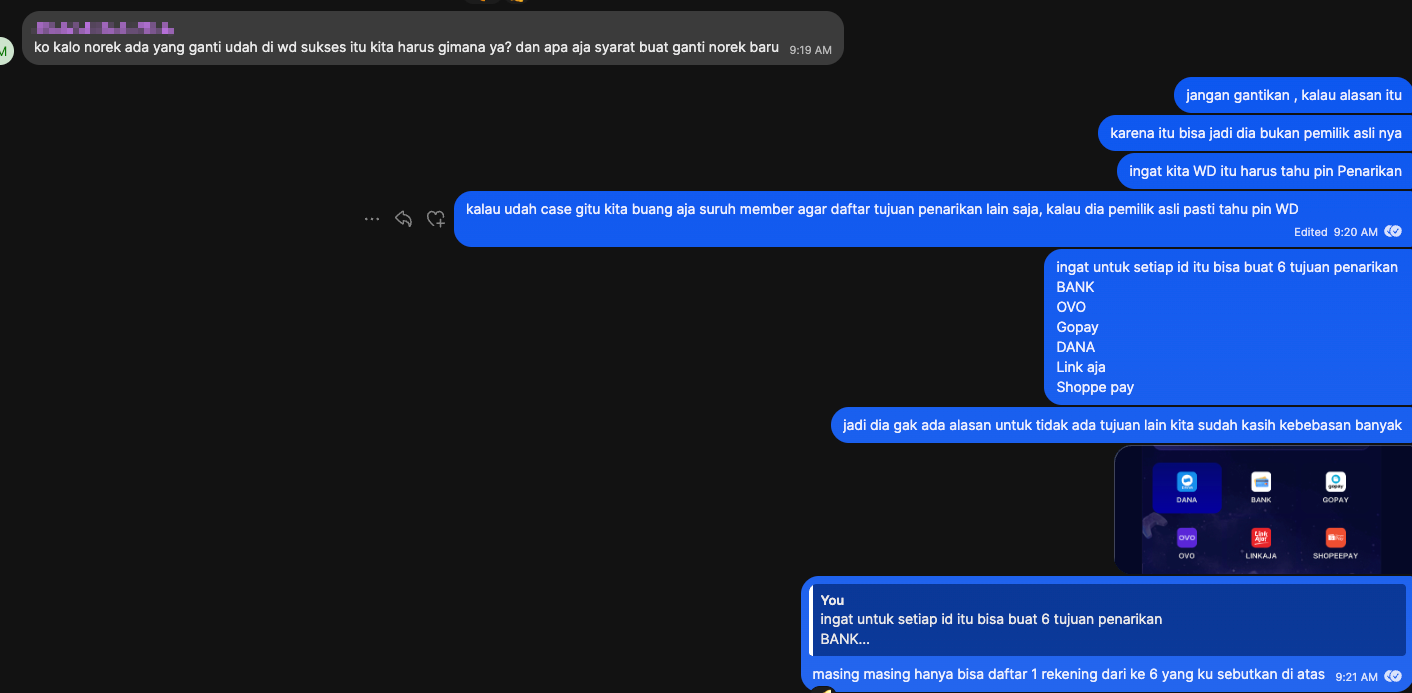
Script When Wallet Number Is Already Bound to Another ID:
Untuk nomor yang ingin Bos daftar kan itu sudah terdaftar di ID lain ya Bos, untuk nomor yang sama hanya bisa di daftarkan di satu ID saja ya Bos jadi silakan untuk mencari nomor lain sebagai tujuan penarikan ya Bos. 1 NOMOR EWALLET/BANK HANYA BISA DI IKAT KAN DI 1 ID ya Bos TIDAK BISA LEBIH..
Phone Number/Username Change Request:
Directly refuse. Script: Mohon maaf Bos untuk perggantian nomor HP tidak bisa di lakukan ya, Tidak masalah ya Bos jika salah nomor hp terdaftar, yang terpenting adalah tujuan penarikan Bos harus lah benar ya

→ Full process reference 02-SOP §5.2 Change Bank Card Number
6.4 Deposit Not Received (Deposit tidak masuk)¶
Scenario: Member's balance did not increase after making a deposit.
Process Flow:
Member says deposit not received
       │
       ▼
  Ask for ID/Username
       │
       ▼
  CRM → Financial Management → Deposit records → Enter ID → Query
       │
  ┌────┴────────────────────────────────────────────────────┐
  │                    │                                    │
  Order found          Not found                            Status Cancelled
  │                    │                                    │
  ▼                    ▼                                    ▼
  Check status         Possibly wrong ID,                   If member did transfer
  │                    ask to reconfirm                     → Third party can change
  │                                                         to Paid
  │                                                        → Post to transaction
  │                                                         check group
  ├─ Pending → Verify receipt → Post to transaction check group
  │
  └─ Paid → Notify member deposit was successful
Key Verification Logic for Receipts:
📘 Source: 04-CS Management Specialist Work Guide §2.2
| Verification Item | Normal | Abnormal → Not Accepted |
|---|---|---|
| Time Sequence | Receipt payment time is later than backend order creation time | Receipt time earlier than order time = paid before form → suspicious |
| Time Interval | Payment completed within 40 minutes of order creation | Over 40 minutes → payment code may have expired |
| Payment Channel | Receipt channel matches backend (e.g., both DANA) | Backend DANA, receipt shows OVO |
| Amount | Matches | Does not match |
| Receipt Completeness | Shows success status + reference number | Blurry/cropped/missing key information |
⚠️ Core Logic: The member must first submit a deposit form on the platform (system generates a payment code), then make the payment. If the receipt time is earlier than the order time, it means the money could not have reached the platform's designated receiving account.
Script Requesting Complete Receipt from Member:
Halo Bos, mohon tunjukkan SS bukti pembayaran lengkap yang disertakan [SUKSES], [WAKTU], [TANGGAL] dan [NOMOR REFERENSI] ke kami, untuk pengecekan ya
(Please provide a complete payment screenshot including success status, time, date, and reference number)
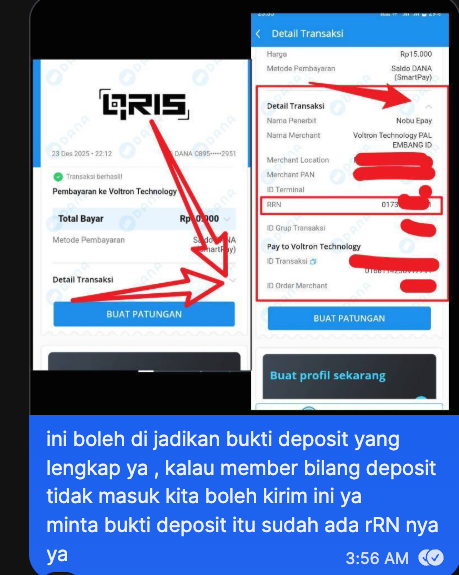
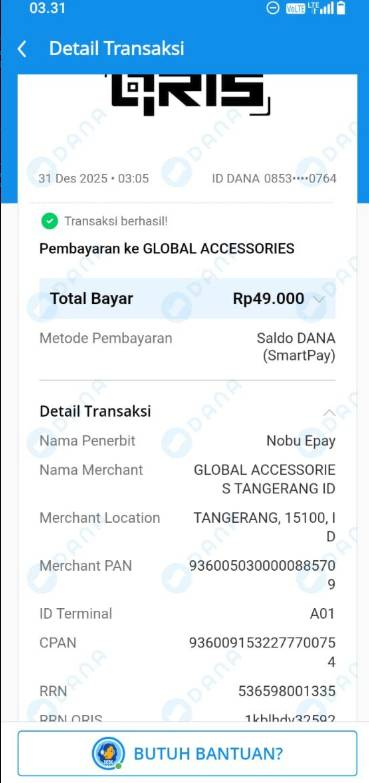
QRIS QR Code Scanned Twice Issue:
Cannot be credited twice. Each QRIS code can only be successfully paid once.
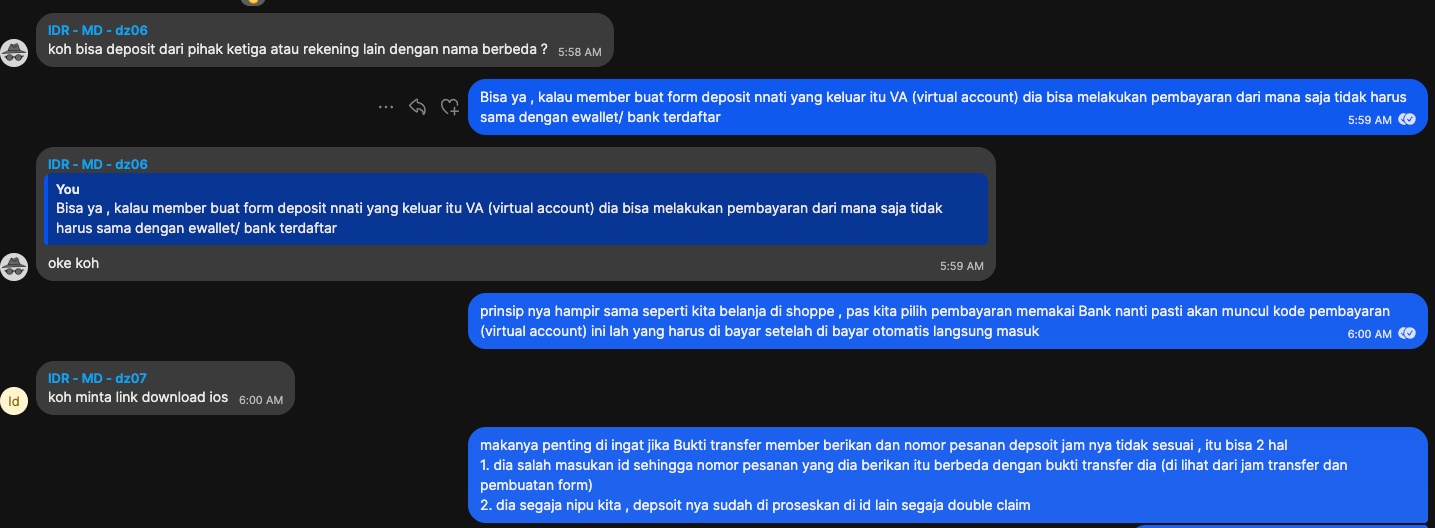
VA (Virtual Account) Deposits:
After a member creates a deposit form, a VA number is generated. Payment can be made from any bank/wallet, not limited to the registered one. The principle is similar to selecting bank transfer when shopping online.
Deposit Successful but Form Status Shows Cancelled:
If it's genuinely a third-party system error (member transferred money but system malfunctioned), the third party can change Cancelled to Paid. CS only needs to post to the transaction check group; do not ask the member to resubmit the form.
Pulsa (Airtime) Deposit:
The platform does not support Pulsa deposits. Guide members to use QRIS.

→ Full process reference 02-SOP §III Deposit Query SOP
6.5 Withdrawal Issues (Withdrawal kendala)¶
Scenario: Member encounters various problems with withdrawals.
Sub-scenario A: Withdrawal Successful but Money Not Received¶
Most Common Cause: Member entered the wrong bank card/wallet number during registration.
Troubleshooting Flow: 1. Ask member for their bound bank card/wallet number 2. CRM → Wallet Inquiry → Verify if the number matches what the member provided 3. If mismatch → Member entered incorrectly during registration; money was sent to the wrong account
Script:
Maaf Bos untuk penarikan kami check sudah Berhasil masuk ke dalam rekening yang terdaftar, Jika ada kesalahan dalam mendaftar Mohon maaf sistem otomatis mengecek jika benar DATA nya Valid (Ada pemilik dari nomor yang Bos daftarkan) maka sistem otomatis melakukan transfer ke tujuan tersebut, dan itu sudah di luar tanggung jawab kami ya Bos
Sub-scenario B: Withdrawal Shows Betting Required First¶
Member sees the prompt "Anda harus bertaruh 0.01 lagi sebelum mengajukan penarikan".
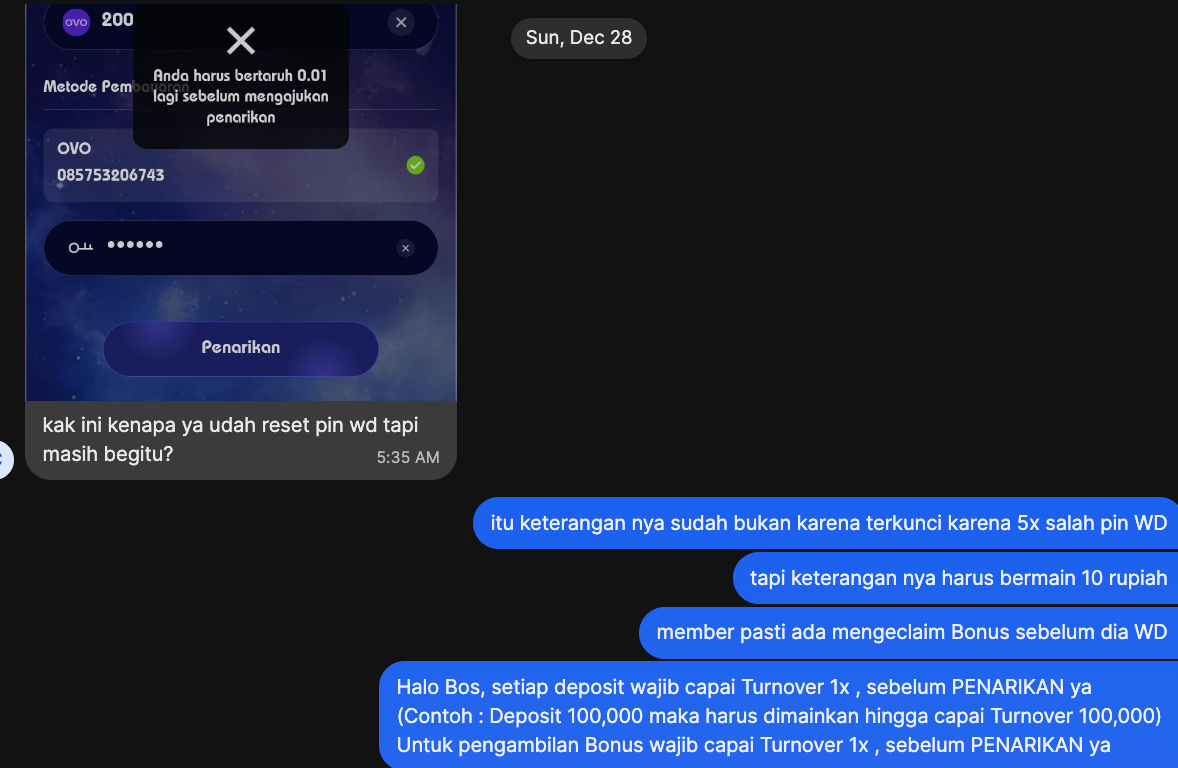
Reason: TO (Turnover) not completed. Each deposit requires 1x valid betting to be completed before withdrawal.
Check: CRM → Member List → Search ID → View "Remaining amount" field; if not 0, there is still TO remaining.
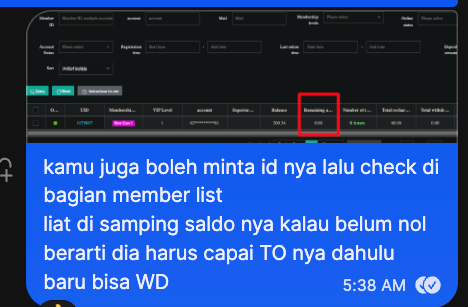
Script:
Halo Bos, setiap deposit wajib capai Turnover 1x, sebelum PENARIKAN ya (Contoh: Deposit 100,000 maka harus dimainkan hingga capai Turnover 100,000) Untuk pengambilan Bonus wajib capai Turnover 1x, sebelum PENARIKAN ya
Sub-scenario C: Split Withdrawals (WD nyicil)¶
Member has a balance of 1,000,000 but makes multiple small withdrawals (e.g., 50K, 50K, 50K...).
Rule: Split withdrawals are not allowed; must withdraw in a single transaction.
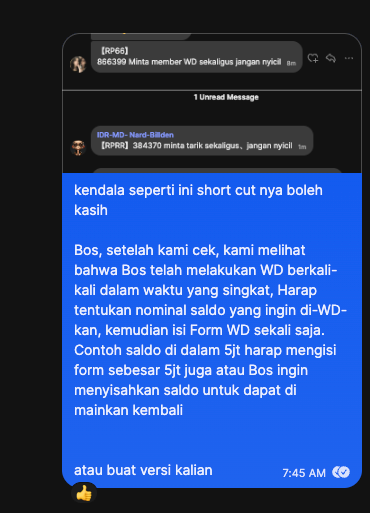
Script:
Bos, setelah kami cek, kami melihat bahwa Bos telah melakukan WD berkali-kali dalam waktu yang singkat, Harap tentukan nominal saldo yang ingin di-WD-kan, kemudian isi Form WD sekali saja.
Sub-scenario D: Insufficient Balance Prompt for Withdrawal¶
Member attempts to withdraw but sees an insufficient balance message.
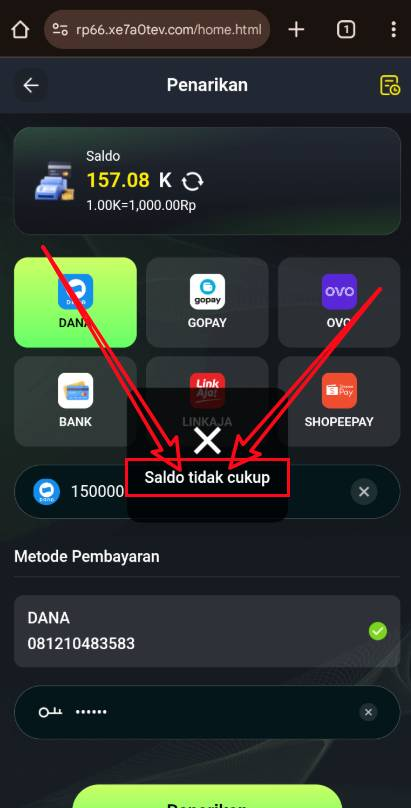
Script:
Halo Bos, jika ada kendala saat WD atau saldo tidak cukup, coba solusi ini: * Hilangkan 3 digit terakhir dari jumlah penarikan. * Contoh: Untuk WD Rp100.000, isi dengan 100. Catatan: Minimal penarikan Rp50.000 (50).
Guiding Members to Register/Bind Withdrawal Methods¶
If a member doesn't know how to register a bank card or e-wallet as a withdrawal method, you can send the following screenshot to help them understand the interface:
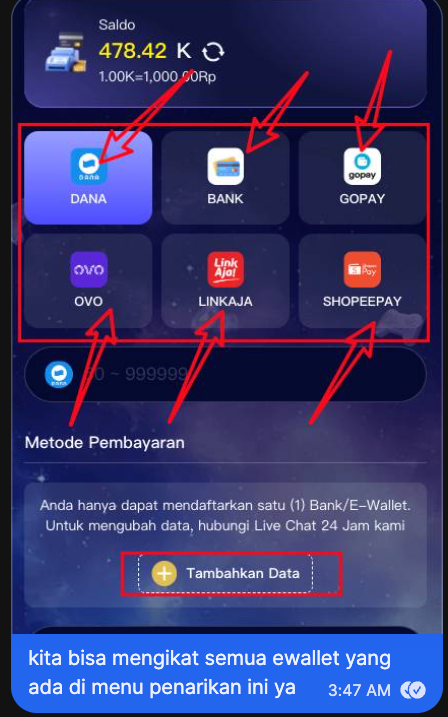
The platform supports 6 withdrawal methods: DANA, BANK, GOPAY, OVO, LINKAJA, SHOPEEPAY. Members can click "Tambahkan Data" (Add Data) in the withdrawal menu to register a new withdrawal method.
→ Full process reference 02-SOP §IV Withdrawal Query SOP
6.6 BH — Bonus Hunter¶
Scenario: Member detected using the same IP to register multiple accounts and claim bonuses.
Detection Signals: - Multiple accounts under the same IP - Multiple accounts have claimed bonuses (new member bonus, referral bonus, Pinduoduo reward, etc.) - Related behavior between accounts
Processing Stages:
📘 Source: 06-Audit Team Lead Work Guide §VI + cstraining.docx
⚠️ The old system had P1→P2→P3 three stages; the new system has removed P3. Under current rules, members who meet the conditions can have restrictions lifted.
| Stage | Action | CRM Remark Format |
|---|---|---|
| P1 — First Warning | Warn member, recover bonus balance | BH BAT,Peringatan/P1 {handler code}{date} |
| P2 — Second Action | Close betting + withdrawal permissions → Deduct bonus + winnings | BH BAT,P2 tarik Bonus+Kemenangan {handler code}{date} |
Pinduoduo Reward (BH RK) Remark Format:
| Stage | CRM Remark Format |
|---|---|
| P1 | BH RK,P1 tarik bonus+kemenangan {handler code}{date} |
⚠️ CRM backend remark format follows audit standards (no platform name); Telegram group format requires the platform name, e.g.,
386238 BH BAT P1 【7777W】.
User Permissions Operation Interface:
Script Reference (BH standard reply scripts are in Google Sheets):
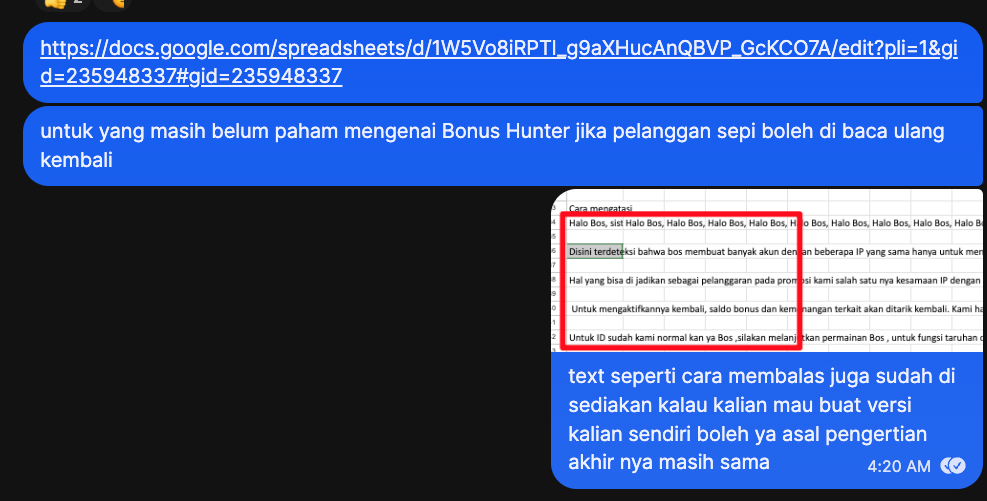
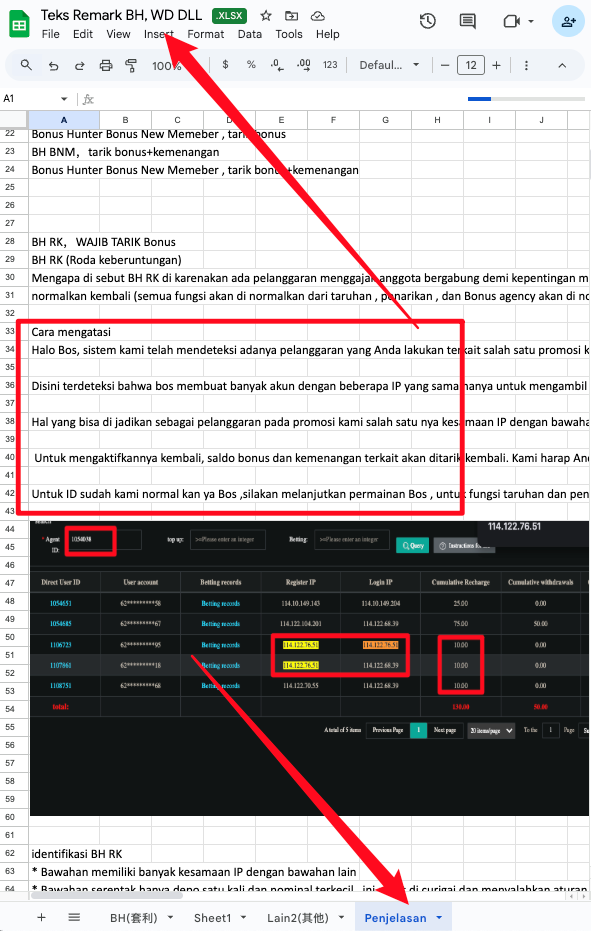
💡 If a member asks why they can't claim bonuses: First check User Details for Remark; if there's a BH tag, reply using the script for the corresponding stage.
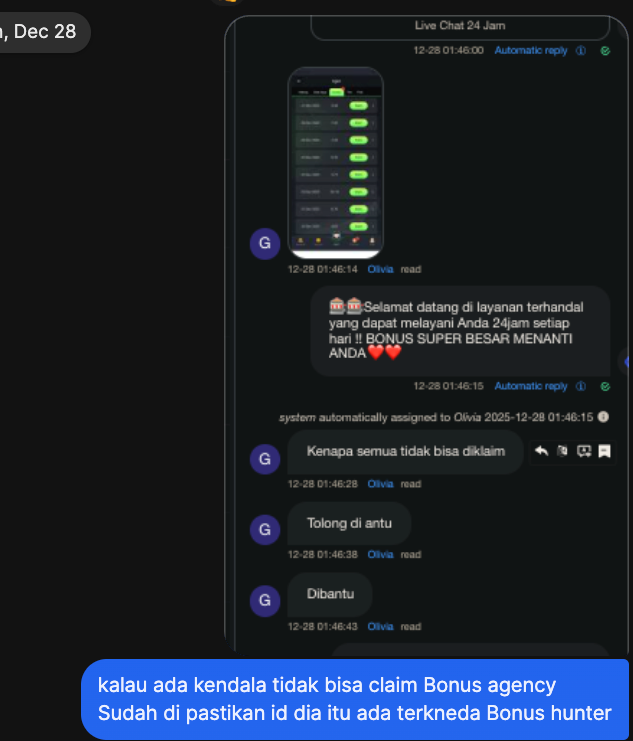
→ Detailed audit process reference 06-Audit Team Lead Work Guide
6.7 BAT — Referral Bonus (Bonus Ajak Teman)¶
Scenario: Member inquires about referral reward rules or cannot claim rewards.
Rules:
| Condition | Requirement |
|---|---|
| Minimum deposit by referred person | 50,000 IDR (50K) |
| Minimum TO by referred person | 600,000 IDR (600K) |
| IP restriction | 1 IP limited to 1 valid referral (multiple referred persons on the same IP count as only 1) |
Reward Tiers (must be claimed level by level): - 1 valid person → Claim first tier - 3 valid persons → Claim second tier - 5 valid persons → Claim third tier - 10 valid persons → Claim fourth tier
Check Path:
CRM → Activity Record → Invitation Reward Record → Enter User ID → Query
⚠️ Must clear the date filter (Collection Date) → Click "all", otherwise historical records may not be visible.
Determining if a Referred Person is Valid:
In the game frontend: Click "Promosi" → Bonus Ajak Teman → Click "Memenuhi Syarat" button → Only shows referred persons who meet the conditions.
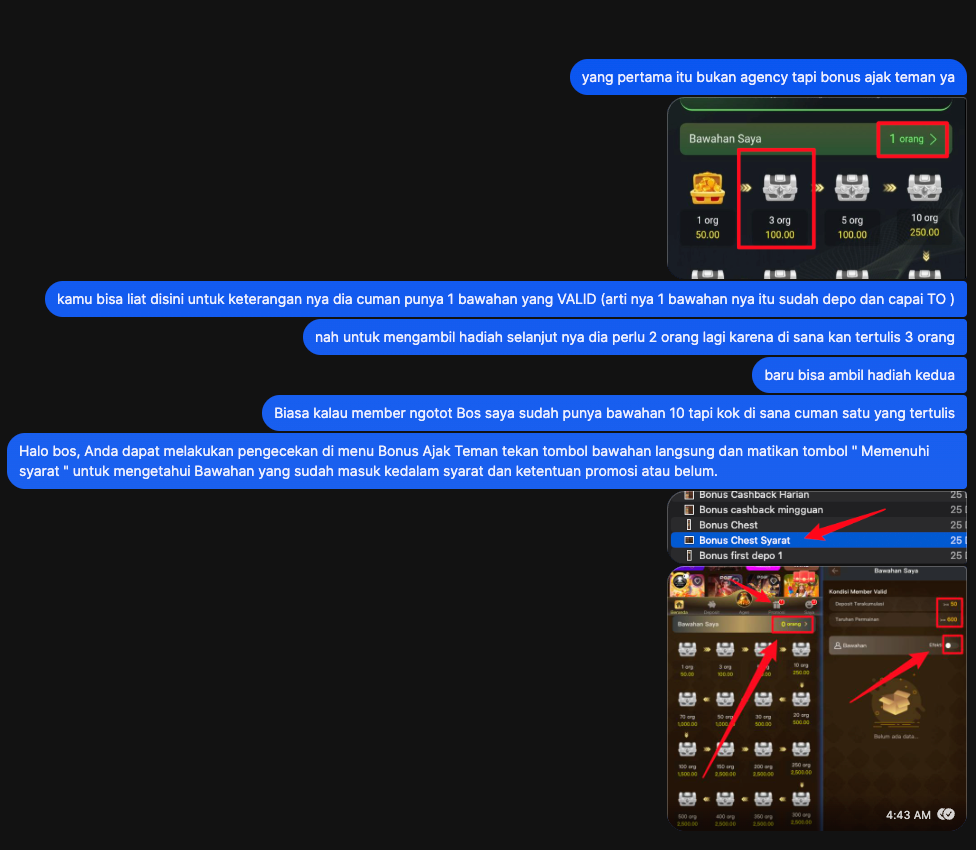
Script:
Halo Bos, Untuk cek Bonus ajak teman dapat melalui tombol di bawah kanan layar klik 'Promosi' >> Bonus Ajak Teman >> Bonus. Peti Harta Karun akan otomatis menyala jika sudah memenuhi syarat dan ketentuan yang berlaku setelah Bos mengajak teman untuk bermain, bawahan Anda wajib melakukan deposit 50k dan menyelesaikan TO 600k ya, agar bisa klaim dan lakukan penarikan
⚠️ BAT and BH relationship: If a member's referred persons all share the same IP, this is a typical BH BAT (referral bonus abuse) behavior.
6.8 Missing Balance (Saldo Hilang) — IP Audit Process¶
Scenario: Member reports that their balance disappeared after logging in.
Most Common Cause: Member registered multiple accounts, deposited in Account A, but logged into Account B (empty account), mistakenly thinking the balance disappeared.
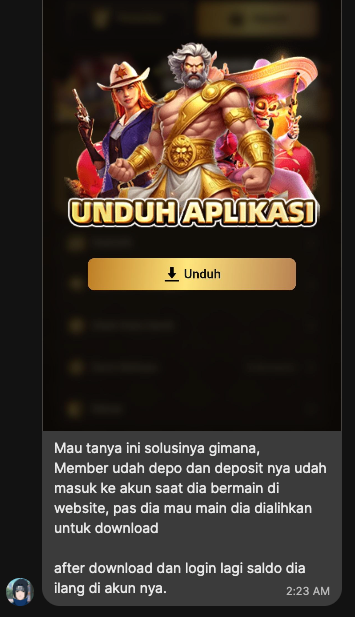
This frequently occurs when: Member deposits → Gets redirected to download the APP → Registers a new account in the APP → Logs into the new account and finds no balance.
Complete Troubleshooting Flow:
Member reports missing balance
       │
       ▼
  Request ID + Recent deposit screenshot
       │
       ▼
  Obtain member IP
  │
  ├── From LiveChat (Web/APP) → Get IP from Salesmartly right panel
  │
  └── From Telegram/Facebook → No visible IP → Ask member for ID directly
       │
       ▼
  ┌─────────────────────────────────────┐
  │ Method 1: Member List → Register IP  │
  │ Enter IP in Register IP field → Query│
  └──────────┬──────────────────────────┘
             │
        ┌────┴────┐
        │         │
     Results    No results
     (multiple  │
      IDs)      ▼
        │   ┌────────────────────────────────┐
        │   │ Method 2: IP Inspection          │
        │   │ Membership Management            │
        │   │ → IP Inspection → Enter IP → Query│
        │   └──────────┬─────────────────────┘
        │              │
        ▼              ▼
  Check each ID's User Details one by one
  → Find the ID with deposit records and balance
       │
       ▼
  Found member's real ID → Post to group for temp password
       │
       ▼
  Send ID + temp password to member
  → Remind to change password immediately after login
Step-by-Step Details:
Step 1 — Get IP:
Copy the IP address from the Salesmartly right-side customer info panel.
⚠️ Telegram-sourced members have no IP. In this case, ask the member to provide their ID or screenshots.
Step 2 — Register IP Search:
CRM → Member List → Paste IP in the Register IP field → Query
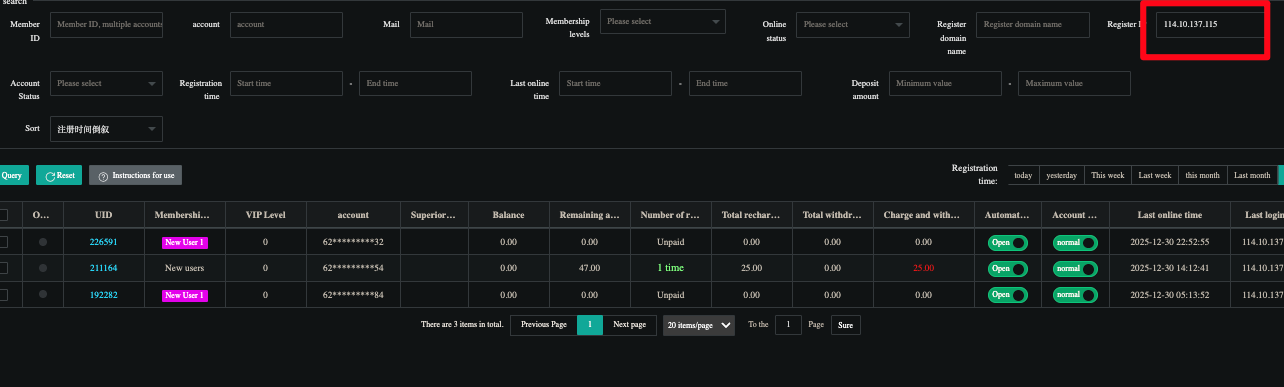
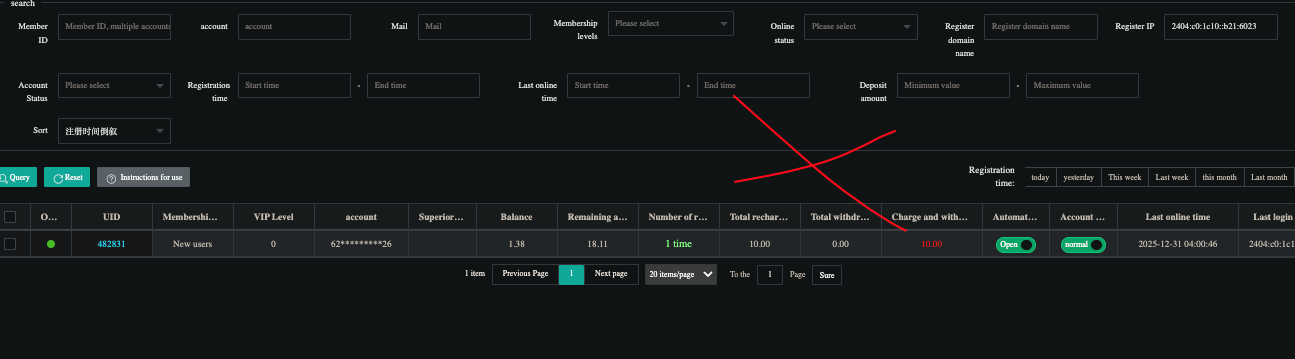
Step 3 — IP Inspection Search:
If Register IP search yields nothing, use IP Inspection: CRM → Membership Management → IP Inspection → Enter IP → Query
Step 4 — Check Each ID:
Click each ID to enter User Details, check: - Balance (User balance) - Deposit records (Last 3 recharge details) - Whether it matches the deposit screenshot provided by the member
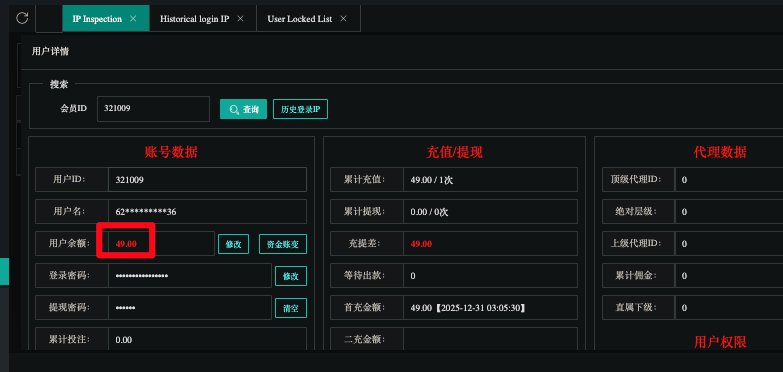
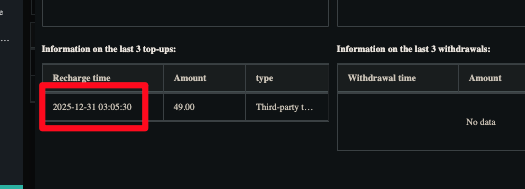
Step 5 — Get Temporary Password:
After finding the correct ID, since CS doesn't know the account's username, post to the group requesting:
Step 6 — Send to Member:
Member Confirms Receipt:
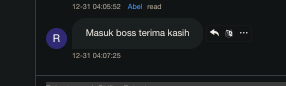
【To be confirmed】Escalation Boundary: After CS completes IP audit and finds the correct ID, should they directly inform the member and provide the password, or should they escalate to the team lead first? To be confirmed after starting the role.
6.9 App Download & Installation Issues¶
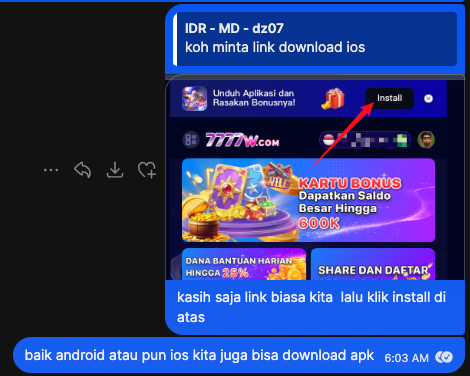
Scenario: Member asks how to download the App, or encounters issues after downloading.
iOS Installation:
Send the member the main website link → Click the "Install" button → Follow PWA installation process
Android Installation:
Send the member the main website link → Directly download and install APK
Common Issue: Balance Disappeared After Deposit Redirected to Download Page:
This is normal behavior. The platform sometimes guides members to download the APP after deposit. The member just needs to log in again; the balance is still in the original account.
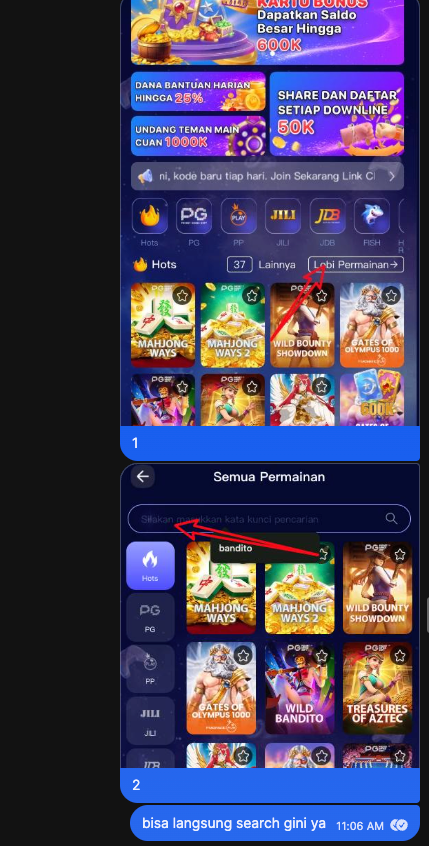
Searching for Games:
If a member asks about a specific game, guide them to use the search function.
Script When Game Doesn't Exist:
Halo Bos, untuk yang Anda tanyakan sudah kami cek, akan diluncurkan pada update selanjutnya
(The game will be launched in an upcoming update)
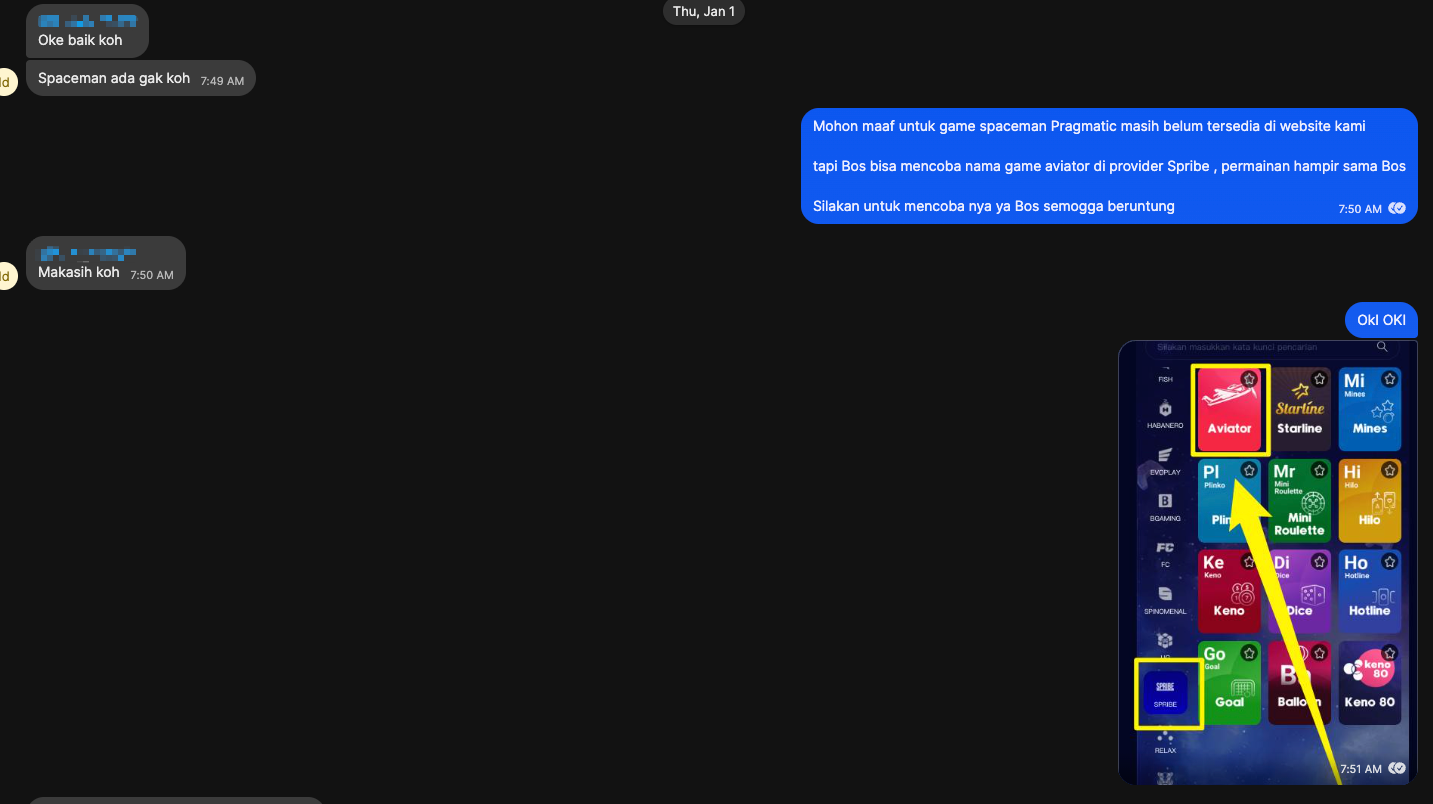
Spaceman Game Alternative:
Indonesian players frequently ask about Spaceman (a popular Pragmatic game), but the platform currently doesn't have it.
Script: Mohon maaf untuk game spaceman Pragmatic masih belum tersedia di website kami. Tapi Bos bisa mencoba nama game aviator di provider Spribe, permainan hampir sama Bos
6.10 Bonus & Promotion Issues (Bonus & Promosi)¶
Scenario: Member inquires about various bonus rules or cannot claim them.
New Member Bonus (Bonus New Member)¶
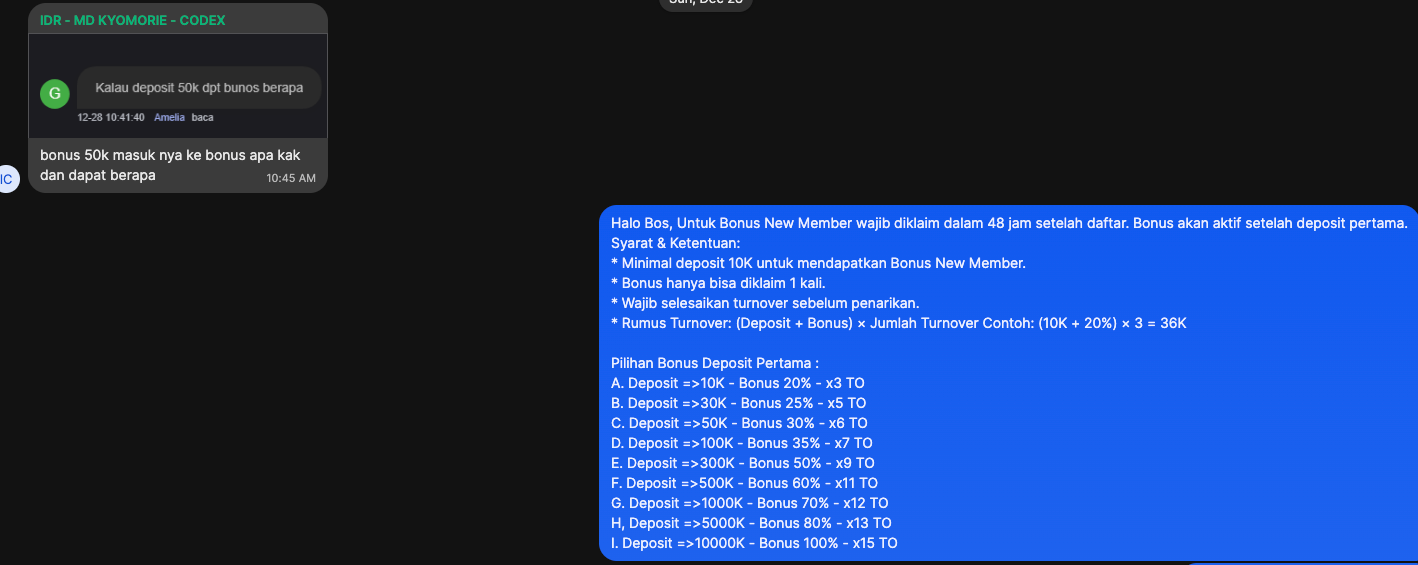
Rules: - Must be claimed within 48 hours of registration - Minimum deposit 10K - Can only be claimed once - Must complete TO before withdrawal - TO formula: (Deposit + Bonus) × Multiplier
⚠️ YYRR and SL888 platforms do not have new member bonuses.
Bonus Tier Table:
| Deposit Amount | Bonus Rate | TO Multiplier | TO Calculation Example |
|---|---|---|---|
| ≥10K | 20% | ×3 | (10K + 2K) × 3 = 36K |
| ≥30K | 25% | ×5 | (30K + 7.5K) × 5 = 187.5K |
| ≥50K | 30% | ×6 | (50K + 15K) × 6 = 390K |
| ≥100K | 35% | ×7 | (100K + 35K) × 7 = 945K |
| ≥300K | 50% | ×9 | |
| ≥500K | 60% | ×11 | |
| ≥1000K | 70% | ×12 | |
| ≥5000K | 80% | ×13 | |
| ≥10000K | 100% | ×15 |
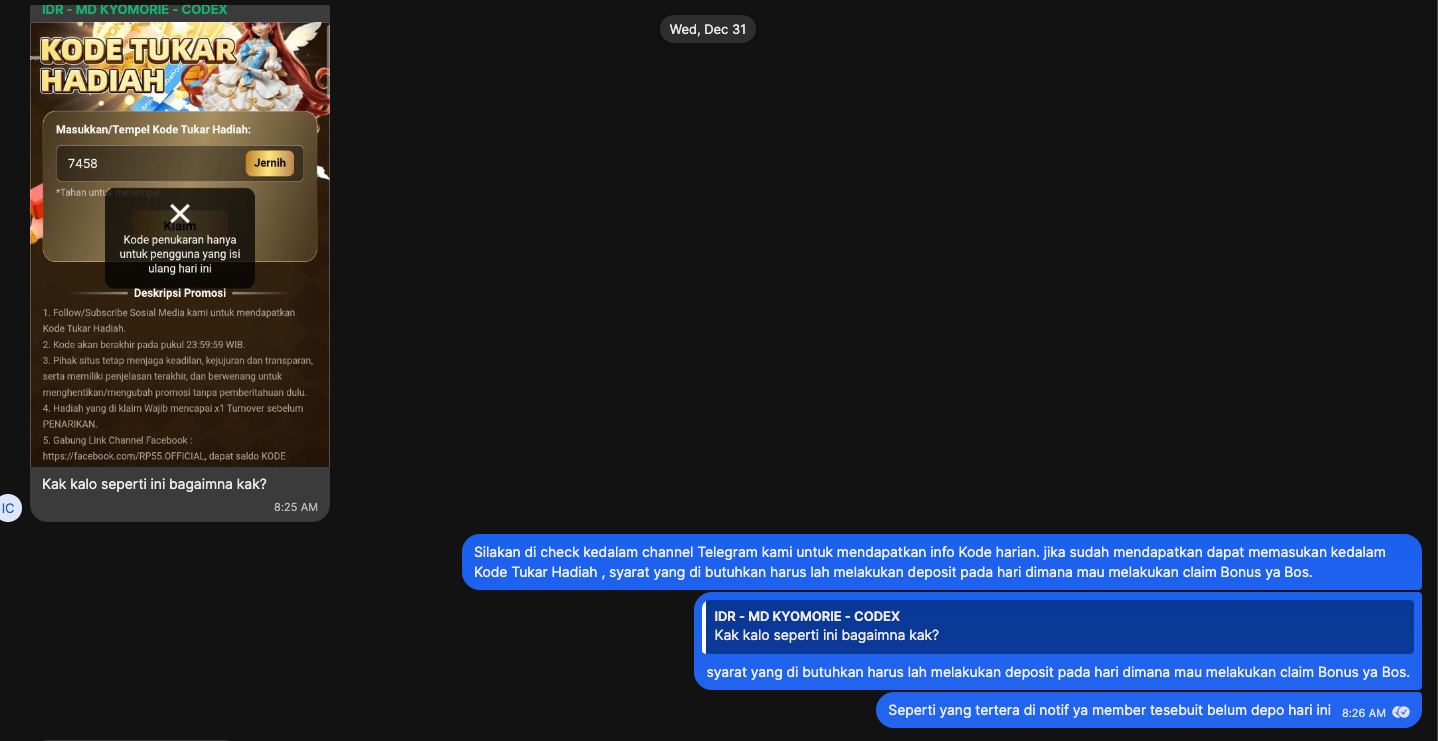
Daily Password Redemption (Kode Tukar Hadiah)¶
- Passwords are obtained from social media channels (Telegram, WhatsApp, Facebook, etc.)
- Must deposit on the same day to use the password for prize redemption
- Check if member already claimed: CRM → Activity Record → Redemption Code Record
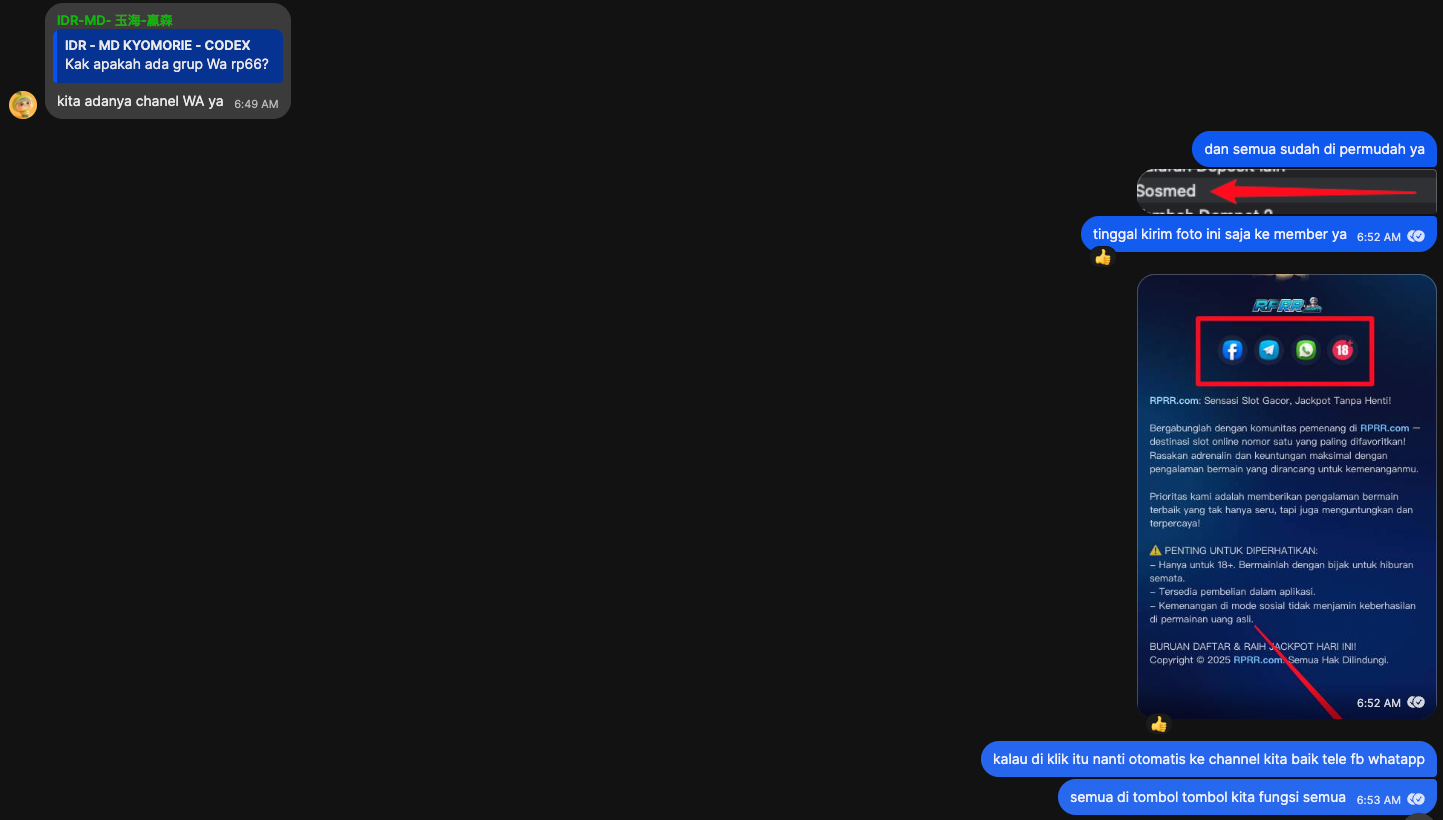
Social Media Channels¶
Members can find all social media channels (Facebook, Telegram, WhatsApp, etc.) through the in-game menu.
DANA Protection Issue¶
If a member encounters "Transaksi terdeteksi berisiko" (risky transaction detected) when depositing via DANA:
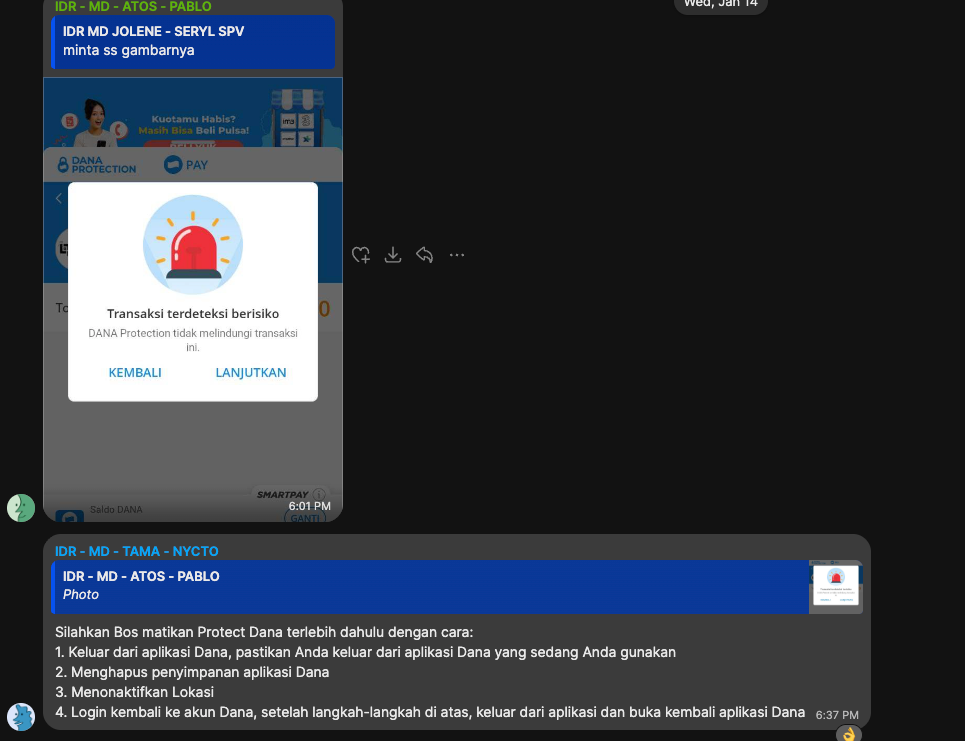
Script:
Silahkan Bos matikan Protect Dana terlebih dahulu dengan cara: 1. Keluar dari aplikasi Dana, pastikan Anda keluar dari aplikasi Dana yang sedang Anda gunakan 2. Menghapus penyimpanan aplikasi Dana 3. Menonaktifkan Lokasi 4. Login kembali ke akun Dana, setelah langkah-langkah di atas, keluar dari aplikasi dan buka kembali aplikasi Dana
6.11 Account Locking & Banning¶
Scenario: Member cannot log in or perform operations.
Password Entered Incorrectly 5 Times → Auto-Locked for 15 Minutes¶
📘 Source: 02-SOP §5.8
Script:
Halo Bos, dikarenakan salah memasukan Kata Sandi sebanyak 5X maka akan terkunci selama 15menit. Untuk mengakses kembali, mohon sertakan bukti data dan bukti deposit terakhir ya
CS does not need the member to wait 15 minutes — can directly check the User Locked List and escalate for unlocking:
- Check User Locked List → If Login Lock shows locking → Escalate to group
- Format:
Kendala: Reset sandi login & Buka lock
PIN Entered Incorrectly 5 Times → Betting + Withdrawal Locked¶
📘 Source: 02-SOP §5.7
Script:
Halo Bos, dikarenakan salah memasukan Kode PIN sebanyak 5X maka akan dilarang untuk bertaruh dan penarikan ya. Untuk mengakses kembali, mohon sertakan bukti Penarikan terakhir Anda
Handling: Request last withdrawal screenshot + bank/wallet screenshot → Verify then escalate to group
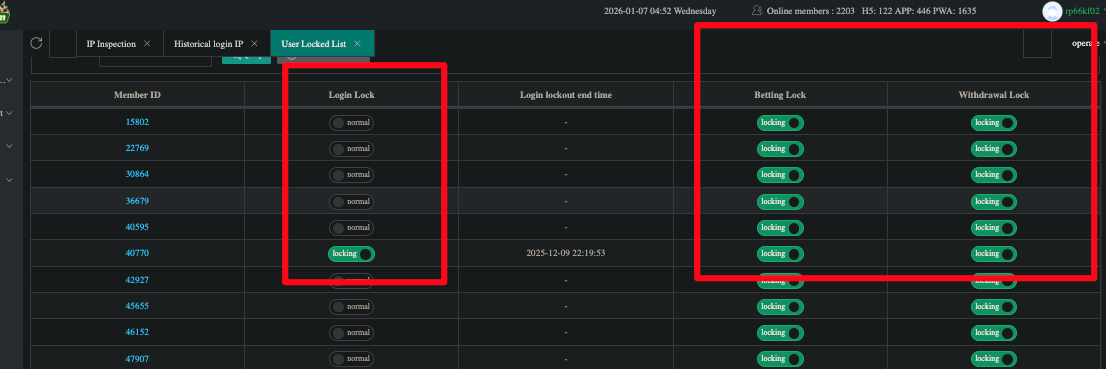
💡 If the ID is not in the User Locked List: The member has never entered an incorrect password or PIN; the login issue may be caused by something else.
Account Ban (Akun Blokir)¶
📘 Source: 02-SOP §5.3
Possible Causes: BH (Bonus Hunting), using cheats, multiple accounts, bot farms, and other rule violations.
Script:
Halo Bos, dikarenakan akun Bos telah melanggar salah satu aturan di situs kami, hingga akun game tidak dapat digunakan lagi
→ Full ban scripts reference 02-SOP §5.3 Account Ban
Part Four: Work Standards¶
VII. Attendance Check-in (DAKA) & Cloud Desktop (CR)¶
📘 Source: cstraining.docx + 03-WFH CS Management Rules
7.1 Cloud Desktop (CR)¶
CR = Cloud Remote, the work environment for WFH CS. Each CS is assigned a fixed-number cloud desktop (e.g., CR01, CR03, CR06, etc.).
Rules: - Must use the assigned CR during work hours; personal computers are prohibited - All CRs log in with the same email - Check-in (DAKA) must be completed within CR; check-in outside CR is not allowed - Contact the team lead promptly if experiencing CR login issues
7.2 OTP Login¶
Logging into CR requires an OTP (One-Time Password).
Obtaining Process: 1. Message in the STK/WFH group or DM the supervisor, providing your CR ID 2. Supervisor replies with OTP 3. Enter quickly — OTP changes dynamically and expires after timeout
7.3 DAKA Check-in¶
The DAKA check-in system has 4 buttons:
| Button | Color | Indonesian | English | When to Press |
|---|---|---|---|---|
| Clock In | 🔵 Blue | Kerja | Start Work | When starting shift |
| Clock Out | 🟢 Green | Pulang Kerja | End Work | When ending shift |
| Leave | ⚪ Gray | Break | Break/Leave | Before meals/restroom/emergencies |
| Return | 🟠 Orange | Back | Back to Work | When returning from break |
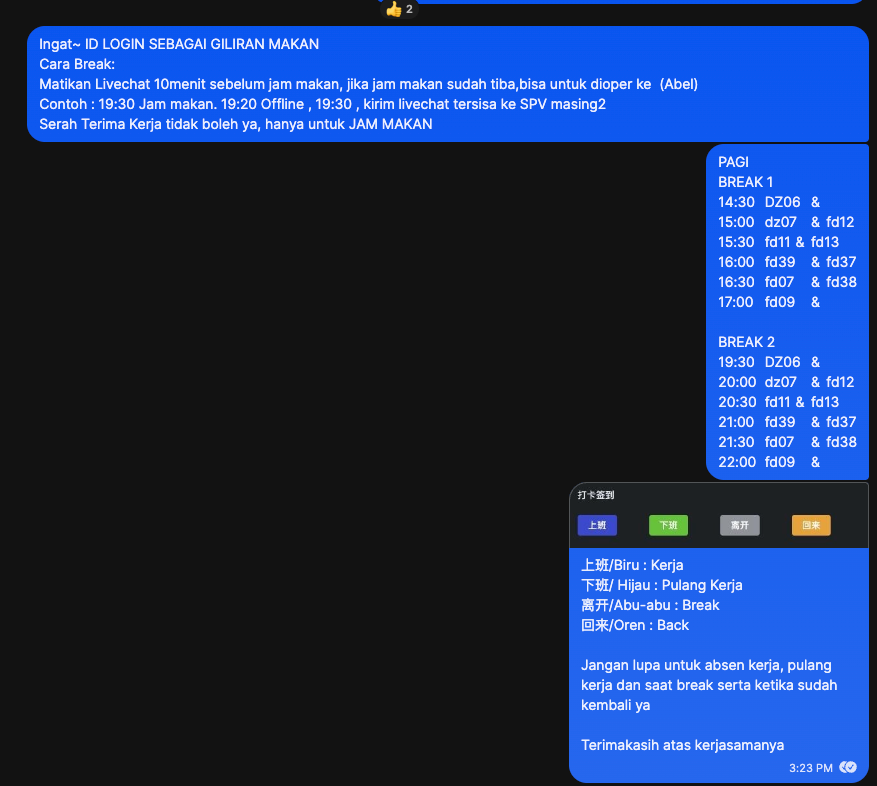
Check-in Discipline:
📘 Source: 03-WFH CS Management Rules §1.2
- Clock in at start and clock out at end — both are mandatory
- If you forget to check in, contact the team lead on the same day to make up for it
- ⚠️ Forgetting to check in ≥3 times → Full attendance deduction; serious cases → Salary deduction
VIII. Breaks & Scheduling¶
📘 Source: cstraining.docx + 03-WFH CS Management Rules
8.1 Shift Schedule¶
| Shift | Time (WIB) |
|---|---|
| Day Shift (Pagi) | 10:00 - 22:00 |
| Night Shift (Malam) | 22:00 - 10:00 |
8.2 Break Rules¶
📘 Source: 03-WFH CS Management Rules §1.8 + cstraining.docx
| Item | Rule |
|---|---|
| Meal Time | ≤ 30 minutes, must rotate with colleagues |
| Restroom | ≤ 10-15 minutes |
| Leave Reporting | Any absence must be reported first (report in STK/WFH group); unreported overtime → treated as absence → salary deduction |
Meal Rotation Rules:
ID LOGIN SEBAGAI GILIRAN MAKAN — Login ID number determines meal rotation order. Lower numbers eat first.
Specific Break Procedure (Cara Break):
- 10 minutes before break: Switch LiveChat to Busy mode
- Clear all conversations in hand
- Transfer remaining unfinished conversations to AST SPV (Assistant Supervisor)
- Report in STK/WFH group
- Press DAKA "Leave" button
- After break ends → Press DAKA "Return" → Restore LiveChat to "Online"
Break Schedule Example (Day Shift):
| BREAK 1 | Staff | BREAK 2 | Staff |
|---|---|---|---|
| 13:00 | idrmdy01 | 18:00 | idrmdy01 |
| 13:30 | idrmdy02 | 18:30 | idrmdy02 |
| 14:00 | MEIFUN | 19:00 | ... |
| 14:30 | Salwa | 19:30 | ... |
| ... | ... | ... | ... |
Rotation every 30 minutes in pairs; specific schedule arranged by supervisor.
8.3 Shift Change Rules¶
📘 Source: cstraining.docx
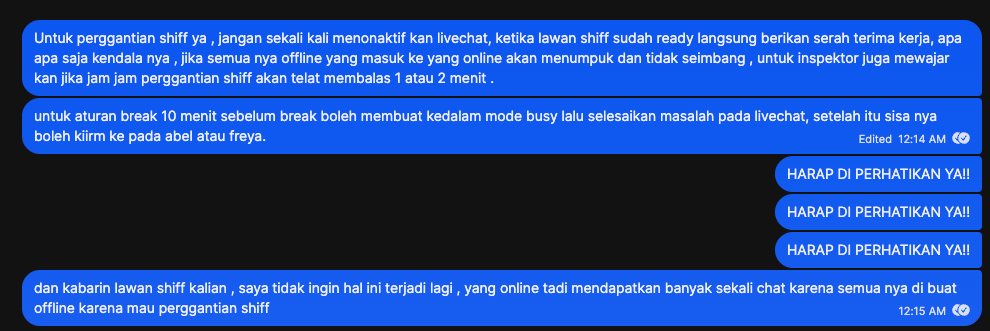
⚠️ All staff going offline simultaneously for handover is strictly prohibited — if everyone goes offline at the same time, all new incoming members will pile up on the one person still online, causing severe imbalance.
Correct Shift Change Process: 1. Wait for the next shift's staff to log in and be ready 2. Proceed directly with STK handover (do not go offline first) 3. Handover content: unresolved conversations, pending deposits/withdrawals, latest platform changes 4. After handover is complete, the previous shift goes offline
KPI Exemption During Shift Change:
The supervisor (Inspector) understands there may be 1-2 minutes of reply delay during shift changes; KPI will not be deducted.
8.4 Shift Rotation Day¶
📘 Source: cstraining.docx
- Shift rotation is scheduled on the 23rd-30th of each month, arranged uniformly by the supervisor
- Individual rotation, not the entire group at once
- Requesting specific dates is not allowed
Shift Rotation Day Calculation:
Example: Xiao Ming was originally on the night shift (00:00-12:00), scheduled for rotation on the 20th - 20th: Normal end of shift (night shift ends at 12:00) - 21st at 00:01: Does not work (this is the extra rest for rotation day) - 21st at 12:00: Starts the new shift (day shift) - Effectively gains an extra 12 hours of adjustment time (plus the normal 12-hour rest = 24 hours of rest)
IX. Shift Handover (STK)¶
📘 Source: cstraining.docx + 03-WFH CS Management Rules §1.4
9.1 What is STK¶
STK = Serah Terima Kerja (Shift Handover).
Old system: Record handover content in Google Sheets documents and sign
New system: Changed to posting announcements directly in the group
9.2 Required Handover Content¶
| Content | Description |
|---|---|
| Unresolved Conversations | Ongoing conversations in LiveChat, or pending deposit/withdrawal issues |
| Pending Deposits/Withdrawals | Transaction queries posted in the group but without results yet |
| Latest Platform Changes | Bonus rate changes, minimum deposit adjustments, new promotions launched, etc. |
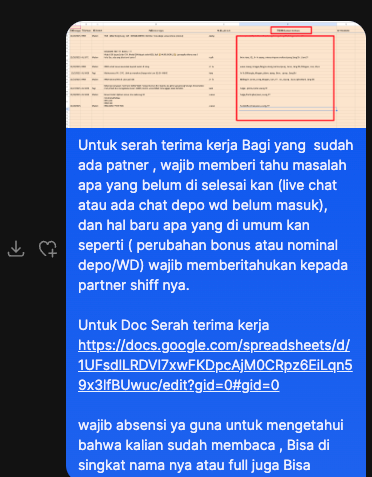
⚠️ Do not transfer chat during handover (do not transfer conversations to the next shift); let the next shift's CS continue handling the original conversation threads.
9.3 STK Signature¶
The old STK Google Sheets still exists (as announcement archives). CS needs to sign to confirm they have read it — can write abbreviation or full name.
📘 Source: 03-WFH CS Management Rules §1.4 · Checking the handover group is a mandatory daily routine when starting work
X. Work Discipline & KPI¶
10.1 Work Discipline Essentials¶
📘 Source: 02-WFH CS Workflow SOP §I + 03-WFH CS Management Rules §II
The following are the most critical discipline rules. For the full 16 rules, see 02-SOP; for the full 15 WFH rules, see 03-Management Rules.
| Rule | Violation Consequence |
|---|---|
| Backend content prohibited from being screenshotted to members | 1st warning → 2nd fine $20 → 3rd fine $50 → 4th termination |
| Company materials must not be leaked | Suspension without pay / Termination |
| Unauthorized changes to member data | $50 fine per occurrence |
| Sleeping during work hours | Minor: partial KPI deduction; severe: entire month's KPI cancelled |
| Going offline without notice | Disciplinary action |
| Unreported absence exceeding time limit | Treated as absence → Salary deduction |
10.2 KPI Deduction Rules¶
📘 Source: cstraining.docx
| Deduction Scenario | Description |
|---|---|
| Incorrect reply | Member asks about deposits, you answered with withdrawal methods → KPI deduction |
| No reply for over 3 minutes | Unless platform failure, exceeding 3 minutes without reply → KPI deduction |
| No effective solution provided | Member has an issue but you didn't provide a solution → KPI deduction |
| Poor attitude | Bad tone, impatience → KPI deduction |
| During platform outage | Exempt, no KPI deduction |
⚠️ 3 minutes is a hard limit — 1-2 minutes delay is allowed during shift changes; strictly enforced at all other times.
10.3 Platform Basic Rules (9 Rules CS Must Memorize)¶
📘 Source: 02-WFH CS Workflow SOP §II
| # | Rule |
|---|---|
| 1 | Each deposit requires 1x valid betting (1x Turnover) before withdrawal is allowed |
| 2 | Event rewards must meet conditions before claiming |
| 3 | Bonus hunting, cheats, bots, multi-accounting, mutual brushing, arbitrage, etc. are prohibited |
| 4 | One person can only have one game account |
| 5 | Deposits and withdrawals cannot use another person's account |
| 6 | Games use a random system and are not manually manipulated |
| 7 | Violators will have their account frozen and balance deducted |
| 8 | Member personal data is strictly encrypted and stored |
| 9 | Password leaks resulting in balance loss are the member's own responsibility |
10.4 Serious Violation Cases¶
📘 Source: cstraining.docx
⚠️ A CS has already been immediately terminated without pay for sharing backend screenshots with others. This is not an empty threat — it has been enforced.
Appendix¶
Appendix A: Terminology Reference Table¶
| Indonesian | Chinese | English | Description |
|---|---|---|---|
| CRM | 后台管理系统 | CRM | CS operation backend |
| Member / Bos | 会员 | Member | Platform user |
| Deposit | 充值/存款 | Deposit | — |
| Penarikan / WD | 提现/提款 | Withdrawal | — |
| NoRek (Nomor Rekening) | 银行卡号 | Bank Account Number | — |
| E-wallet | 电子钱包 | E-wallet | DANA, OVO, GoPay, etc. |
| Turnover / TO | 有效投注/流水 | Turnover | — |
| KTP | 身份证 | National ID Card | Indonesian national ID |
| Leader / SPV | 组长/督导 | Supervisor | — |
| AST SPV | 助理主管 | Assistant Supervisor | — |
| Merchant | 支付商户 | Payment Merchant | Third-party payment channel |
| Sandi / Kata Sandi | 密码 | Password | — |
| Kode PIN | 提现 PIN 码 | WD PIN | Withdrawal verification code |
| Blokir | 封禁 | Block | — |
| SS (Screenshot) | 截图 | Screenshot | — |
| STK (Serah Terima Kerja) | 工作交接 | Shift Handover | — |
| CR (Cloud Remote) | 云桌面 | Cloud Desktop | — |
| DAKA | 打卡签到 | Attendance Check-in | — |
| SC (Short Cut) | 快捷话术 | Quick Reply Script | — |
| BH (Bonus Hunter) | 薅羊毛猎人 | Bonus Hunter | — |
| BAT (Bonus Ajak Teman) | 邀请好友奖励 | Referral Bonus | — |
| RK (Roda Keberuntungan) | 幸运转盘 | Lucky Wheel | a.k.a. Pinduoduo Reward |
| LP (Lupa PIN) | 忘记提现 PIN | Forgot WD PIN | — |
| LS (Lupa Sandi) | 忘记登录密码 | Forgot Password | — |
| GR (Ganti Rekening) | 更换银行卡号 | Change Account | — |
| VA (Virtual Account) | 虚拟账户 | Virtual Account | Bank transfer collection code |
| QRIS | 二维码支付 | QR Payment | Indonesia's unified QR payment standard |
| PWA | 渐进式网页应用 | Progressive Web App | — |
| Remark | 备注标签 | Remark/Tag | — |
| Redistribution | 会话转接 | Chat Transfer | — |
Appendix B: Quick Script (SC) Index¶
Below is an index of commonly used scripts referenced in this document. For the full version, refer to 08-CS Script Library and 02-WFH CS Workflow SOP.
| Scenario | Script Code | Summary |
|---|---|---|
| Request ID | w4 | "Please tell us your User ID" |
| ID not found | gs2 | "ID not found, please reconfirm" |
| Request verification data | gs1 | "Please provide bank card number + account holder name" |
| Password reset complete | sgs1 | "Password has been reset to 123123123" |
| Forgot ID + password | gss1-gss3 | Complete process scripts |
| Request complete deposit screenshot | d1 | "Please provide screenshot with success status + time + reference number" |
| Deposit successful | sks2 | "Deposit successful, please check your balance" |
| Withdrawal successful | sw3 | "Withdrawal successful" |
| Multiple accounts | akun1-3 | "You have other accounts" series |
| Incorrect card number | ggl1 | "Bank card number is incorrect" |
| Account ban | blok1-3 | Account ban script series |
| Angry member | — | See Google Sheets script table |
Appendix C: Cross References¶
| Document | Description |
|---|---|
| 02-WFH CS Workflow SOP | Standard scripts and detailed procedures |
| 03-WFH CS Management Rules | 15 WFH disciplines + Daily 10-step process + FAQ |
| 04-CS Management Specialist Work Guide | Management perspective — escalation target for issues CS cannot resolve |
| 06-Audit Team Lead Work Guide | Authoritative source for BH/BAT remark formats and audit processes |
| 08-CS Script Library | Complete quick reply template library |
📌 This document is compiled from the following source materials: - cstraining.docx (CS Training Tutorial, containing 106 system screenshots) - 02-WFH CS Workflow SOP (Script Library.xlsx · Prosedur Kerja) - 03-WFH CS Management Rules (Script Library.xlsx · WFH Precautions) - 06-Audit Team Lead Work Guide (Remote Audit SOP) - 04-CS Management Specialist Work Guide (Management Learning Discussions)