06 · CS Channel Salesmartly Backend Usage Guide¶
Target audience: CS Management Specialist + Remote Assistant (management role) + Remote CS Agent (refer to the CS Agent perspective sections) Source material: Compiled and contributed by Noah — based on "CS Channel Backend Functions.docx" + "CS Frontend (SaleSmartly).xmind" Compiled by: Bob | Date: 2026-05-04 Status: Compiled based on actual backend screenshots provided by Noah (37 screenshots, one-to-one mapping)
📘 Acknowledgement: The structure and detailed function explanations of this document are entirely sourced from two original materials compiled and contributed by Team Lead Noah: - CS Channel Backend Functions.docx (containing 37 actual backend screenshots) - CS Frontend (SaleSmartly).xmind (mind map hierarchical structure)
Table of Contents¶
- 1. Home
- 2. Chat
- 3. Customers
- 4. Marketing
- 5. Bots
- 6. Reports
- 7. Integration
- 8. Settings
- Cross References
1. Home¶
Function purpose: Used to connect each social media API. Tutorials are provided below; preparation must be done before connecting.
1.1 Connect Channels¶
Used to connect all social media channels. Do not integrate any social media that has not been pre-configured — only enable integration for social media channels that have already been configured.
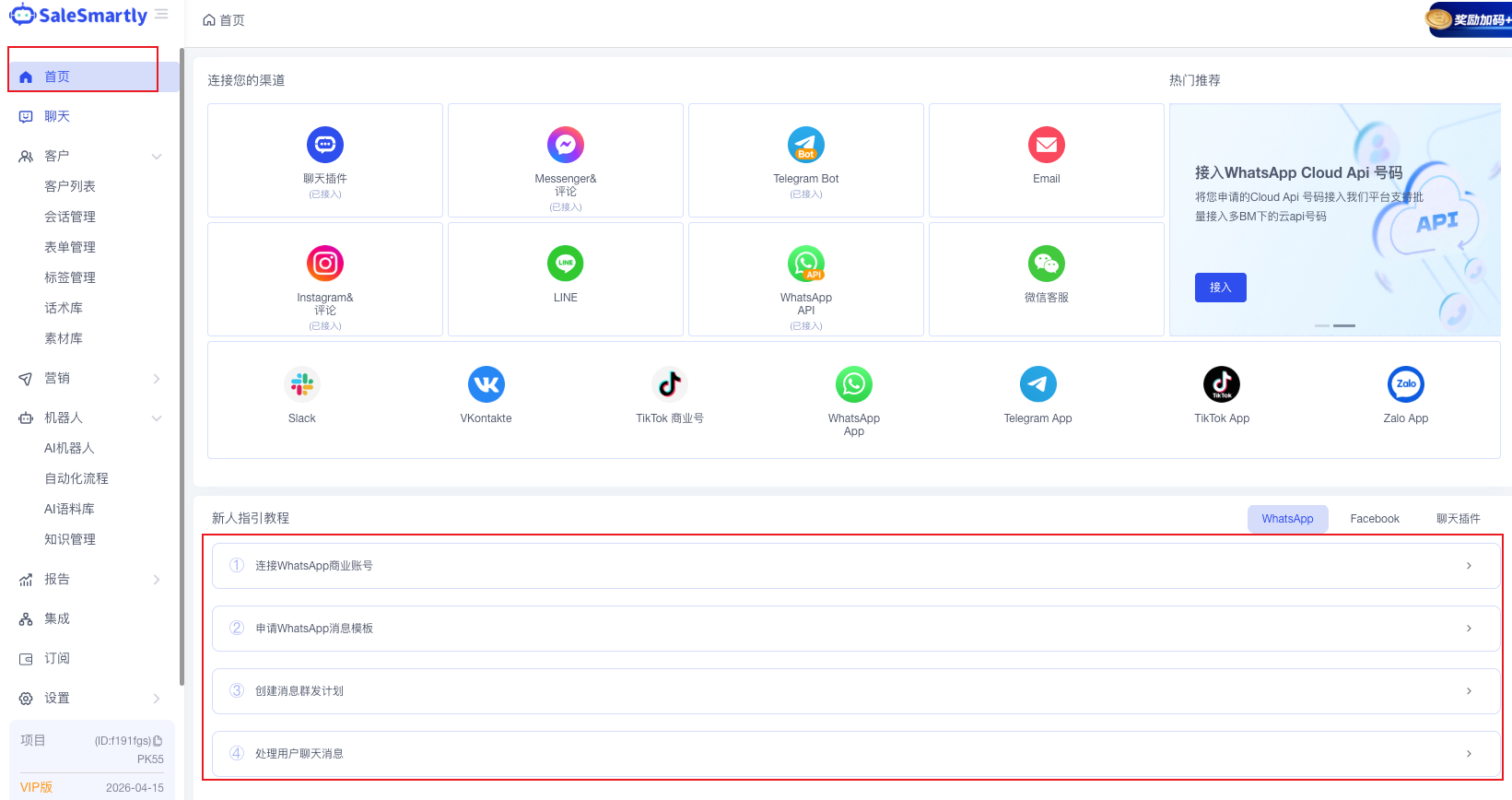
1.2 Onboarding Tutorial¶
A quick tutorial on usage and how to set up APIs.
1.3 Multi-device / APP¶
Supports handling messages on the following platforms: - WeChat Mini Program - Android - iOS - Desktop computer
Follow the Official Account to receive new message notifications.
📘 Source: Compiled by Noah (xmind · Home)
2. Chat¶
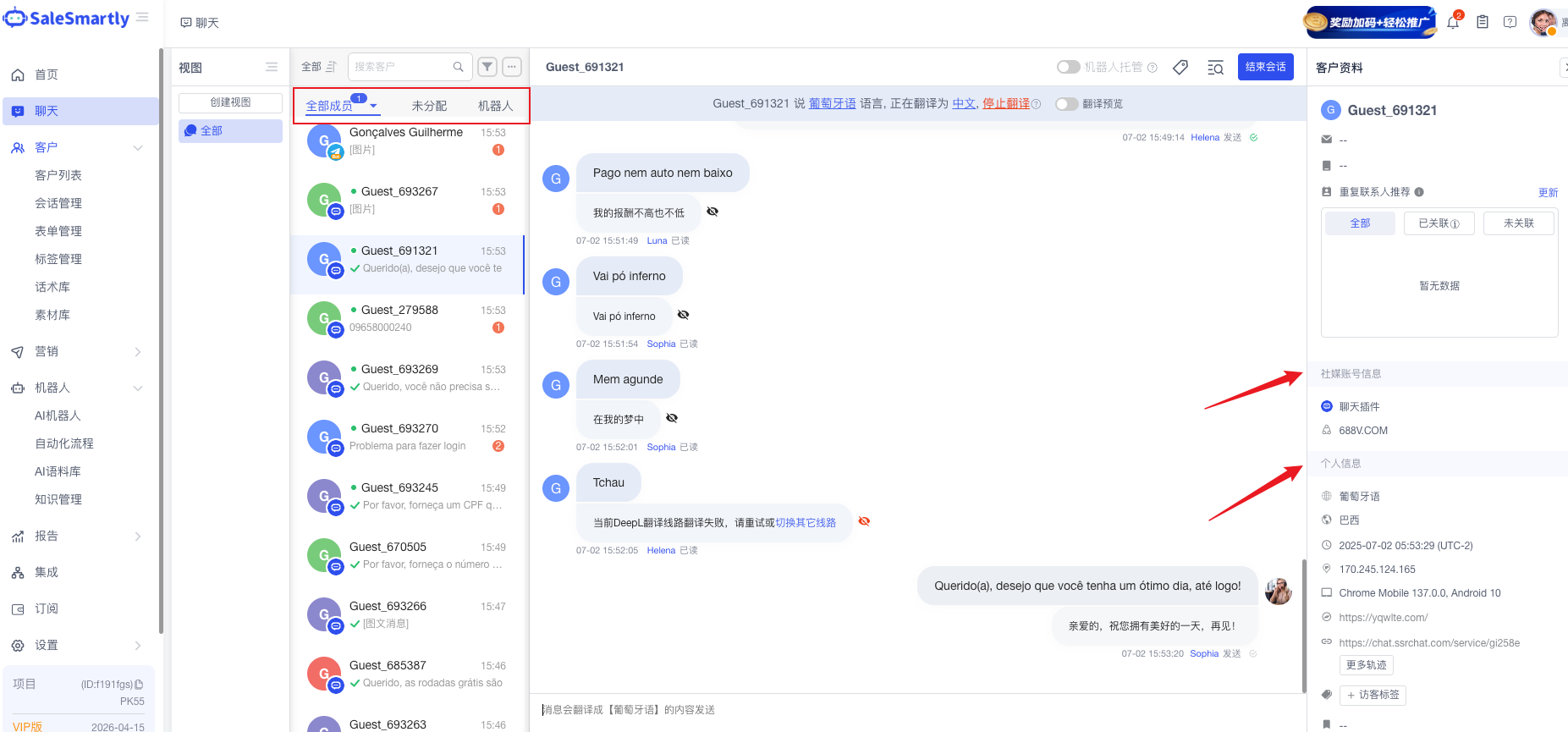
Function purpose: Each member's conversation window will be displayed here.
2.1 Three Areas of the Chat Window¶
Member conversations take place within this window, divided into three core areas:
2.1.1 Member Information (Right Panel)¶
| Information Type | Content |
|---|---|
| Customer Profile | Identifies whether the member has an email, phone number, etc. |
| Social Media Account Info | Shows which social media and which platform the member used to contact CS |
| Personal Information | Identifies the member's nationality, language, time, IP, device, original visit source, etc., and allows tagging members |
| Custom Information | Custom fields |
| Add to Blacklist | ⚠️ Do not use casually |
2.1.2 Send Content Window (Center Bottom)¶
- Quick Reply: Clicking will pop up the pre-configured scripts
- Script Library
- Corpus Library
- Automated Workflow
- Star / Invite Rating: You can invite the member to rate the conversation when ending it
- Send Content: Emojis, voice, audio, images, videos, links
- ⚠️ CS agents can only send images and links related to the platform
2.1.3 End Conversation and Other Related Uses (Top/Side)¶
- Bot Takeover: When enabled, the bot will recognize pre-configured rules and reply via AI
- Session Tags: Used to tag the session
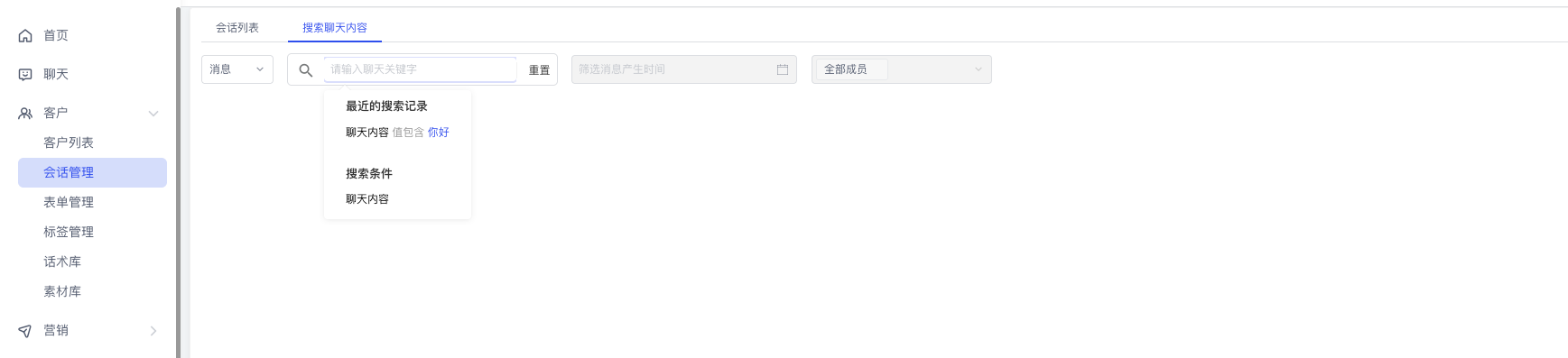
- Search Chat Content: Search the history of this session
- End Conversation: Ends the conversation between the CS agent and the member (must be used after the closing script has been sent)
📘 Source: Compiled by Noah (xmind · Chat)
3. Customers¶
3.1 Customer List¶
3.1.1 Valid Customers¶
Customers filtered from the All Customers list who have an email or phone number (including social media and third-party users).
Searchable by: time, social media channel, name, email, phone, country/region, city, language, translation language, visitor tags, etc.

3.1.2 All Customers¶
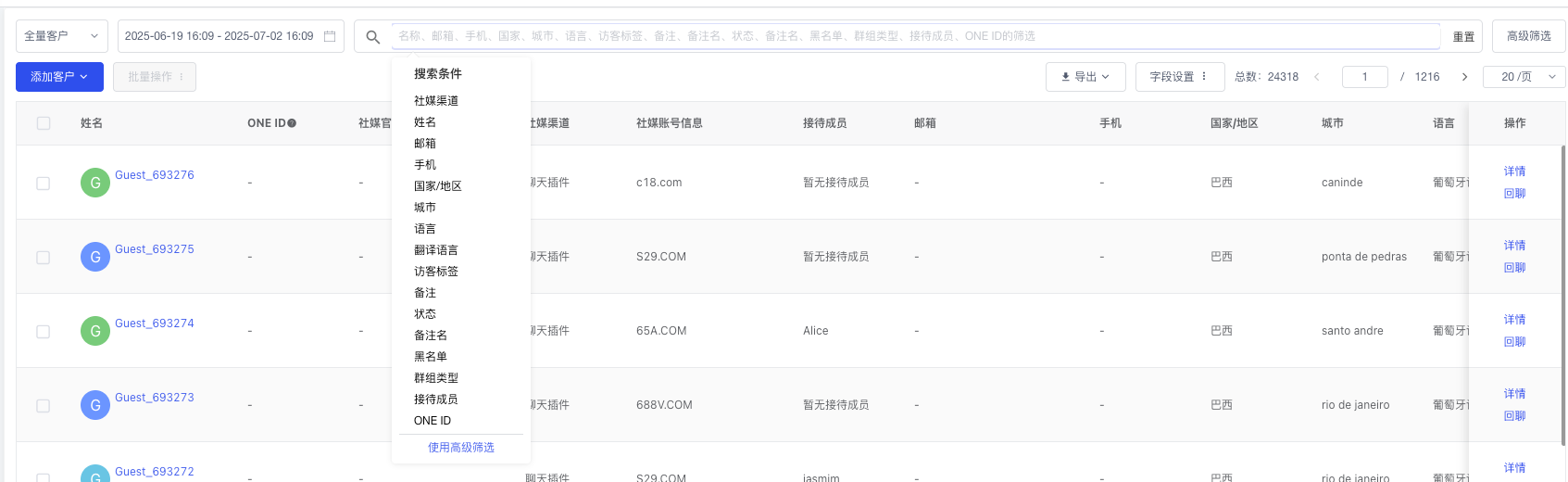
All customers who have contacted CS.
Searchable by: time, social media channel, name, email, phone, country/region, city, language, translation language, visitor tags, etc.
3.1.3 My Customers¶
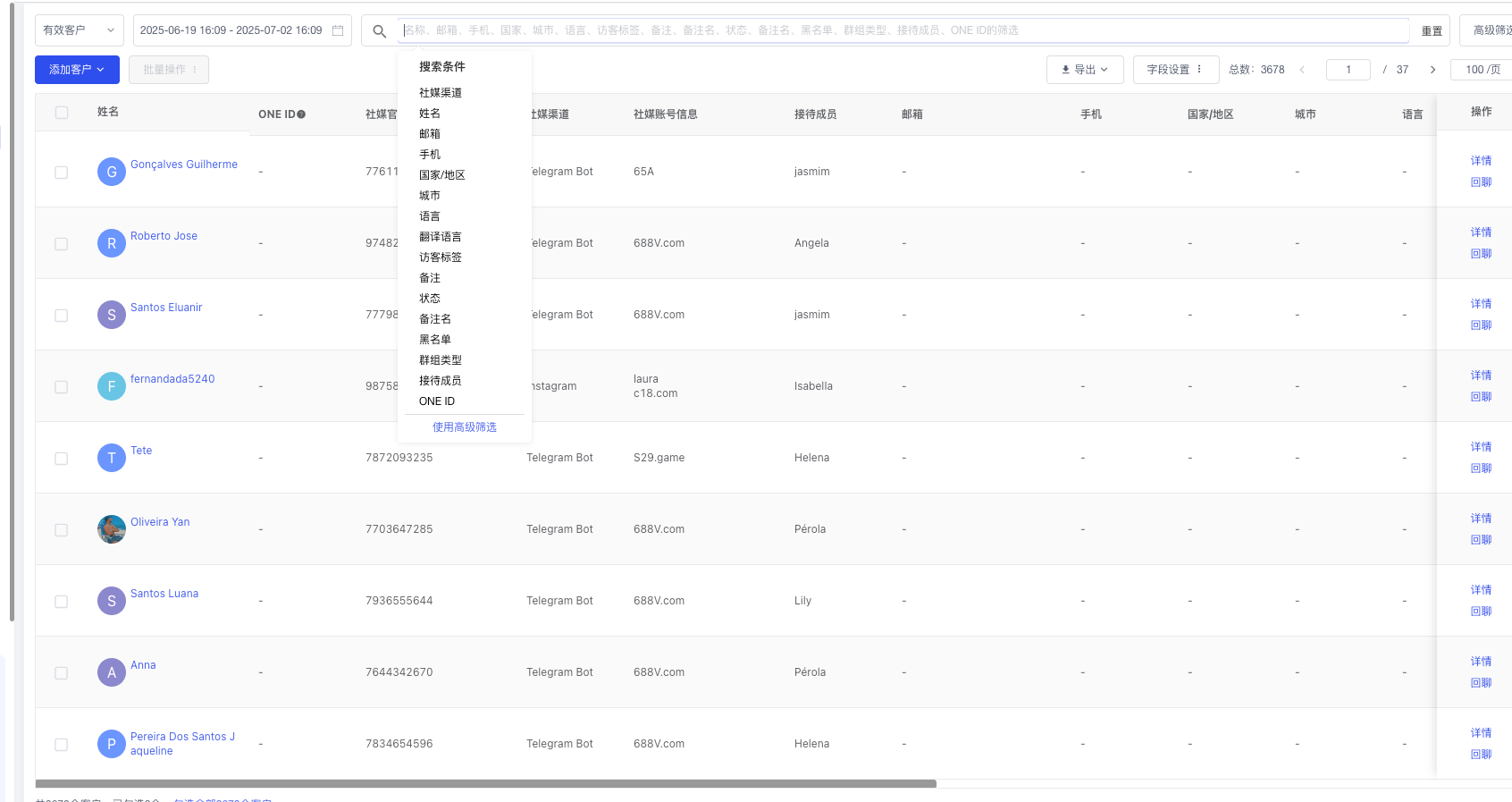
On this page, you can view the chat details of each CS agent.
Searchable by: time, social media channel, name, email, phone, country/region, city, language, translation language, visitor tags, etc.
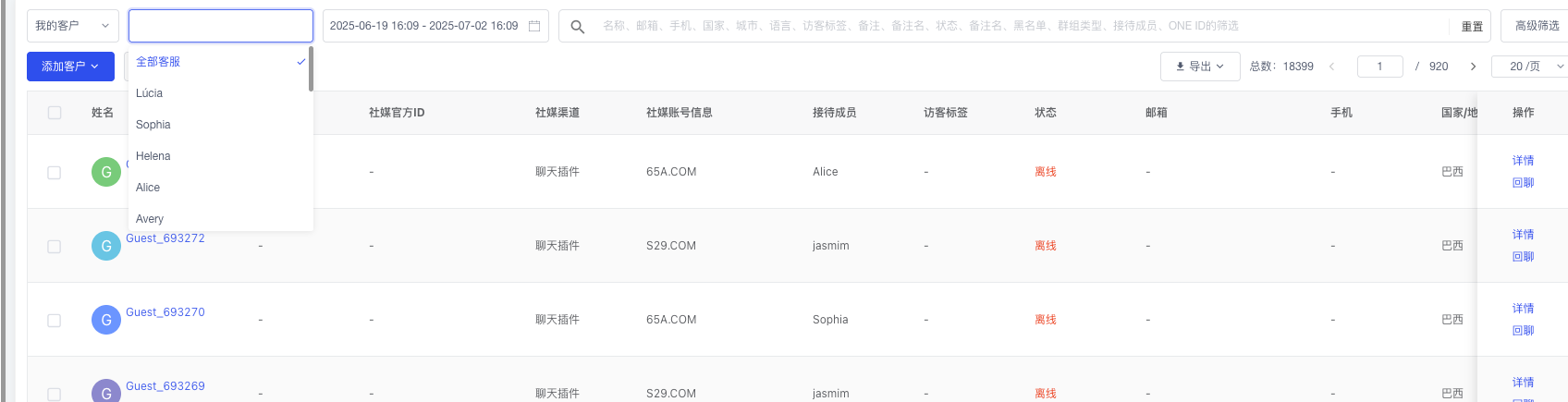
3.2 Session Management¶
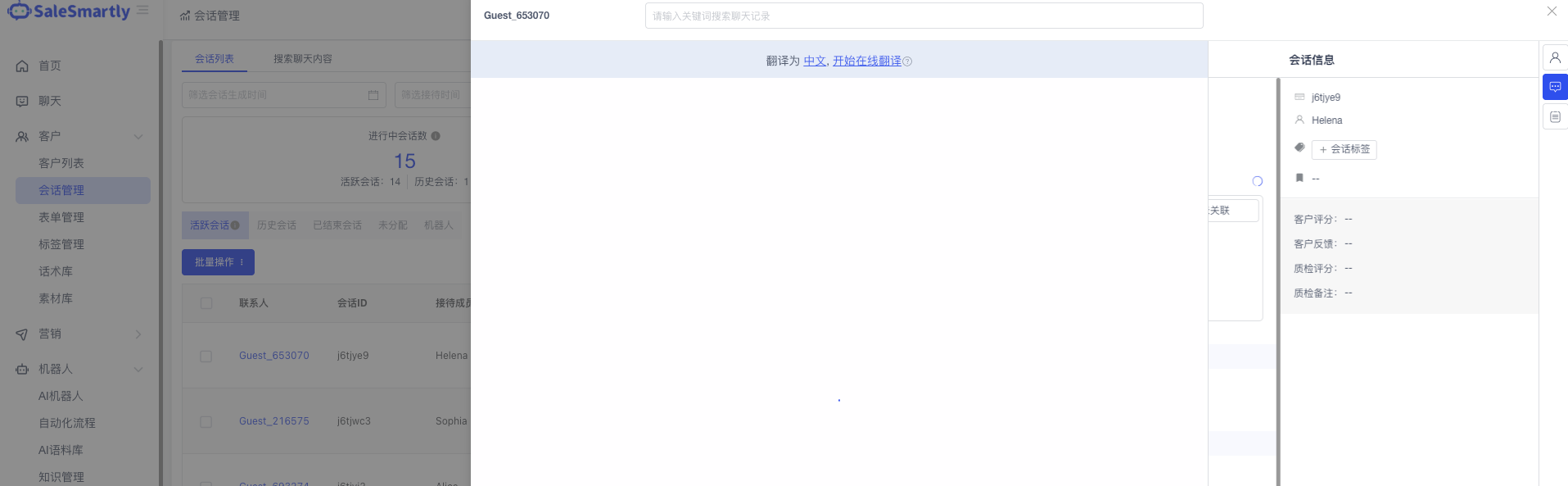
Used to query the content of each conversation and to add notes for each CS agent's conversations.
The search function supports searching by time, social media channel, name, email, phone, country/region, city, language, translation language, visitor tags, etc.
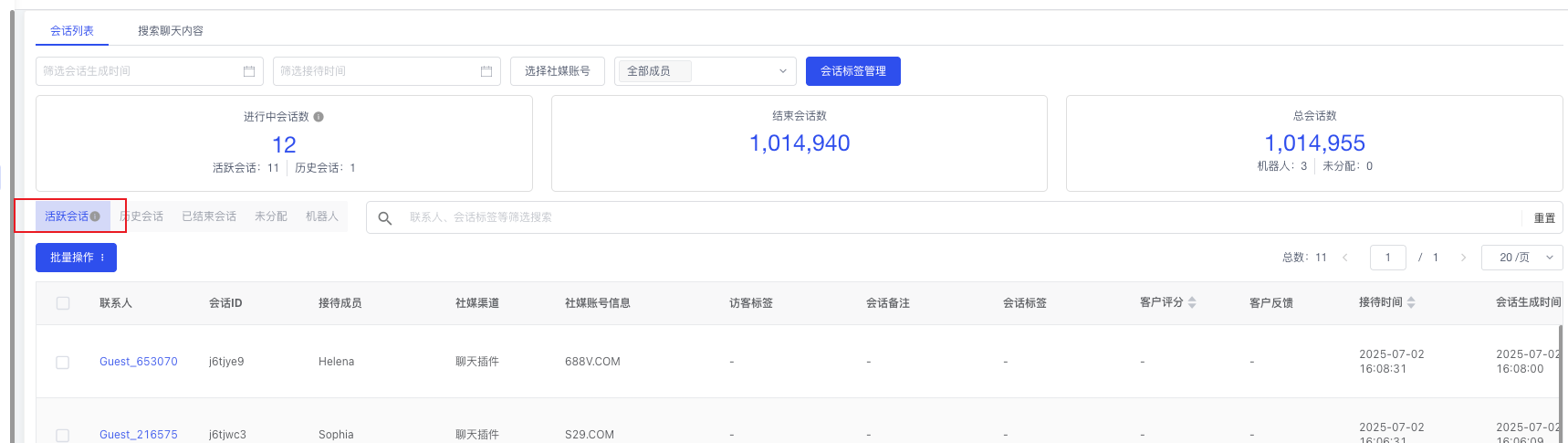
3.2.1 Active Sessions¶
Sessions with conversation activity within 7 days.
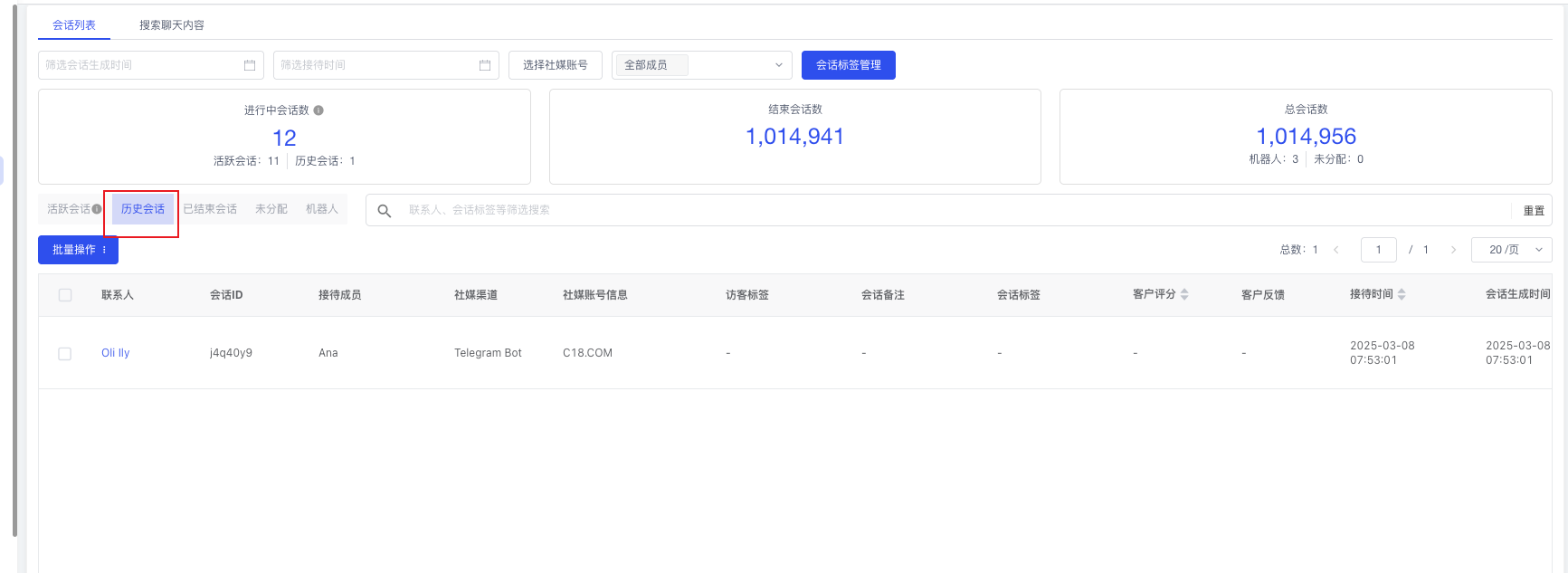
3.2.2 Historical Conversations¶
Conversations not ended after 7 days will be shown here.
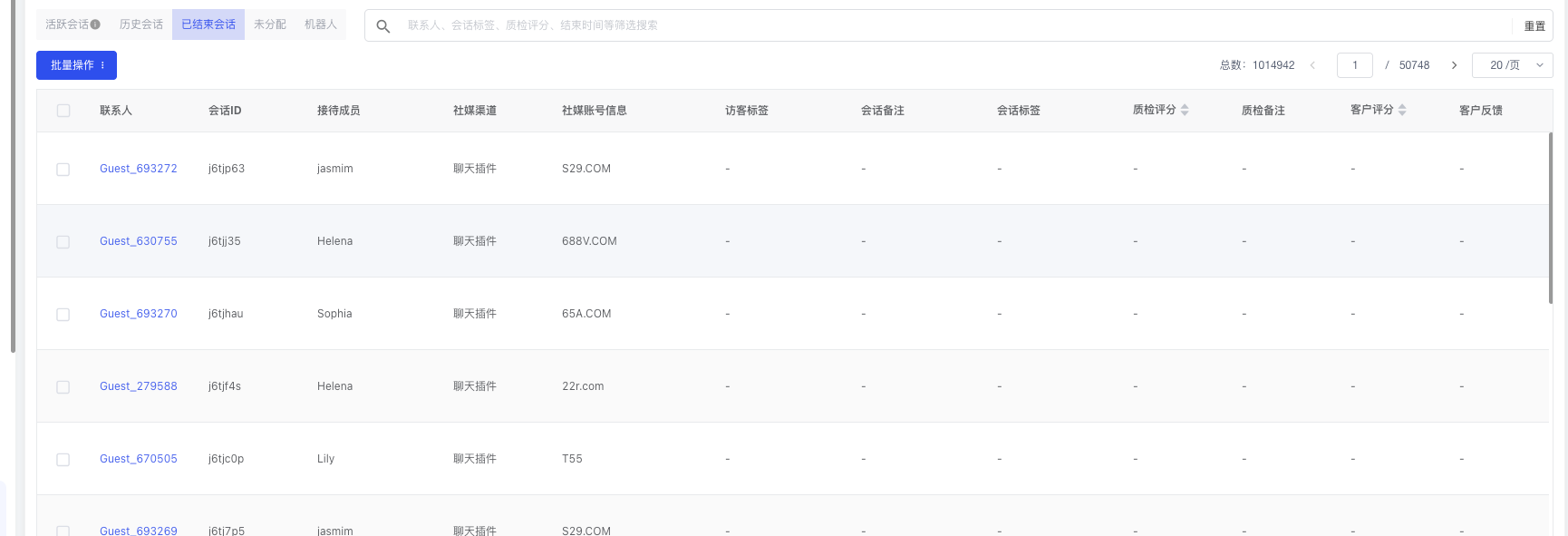
3.2.3 Ended Sessions¶
Used to view the content of ended conversations.
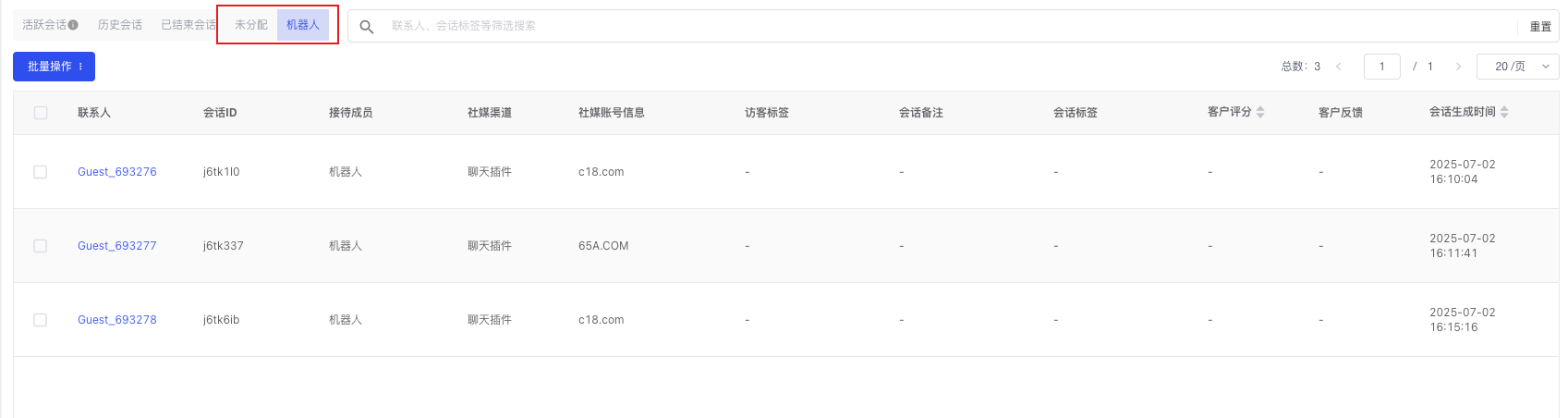
3.2.4 Unassigned¶
Check whether there are any conversations not assigned.
3.2.5 Bot¶
View today's bot conversation records.
3.3 Form Management¶
3.3.1 Order List¶
Used to view orders.
3.3.2 Rating Invitation List¶
Used to query whether each CS agent's rating invitation records for members have been filled in.

3.4 Tag Management¶
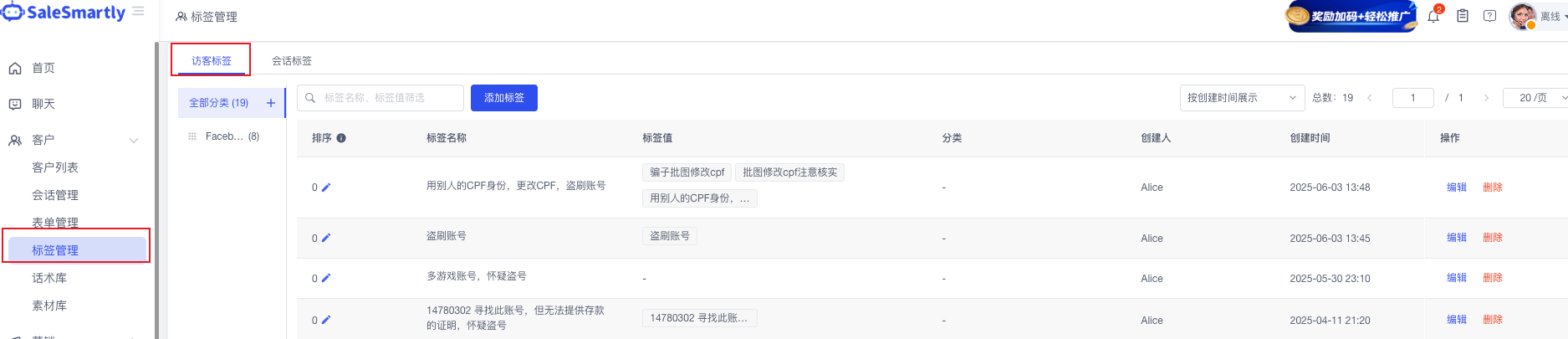
3.4.1 Visitor Tags¶
You can add a tag and then tag the member during the chat conversation, allowing you to better understand the member's situation later.
3.4.2 Session Tags¶
Tag conversations during the session.
3.5 Script Library¶
Used to add scripts for convenient use during conversations. After adding a Script Library, scripts can be added within each library, and each required script can be categorized.
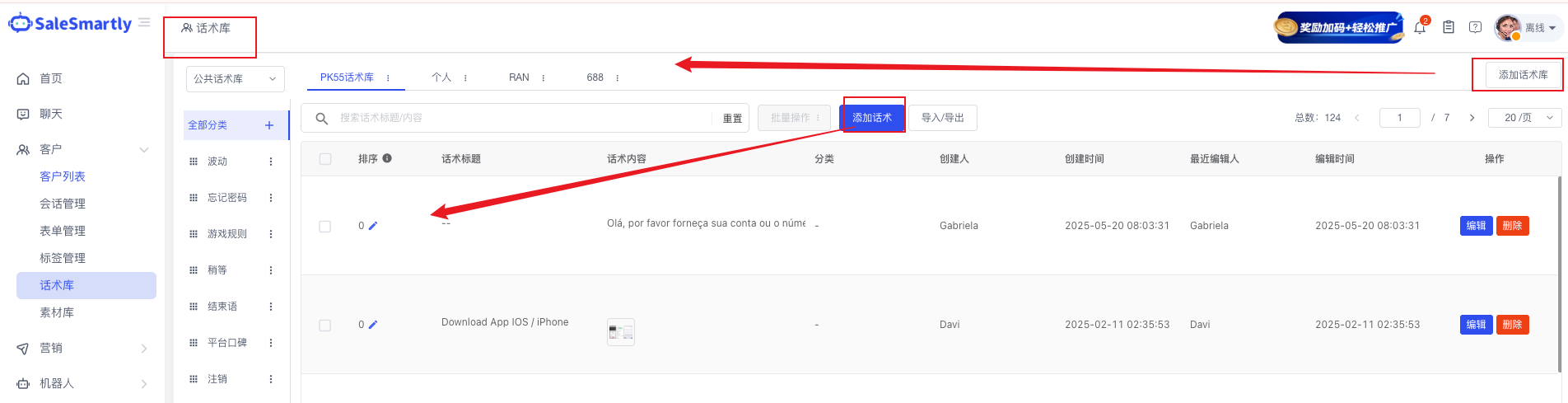
| Sub-item | Purpose |
|---|---|
| Public Script Library | Add Script Libraries to add scripts; within each Script Library, scripts can be added and each required script can be categorized |
| Private Script Library | The personal script storage of a CS agent |
| Add Script Library | Used to add the configuration of a library |
| Add Script | Specific scripts can be added to each Script Library |
How to use: During a conversation, click "Quick Reply" at the bottom to pop up the quick reply window.
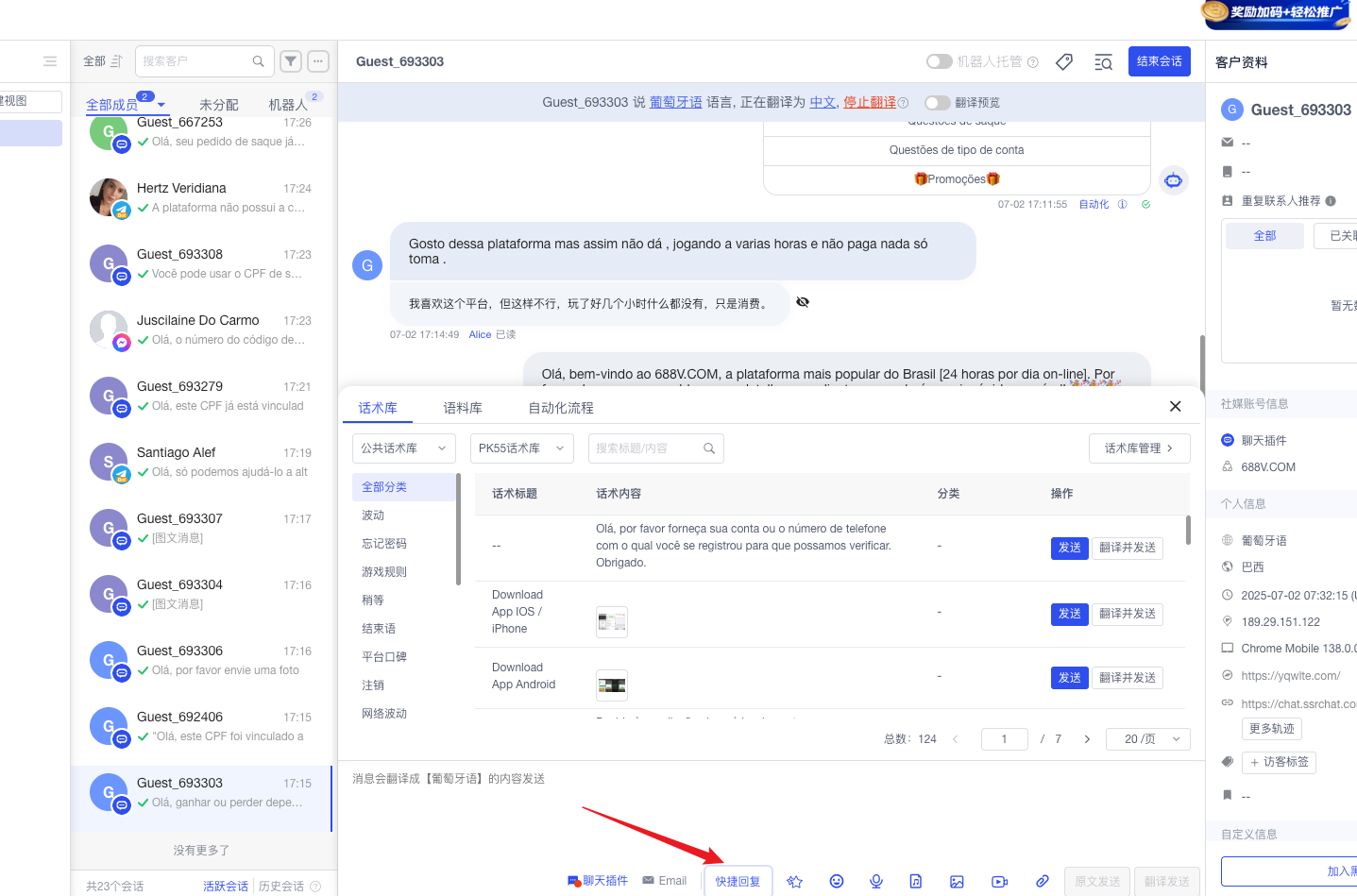
📌 Related Document: For complete script content, see 01-CS Script Library
3.6 Material Library¶
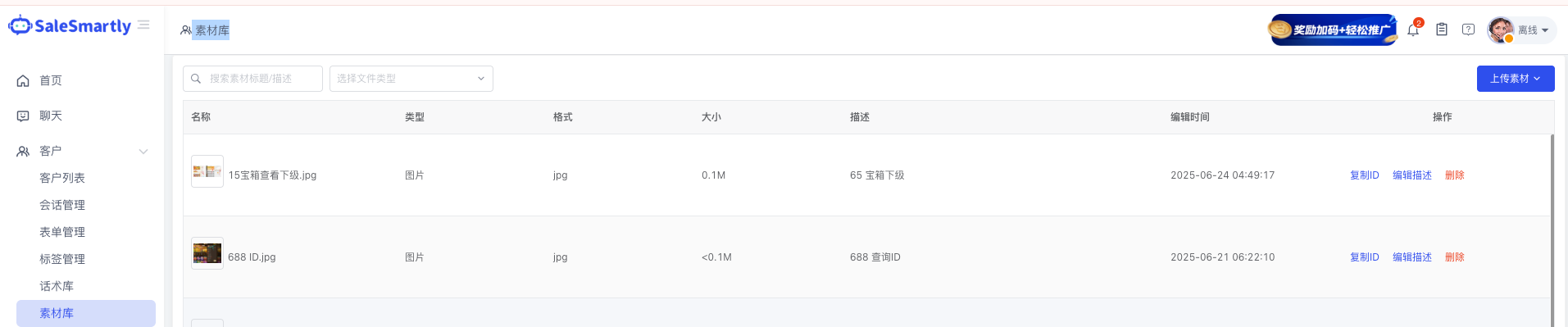
Used to upload required materials such as images, videos, audio, and attachments.
📘 Source: Compiled by Noah (xmind · Customers)
4. Marketing¶
4.1 Bulk Messaging¶
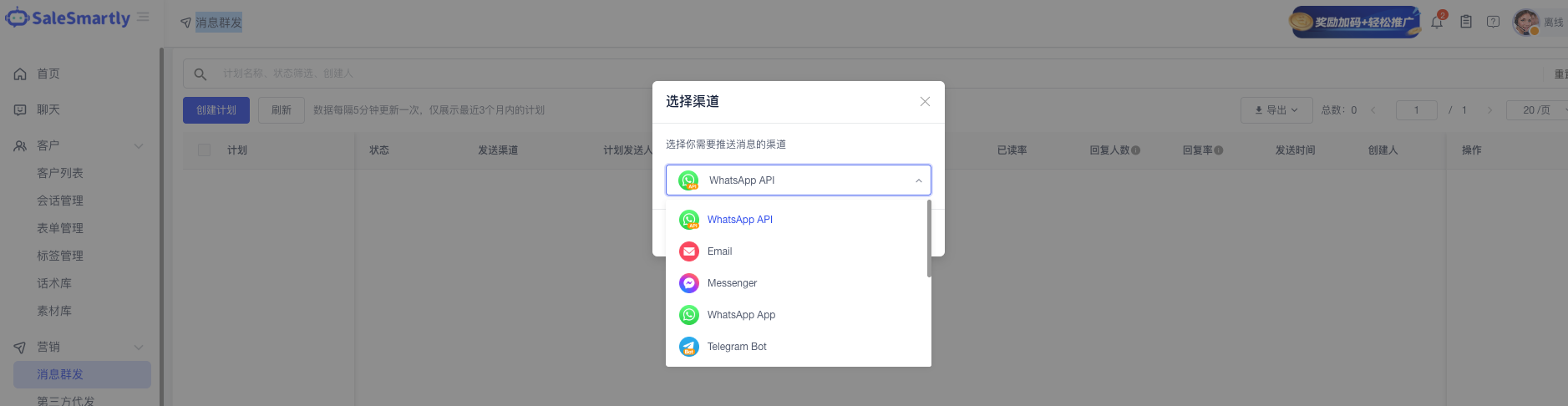
Used to create channels for marketing campaigns, e.g.: - WhatsApp API - Email - Messenger - WhatsApp APP - Telegram Bot
Core capabilities: - Send marketing messages to visitors who have already contacted CS - Ability to filter visitors - On this page, once a marketing campaign has been confirmed and sent, related information can be queried
Operation flow: Select the social media channel to be used for promotion and click "Confirm" to set up.
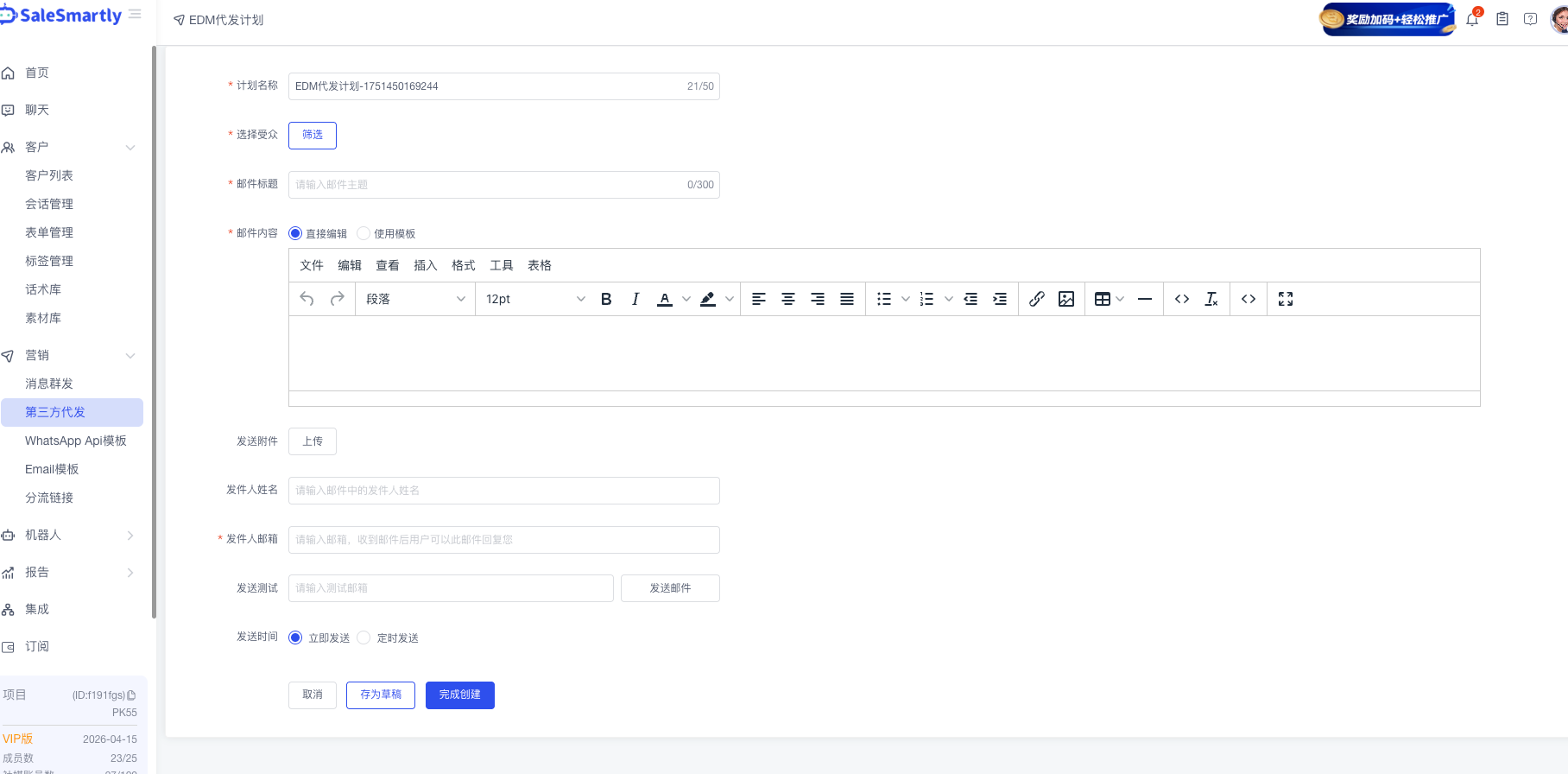
4.2 Third-party Sending¶
Used to create email third-party sending services.
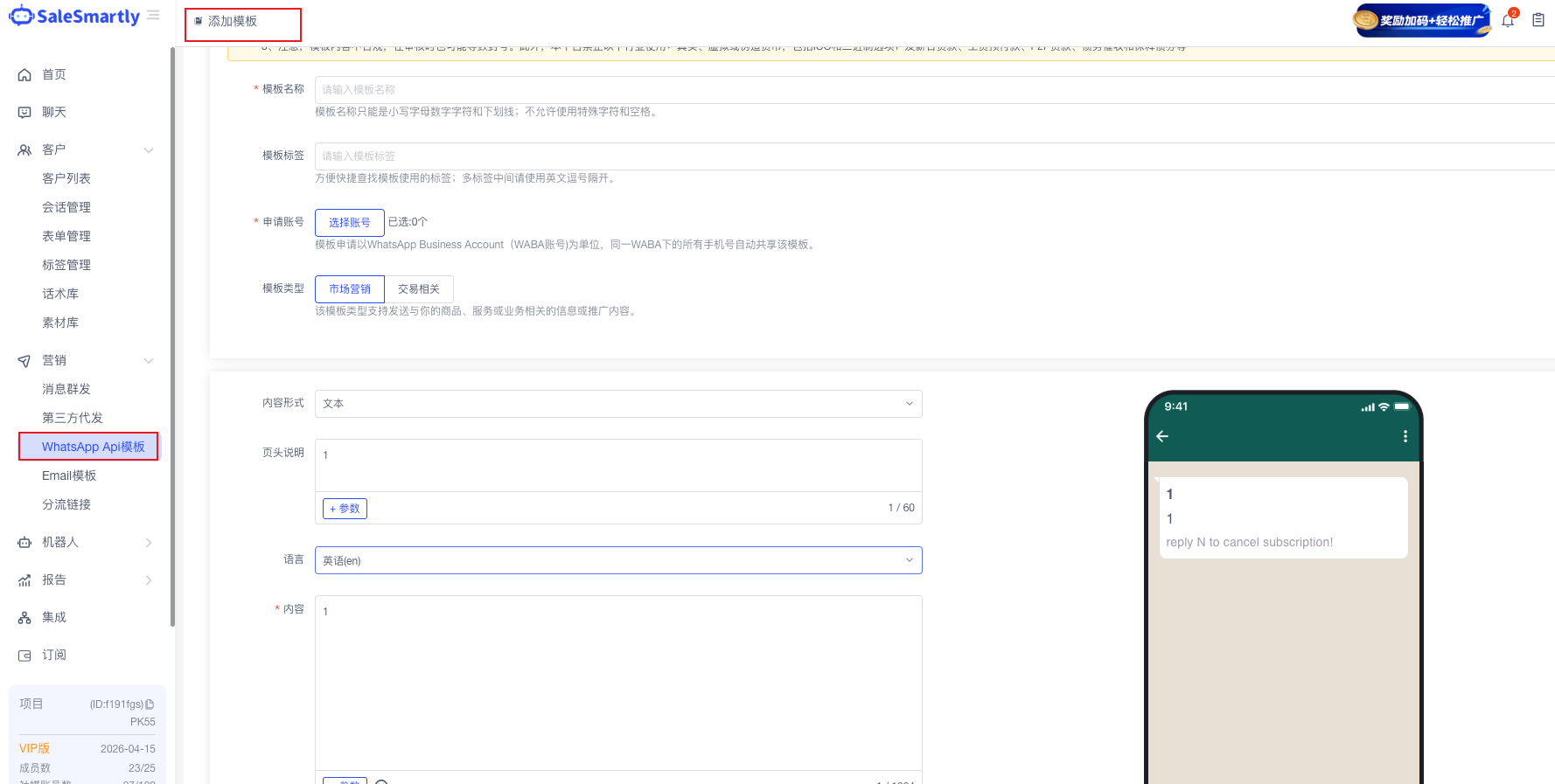
4.3 WhatsApp API Templates¶
Used to create WhatsApp API templates for use in subsequent marketing campaigns. Click "Add Template" to create a new template.
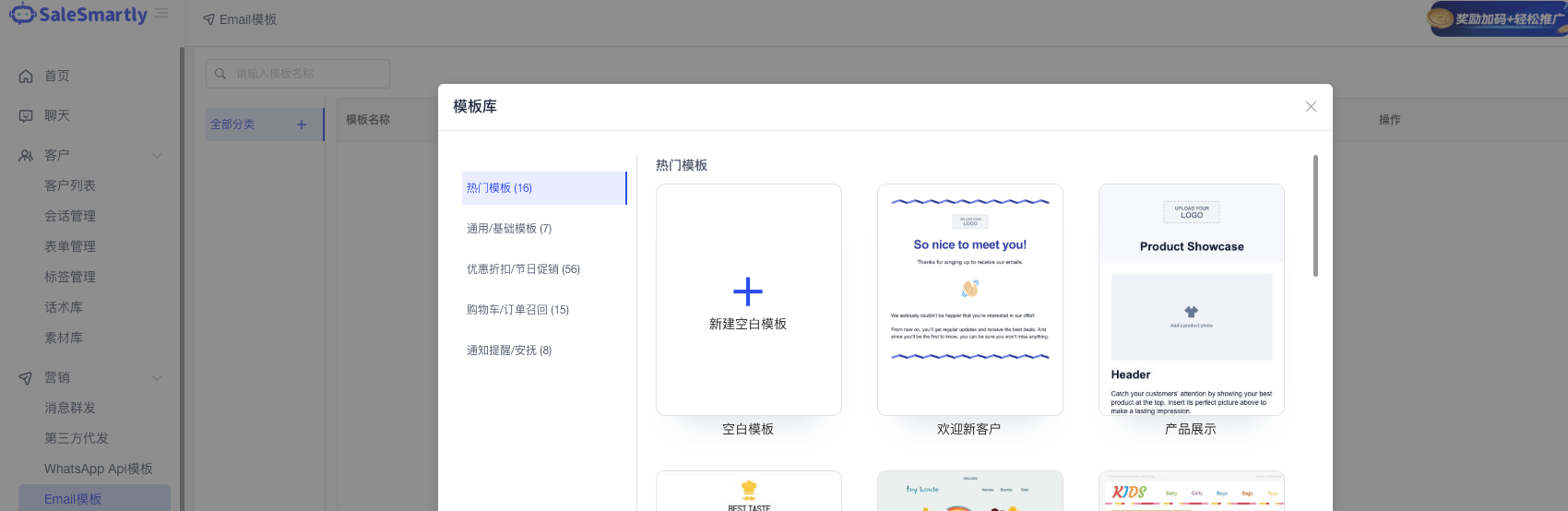
4.4 Email Templates¶
Used to create Email templates for use in subsequent marketing campaigns. Click "Add Template" to create a new template.
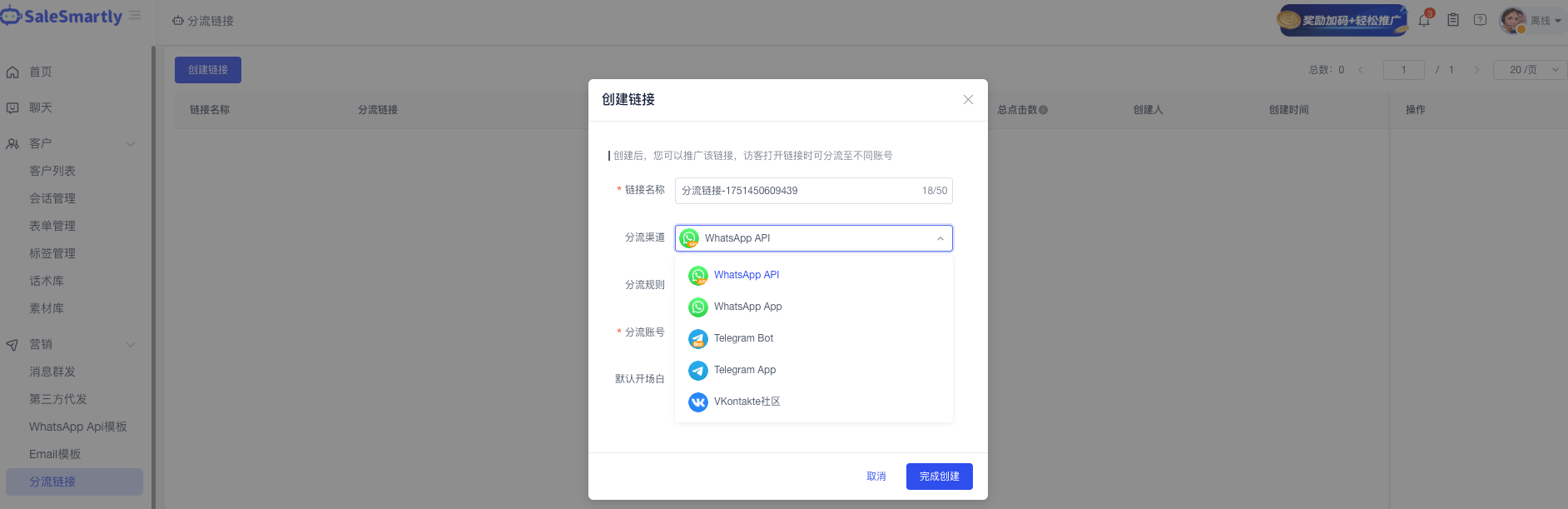
4.5 Distribution Link¶
Used to create and promote distribution links to WhatsApp private domain and Telegram Bot user groups. Click "Create Link" to proceed.
📘 Source: Compiled by Noah (xmind · Marketing)
5. Bots¶
5.1 AI Bot¶
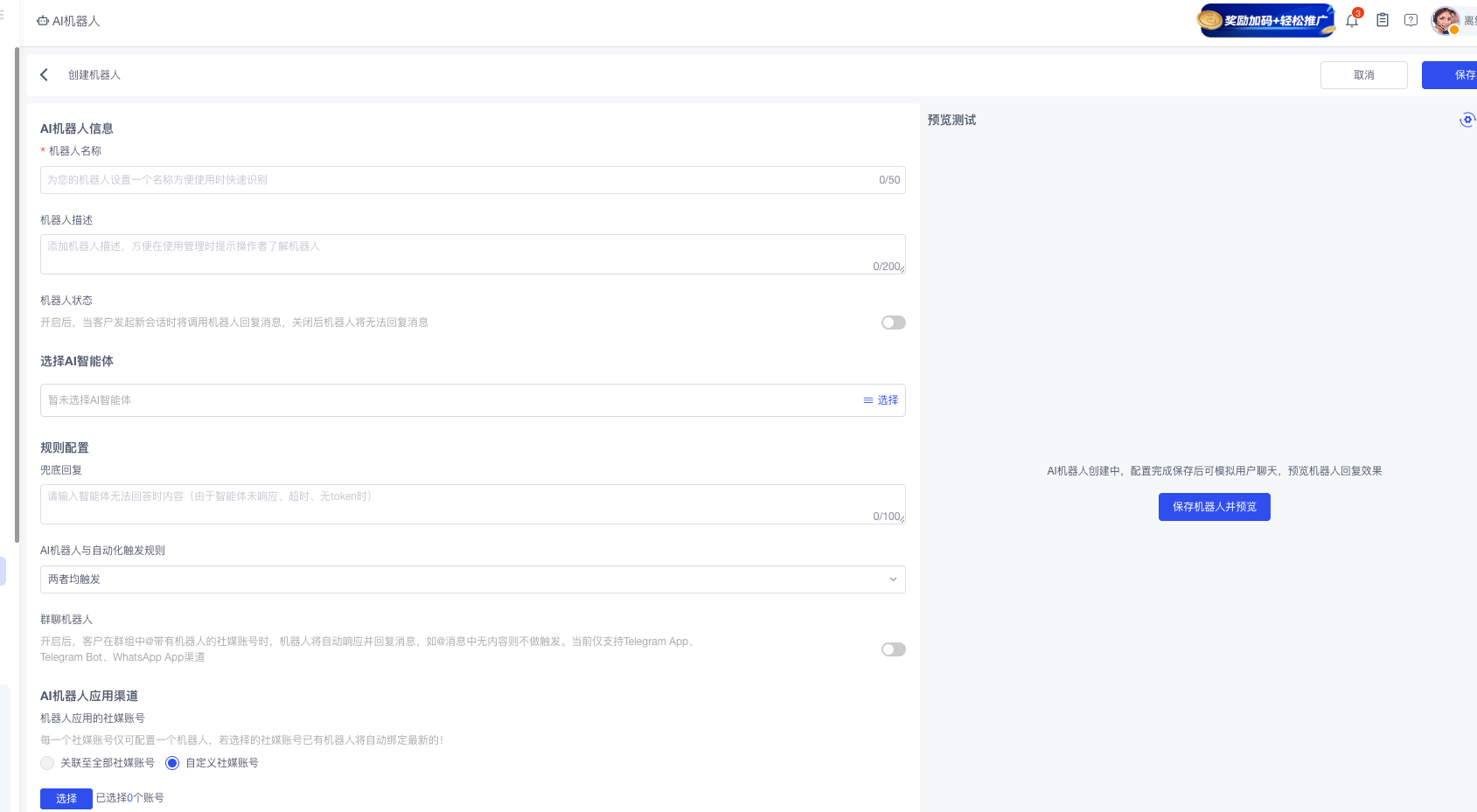
Used to create AI bots, currently only available for Telegram. Click "Create Bot" to start.
5.2 Automated Workflow¶
Configures the workflow when a member clicks the chat window.
Typical scenario: When a member contacts CS by clicking the chat window, they are assigned to online CS agents in sequence, or quick-reply buttons can be configured.
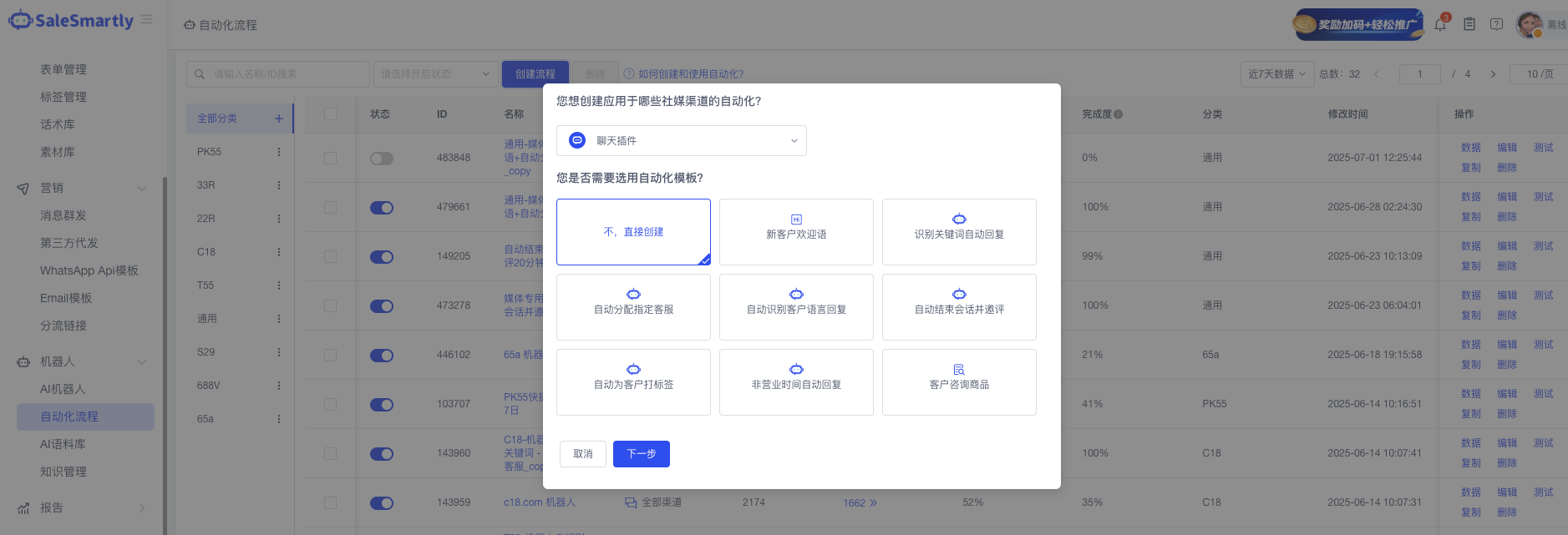
5.2.1 Three Configuration Methods for Automated Workflows¶
A. Direct CS Agent Assignment from Social Media¶
1. Trigger (content can be configured as needed)
        │
        ▼
2. Configure the first message after triggering (welcome message)
        │
        ▼
3. Assign to CS agent
B. Bot Button Configuration¶
1. Configure trigger time
        │
        ▼
2. Design the buttons to be displayed after triggering
        │
        ▼
3. Connect each designed quick-reply button to the next action
        │
        ▼
4. Each downstream action requires a **Call CS Agent button** and create an online CS agent assignment
        │
        ▼
5. Between each connection to the next step, a **delay/wait** can be configured to make loading smoother
C. Auto-end Session¶
1. Configure how long until the session auto-ends (when the member does not reply)
        │
        ▼
2. Configure the closing message
        │
        ▼
3. Invite rating
        │
        ▼
4. End session
5.3 AI Corpus Library¶
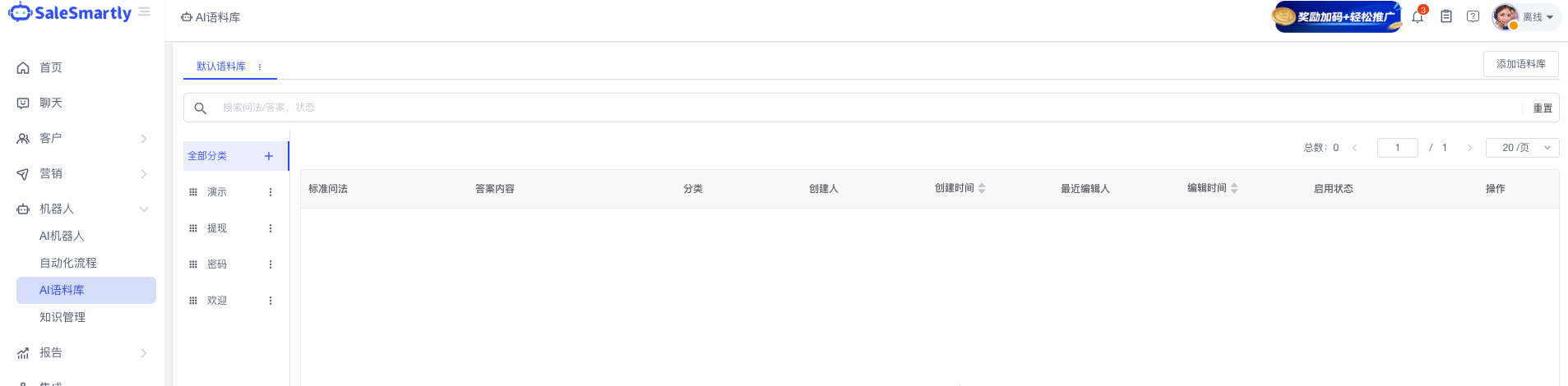
Used to create AI replies. When related question patterns are matched, automatic replies are triggered. Used in CS conversations to quickly respond to members.
Operation: On this page, click "Add Corpus" in the upper-left corner.
📘 Source: Compiled by Noah (xmind · Bots)
6. Reports¶
6.1 Channel Analysis¶
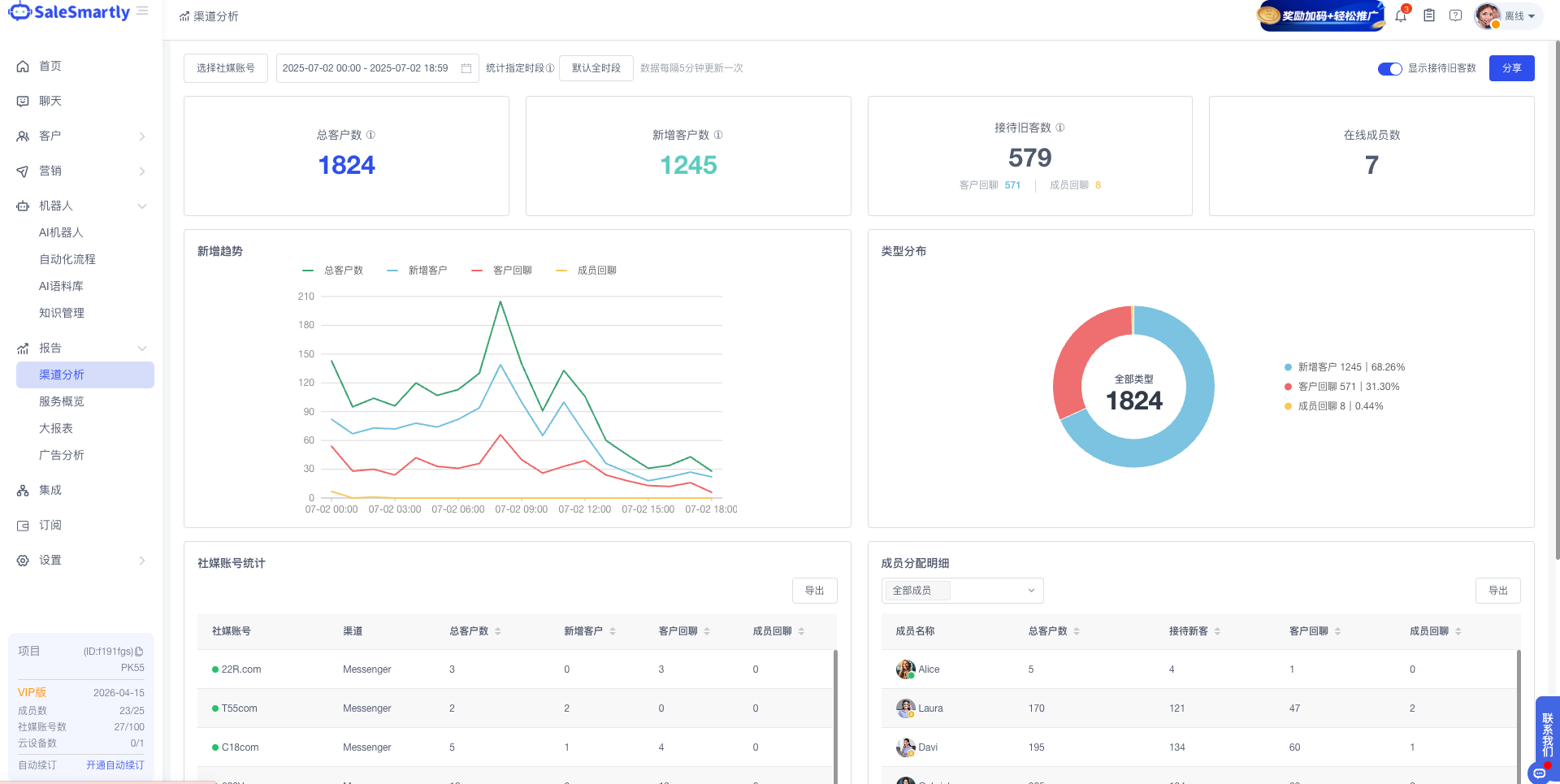
Analyzes CS data, allowing you to query: - Total customers - New customers - Returning customers - CS Agent Connection Statistics - Which social media generated the connection
6.2 Service Overview¶
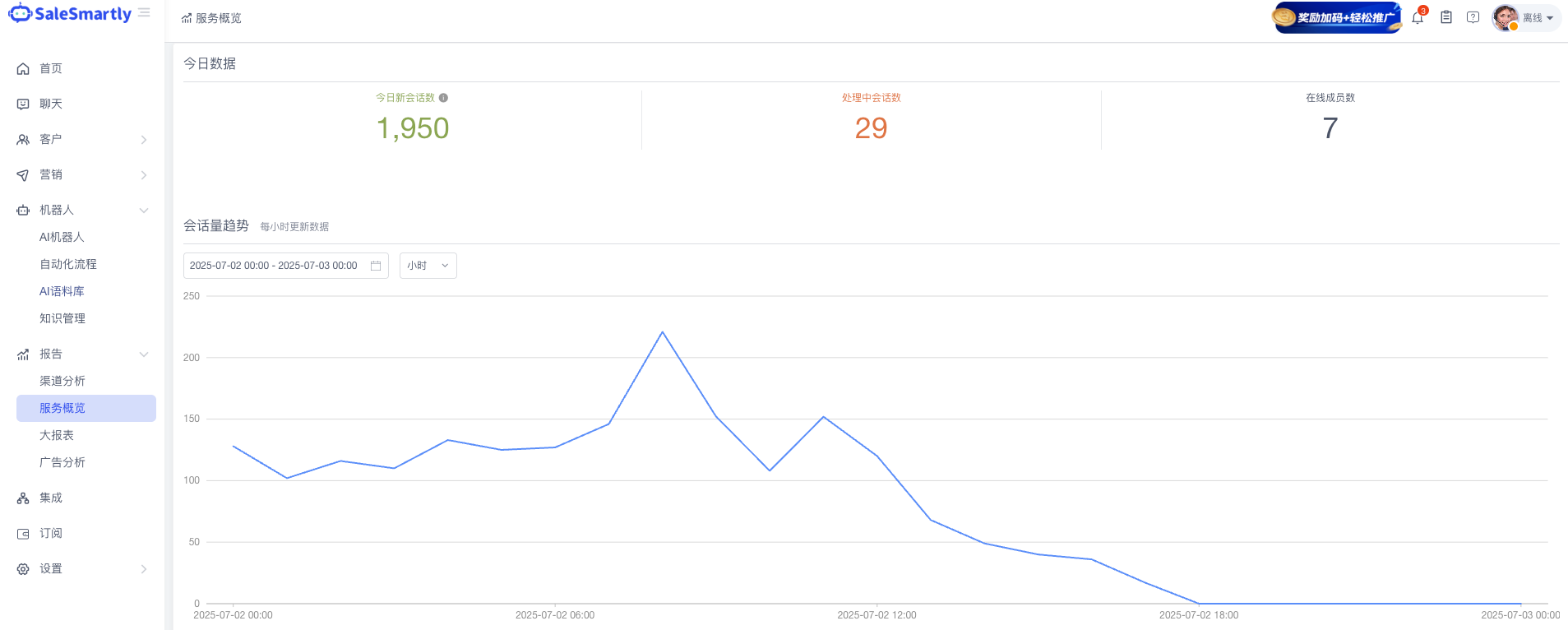
Used to query service data per hour or per day for the current day.
6.3 Master Report¶
Used to query CS service volume and service quality. The report can show in detail: - CS service volume - Service quality - Session duration - Message volume - And more
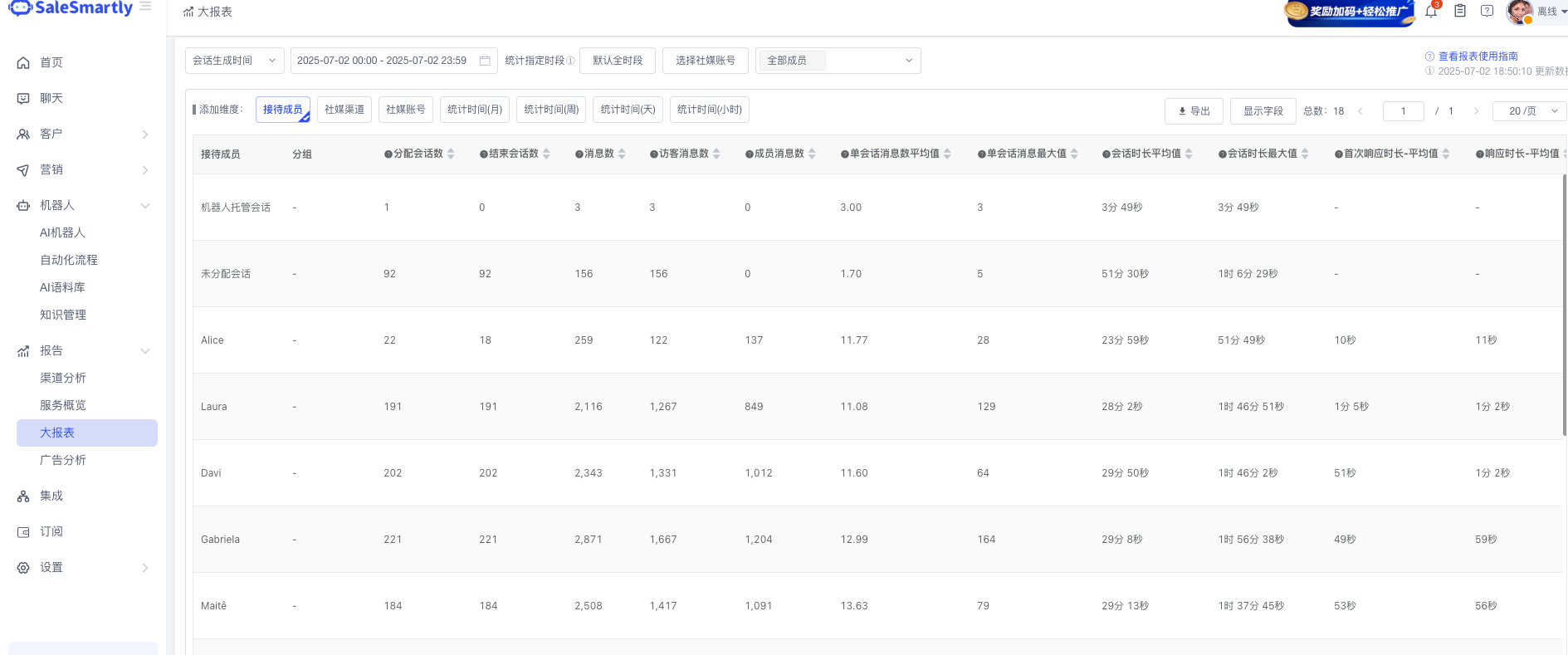
📌 Related Document: For the QC and performance management process of the CS Management Specialist, see 04-Remote CS Management Specialist Work Guide §7 QC & Performance Management
6.4 Ad Analysis¶
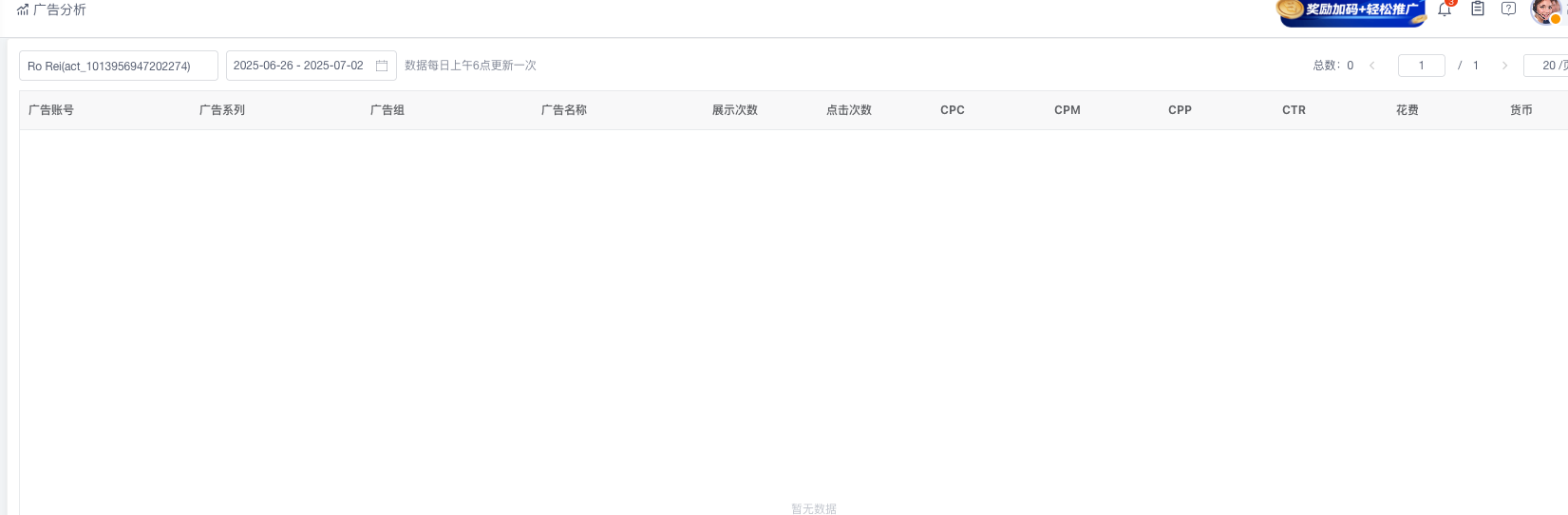
Used to view and analyze the statistical data of ads that have been launched or taken down.
📘 Source: Compiled by Noah (xmind · Reports)
7. Integration¶
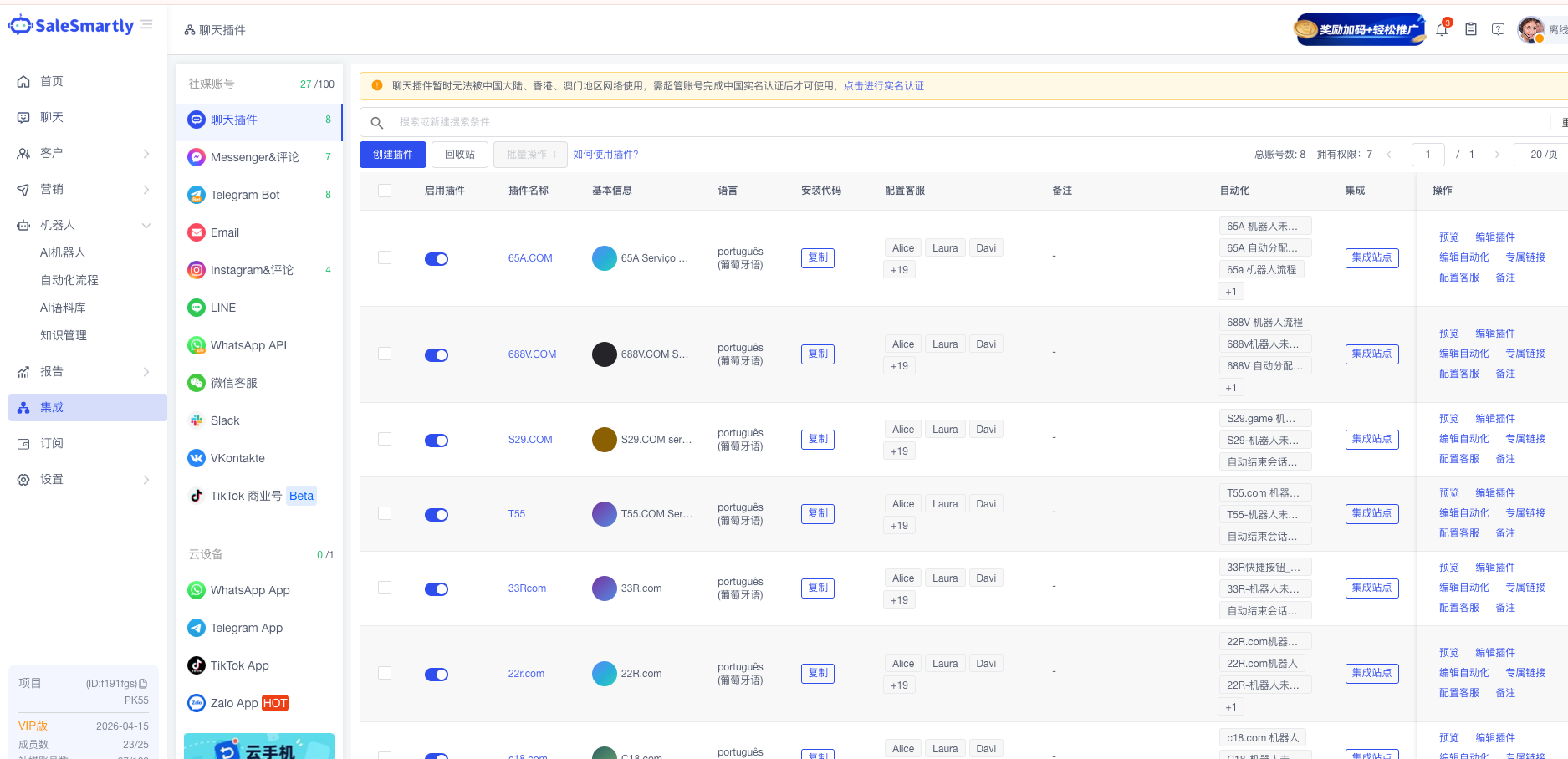
The Integration module is used to configure social media chats for the CS backend.
7.1 Chat Plugin¶
7.1.1 Create Plugin¶
| Step | Content |
|---|---|
| Preview | After configuring the plugin, you can preview to see if you are satisfied |
| Edit Plugin | Configure the corresponding chat window (includes Style Settings / Advanced Devices / Entry Integration) |
| Entry Integration | Select the bound social media and enable it; enable the corresponding social media for the corresponding brand and select the corresponding social media account |
| Edit Automation | Select the configured Automated Workflow (the automation must be configured first before adding) |
| Dedicated Link | This link is standalone — it can be used to enter the CS channel without logging in or going to the platform |
| Configure CS Agent | Add when a new CS agent has already been created |
7.2 Facebook¶
You must first log in to a Facebook account to set up FB authorization, links, and obtain the main API; all configured FB accounts can be queried under "Facebook Accounts".
📎 Detailed authorization method: https://help.salesmartly.com/docs/integration-of-facebook
7.2.1 Facebook Operation Buttons¶
| Button | Purpose |
|---|---|
| Configure CS Agent | Add when a new CS agent has already been created |
| Set Welcome Message | Optional (because the Automated Workflow has already been configured) |
| Edit Automation | Select the configured Automated Workflow (the automation must be configured first before adding) |
| Sync Contacts | Sync the contacts from the Facebook page to the frontend |
| Generate Sessions | Generate historical sessions of the page or all historical sessions |
| Sync Tags | Sync the conversations already tagged on Facebook to the frontend |
7.3 Telegram¶
Add the bot first by following the steps.
7.3.1 Telegram Operation Buttons¶
| Button | Purpose |
|---|---|
| Edit Automation | Select the configured Automated Workflow (the automation must be configured first before adding) |
| Configure CS Agent | Add when a new CS agent has already been created |
7.4 Instagram¶
You must first log in to a Facebook account, then follow the steps to configure.
📎 Setup steps: https://help.salesmartly.com/docs/integrate-instagram
7.4.1 Instagram Operation Buttons¶
| Button | Purpose |
|---|---|
| Edit Automation | Select the configured Automated Workflow |
| Sync Contacts | Sync the contacts from the Instagram page to the frontend |
| Generate Sessions | Generate the page's historical sessions or all historical sessions |
| Configure CS Agent | Add when a new CS agent has already been created |
📘 Source: Compiled by Noah (xmind · Integration)
8. Settings¶
8.1 App Store¶
Used to purchase additional plugins as needed.
8.2 Project Management¶
8.2.1 Chat Settings¶
Used to configure the CS agent who is assigned the session.
8.2.2 Chat Tool Settings¶
Configure according to the screenshot.
8.2.3 Project Settings¶
Configure according to the screenshot.
8.3 Team Management¶
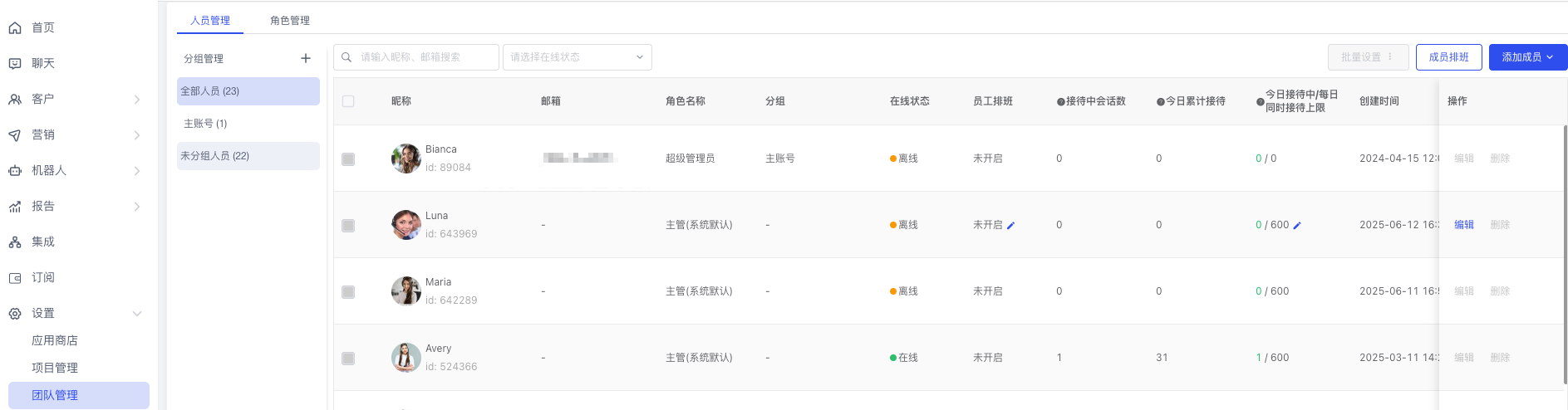
8.3.1 Personnel Management¶
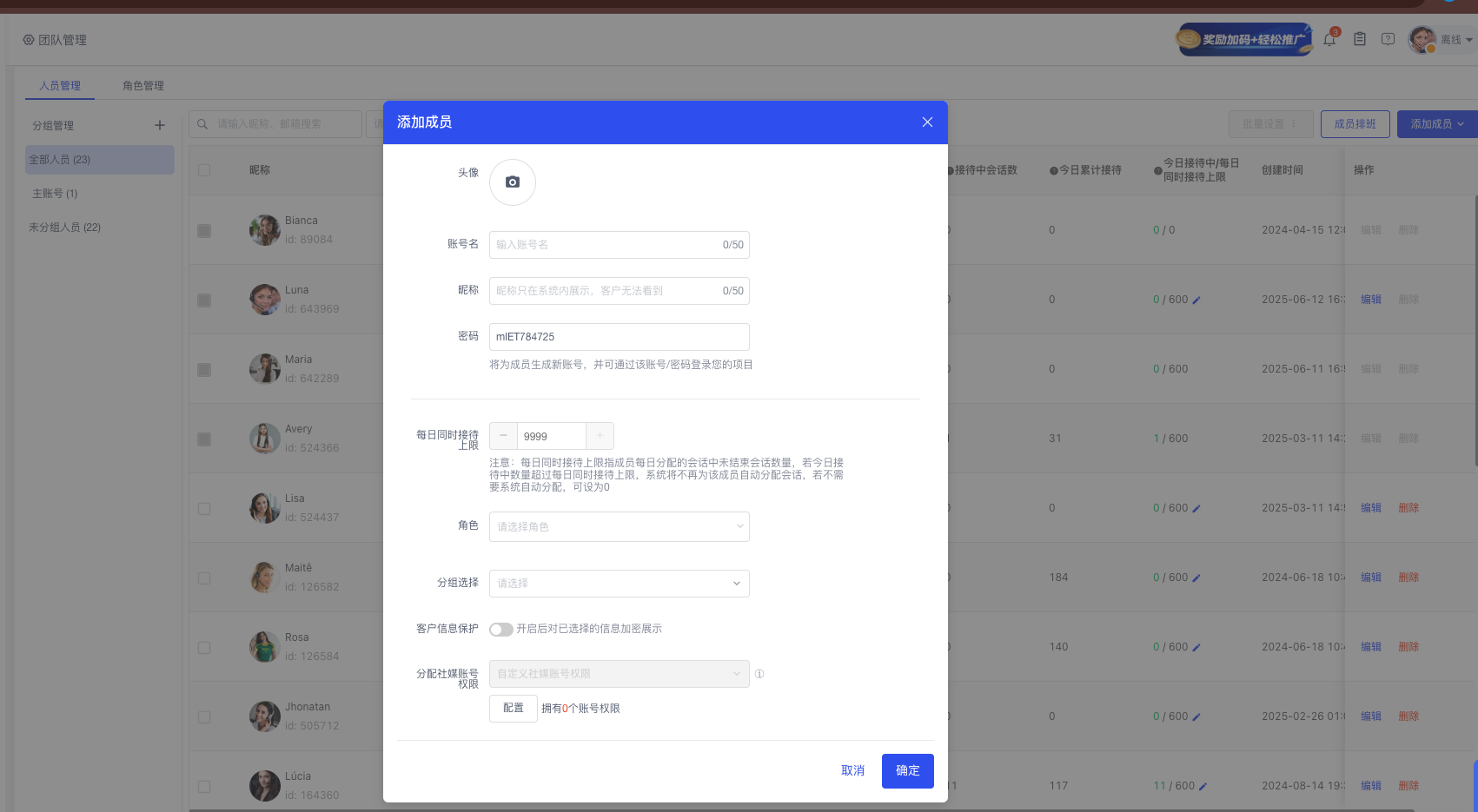
User management, status query, creation, and team members.
Operation: Click "Add" in the upper-right corner (avatar required and nickname must be filled in).
8.3.2 Role Management¶
Add the role configuration for each CS channel.
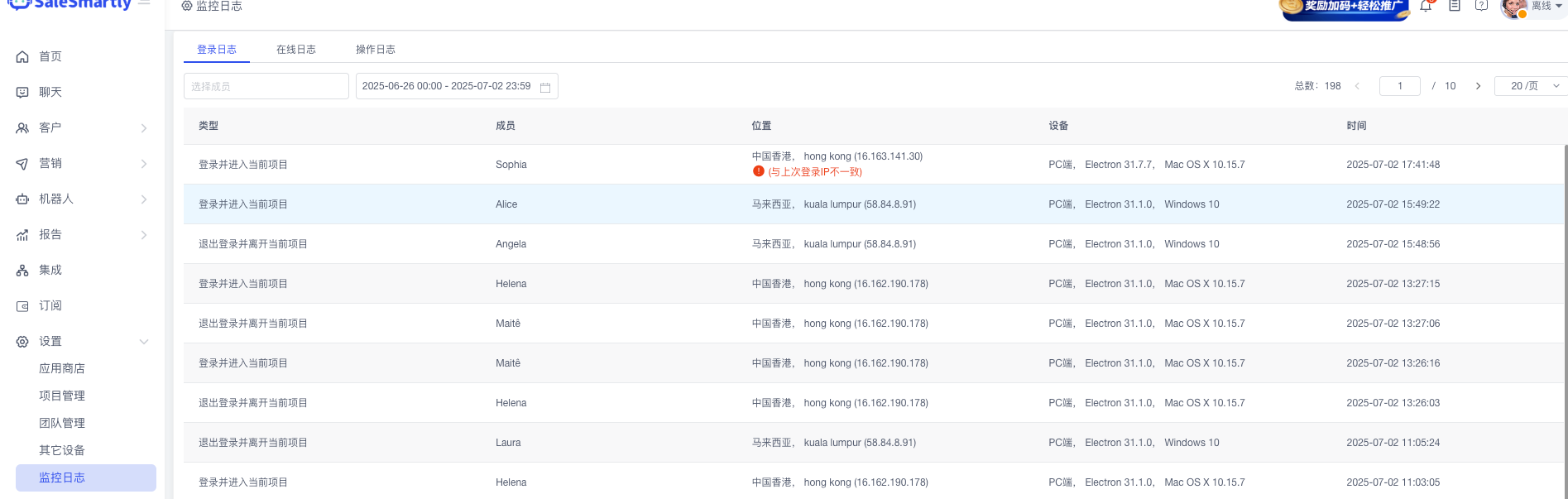
8.4 Monitoring Log¶
Monitors each CS agent's: - "Login Log" - "Online Log" - "Operation Log"
📘 Source: Compiled by Noah (xmind · Settings)
Cross References¶
- 01-CS Script Library — Standard script content (used for Salesmartly Script Library configuration)
- 02-Remote CS Workflow SOP — Detailed SOP for deposits/withdrawals/account operations
- 03-Remote CS Management Standards — WFH 10-step daily process including §4 Salesmartly Agent perspective onboarding
- 04-Remote CS Management Specialist Work Guide — §7 QC & Performance Management (depends on Master Report data)
- 05-Remote CS Pre-employment Training Guide — §4 Salesmartly Operation Onboarding (CS Agent perspective)
- 03-Deputy Lead Work Guide §4.12.2 — Salesmartly CS Automated Workflow Configuration (used when opening a new brand)